Two things usually cause a Windows 11 update to undo itself with 0x800f0922: the PC couldn't reach the update servers, often because of a VPN, or the small partition Windows starts from is out of room.
The rollback shows up partway through the restart as "Something didn't go as planned, undoing changes".
Turn off any VPN and retry first, since that takes a minute. If the update rolls back again, check that startup partition in Disk Management before you reach for bigger repairs.
In this guide
1. Find the code and when it fails
Open Settings > Windows Update > Update history. Under Quality Updates, the failed one shows Failed to install, the date and the code, so you can confirm it's 0x800f0922 and not a different error.
Event Viewer keeps the same record. Under Windows Logs > System, the entry reads "Installation Failure: Windows failed to install the following update with error 0x800F0922" followed by the update's name and KB number.
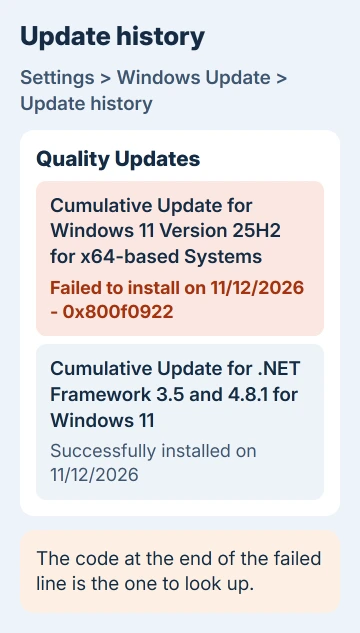
When it fails matters. An update that installs, restarts, climbs through the percentages and then undoes itself is failing while it writes its final changes, which is where a cramped startup partition bites.
One that never gets past downloading points back at the connection.
2. Turn off the VPN and make some room
Disconnect your VPN and quit its app, including any work VPN that starts with Windows. Microsoft's upgrade errors page says 0x800F0922 might mean the PC couldn't reach the update servers, and a VPN is the first thing it names.
Then check your free space in Settings > System > Storage. A full version upgrade needs at least 20 GB free on a 64-bit PC, so when the storage bar looks close to full, clear Downloads and old files with Cleanup recommendations.
Head to Windows Update again and press Retry. If the update installs this time, you're done; if it rolls back at the same stage of the restart, check the partition next.
3. Look at the startup partition (it changes nothing)
Right-click the Start button and pick Disk Management. On the disk that holds C:, usually Disk 0, look for a small Healthy (EFI System Partition) without a drive letter, next to the Windows partition and a Recovery partition.
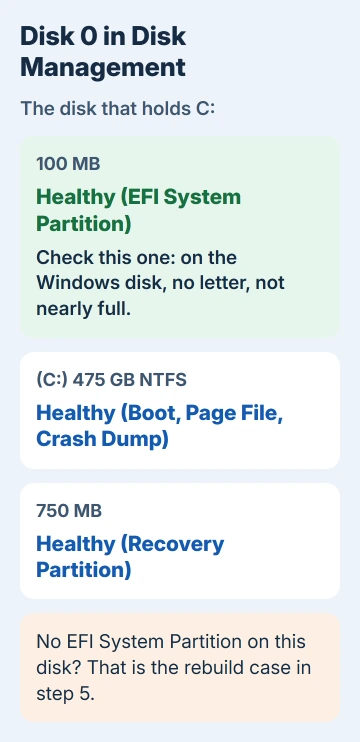
The top half of the window lists the same partitions with Capacity and Free Space columns. You're checking three things: it exists on the Windows disk, it's a sensible size, and it isn't nearly full.
It should be at least 200 MB on most drives, or 300 MB on drives with 4K sectors, and formatted FAT32. Free space matters most: with only a few MB left, an update has nowhere to write its new startup files.
A PC that starts in legacy BIOS mode has a System Reserved partition instead, and the same check applies, because a full System Reserved partition can cause this error too.
If the partition is there with room to spare, go to step 4. If it's nearly full, or the Windows disk has no EFI System Partition at all, go to step 5.
4. Reinstall Windows 11 through Windows Update
With a healthy partition, the next move is to repair Windows itself. In Settings > System > Recovery, the Reinstall now button downloads a fresh copy of the version you're on and installs it over the top.
Choose whether a restart can happen automatically when it finishes, then select OK. Your programs, files and settings all stay.
Once it's done, open Windows Update again and install the update that kept failing. If you don't see the button, your employer or school might manage the PC, or it hasn't yet installed the February 2024 optional update.
5. Repair or rebuild the startup partition
Back up first: a mistake on this partition can stop the PC from starting, so put copies of your files on another drive before you change anything.
A nearly full partition needs more room. A third-party partition tool can enlarge it by borrowing space from the partition next to it, and if that sounds risky, a repair shop can do it quickly.
In a forum thread about this exact rollback (Windows 11 Home on a Ryzen 5 5600X desktop), the owner posted a Disk Management screenshot, and a volunteer moderator walked them through building a new EFI partition on the Windows disk.
If your Windows disk has no EFI System Partition either, you can do the same.
Only do this on a GPT disk: right-click the disk's label in Disk Management, choose Properties and check that the Volumes tab says GUID Partition Table (GPT). Then, in an admin Command Prompt, enter each line in turn:
diskpart
select volume C
shrink desired=300
create partition efi size=300
assign letter=R
select volume R
format quick fs=fat32 label=EFI
exit
bcdboot C:\Windows /s R: /f UEFI
The moderator used 150 MB in the thread. I've used 300 because the minimum is 200 MB on most drives, and 300 covers 4K-sector drives too.
Then remove the temporary letter: run diskpart, then select volume R, then remove, then exit, and restart.
The owner reported that the format and the boot files both worked, thanked the moderator and marked the last step as the answer.
If it still undoes itself
Check which code you get now. If it changes to 0x800f0991, that's a different failure with its own commands, and this list of Windows Update codes sorts out the rest.
If it's still 0x800f0922 after all of this, the Get Help app can connect you to Microsoft support. Give them the code, the fact that it fails at the restart, and the size and free space of your EFI partition.
The Short Version
0x800f0922 with Undoing changes means a lost connection or a cramped startup partition. Turn off any VPN, free some space and retry, then check the EFI System Partition in Disk Management.
With a healthy partition, use the Reinstall now button on the Recovery page. A full partition needs enlarging, and a missing one can be rebuilt with diskpart and bcdboot after a backup.
Checked November 19, 2026.