The DirectX setup a game runs on Windows 11 doesn't install DirectX itself. Windows 11 already has DirectX 12; that installer only adds older helper files such as D3DX9, XAudio 2.7 and XInput 1.3, which some games still look for.
When setup stops with an internal system error, the reason is written in C:\Windows\DXError.log. A download problem or one damaged file clears up with Microsoft's full June 2010 package.
If every file fails as damaged, even from a fresh copy, your PC is misreading data. On desktops built around Intel's 13th and 14th Gen Core chips, the processor itself can be to blame.
In this guide
Check what the game is really asking for
Type dxdiag in Start and open it. The System tab shows the DirectX Version, and on a Windows 10 or 11 PC that line reads DirectX 12. It's built into Windows and updated through Windows Update, so no download changes it.
What an older game needs is a set of legacy files that sit alongside DirectX 12. Its error usually names one of them, along the lines of "The program can't start because d3dx9_35.dll is missing from your computer."

Files like that come from the DirectX End-User Runtime. Installing it doesn't change your DirectX version, which is why dxdiag can look perfect while the game still can't find its file.
If the game's next complaint names MSVCP140.dll instead, that's the Visual C++ runtime, a separate install.
1. Use the full June 2010 package
Skip the copy in the game's _CommonRedist folder and the 288 KB web installer. On Microsoft's Download Center, get DirectX End-User Runtimes (June 2010), the full package: directx_Jun2010_redist.exe, version 9.29.1974.1, 95.6 MB.
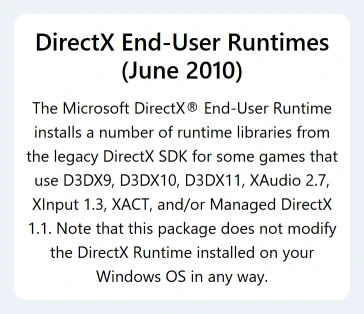
Run it, and when it asks where to put the files, point it at an empty folder such as C:\DXRedist. Then open that folder, right-click DXSETUP.exe and choose Run as administrator.
The web installer downloads the same files while it runs, so a shaky connection can break it. The full package already carries everything it needs.
If Windows asks to turn on .NET Framework 3.5 partway through, say yes; older DirectX setup packages ask for it on Windows 10 and 11.
When setup finishes without an error, launch the game. If setup fails again, the log shows you where.
2. Open DXError.log and read the failing line
The setup error itself points you to DXError.log and DirectX.log in your Windows folder, so open C:\Windows\DXError.log in Notepad. The lines you're after name a failed step and a file.
A line like SetupIterateCabinet() with "(13) - The data is invalid." and "The file may be damaged." means setup couldn't unpack that cabinet file, one of the compressed .cab archives the runtime comes in.
If that file came from a game's own folder, the game's copy may just be bad, and step 1 replaces it.
It's more serious when Microsoft's fresh package fails the same way, on the very first cab, every time. The asker in the forum thread saw exactly that across several clean installs of Windows 11, even with the graphics card taken out.
Files that fresh aren't damaged, so your PC is reading them wrong, and step 4 covers what to do about that.
3. Try compatibility mode for one stubborn game
One owner whose game was missing its X3DAudio files got it running with dxwebsetup.exe in compatibility mode.
Right-click dxwebsetup.exe, choose Properties and open the Compatibility tab. Tick the compatibility mode box, pick Windows XP (Service Pack 3), click OK and run the installer again.
Setup still reported a failure at the end, but it copied the files that game needed. The asker tried the same thing without luck, so it's a way to get one game going rather than a repair.
4. Suspect the processor when every file fails
The asker's PC had an Intel Core i9-13900K. It took about a week of back and forth before Intel agreed it was one of the affected chips and replaced it under warranty.
With the new processor in, the asker's verdict was short: "All of my install and crashing issues have gone away."
Their explanation fits the log: the old chip could no longer calculate hashes reliably (the checksums setup uses to confirm each file is intact), so the check that runs as each cab is unpacked kept failing.
Another owner, with a 14th Gen Core i9-14900 already on a BIOS carrying microcode 0x129 (the processor's own firmware, which ships inside BIOS updates), reported the same DirectX error.
Intel's support article on the problem says it affects some 13th and 14th Gen desktop Core i5, i7 and i9 chips, which it calls Vmin Shift instability.
The fix is the latest BIOS with microcode 0x12F or later plus Intel Default Settings, and affected chips get two extra years of warranty, up to five years from purchase.
So install the newest BIOS for your board or PC model, switch the BIOS to its Intel Default Settings instead of any overclocking preset, and try setup again.
If it still fails on every cab, contact Intel support and ask about a warranty replacement. BIOS updates alone didn't fix it for either owner; for the asker, only the new chip did.
A PC with this problem can throw other hardware errors too, and WHEA_UNCORRECTABLE_ERROR blue screens are one to watch for.
With any other processor, I'd test the memory next, since a bad memory stick can garble unpacked files the same way.
When it still won't install
Don't spend another evening on a clean install. The asker did several, and each one failed the same way until the processor changed.
Take the DXError.log lines and your processor model to whoever can test the hardware: Intel support for a 13th or 14th Gen desktop chip, or your PC maker for anything still under warranty.
The Short Version
Windows 11 already has DirectX 12; games only need the legacy files from the DirectX End-User Runtime. Install the full June 2010 package from Microsoft, extract it, and run DXSETUP.exe as administrator.
If DXError.log shows every cab failing as damaged, even from that fresh copy, look at the hardware. If your PC has one of Intel's 13th or 14th Gen desktop chips, update the BIOS to microcode 0x12F or later and ask Intel about a replacement.
Checked November 19, 2026.