

Windows voice packages can show 0 MB after a failed download, leaving the new voices unavailable even after reopening Settings. Try the language's Text-to-speech download directly.
On Windows 11, a Voice access language download also worked for an owner with this exact problem.
Choose the download for the feature you need: a system reading voice, a Narrator natural voice, or speech recognition. Installing one won't replace the others.
In this guide
1. Download the reading voice from its language options
Open Settings > Time & language > Language & region on Windows 11. Find the language under Preferred languages, select its three-dot menu and choose Language options.
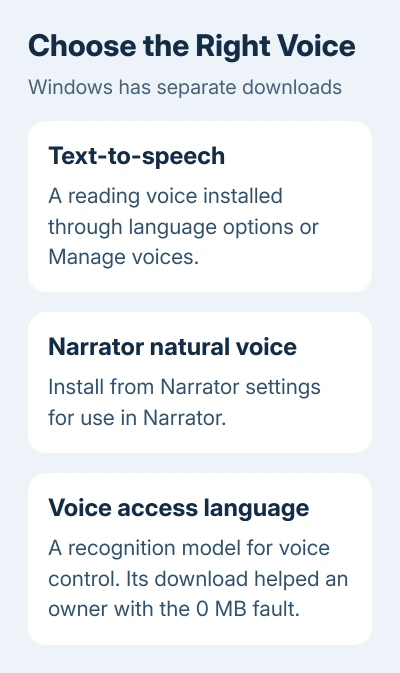
Look under Language features for Text-to-speech and select Download if offered. That is the component that makes Windows speak written text. Speech recognition is for understanding your speech instead.
If the language isn't installed, use Add a language, select it and continue to its feature choices. Include Text-to-speech when available. Adding a reading voice doesn't require switching your Windows display language.
On Windows 10, use Settings > Time & Language > Language, select the preferred language and choose Options. Its available language features have separate download controls too.
Reopen your reading application after the download completes. If the entry returns as 0 MB or fails again, note any error code and continue. Seeing the language in the list isn't enough; you need to be able to select its voice too.
2. Retry Add voices and test the actual voice list
Go to Settings > Time & language > Speech. Under Manage voices, choose Add voices, select the desired language and select Add. Close and reopen Settings if prompted, then give the download time to finish.
Microsoft's supported voices page lists which languages have system text-to-speech voices. A keyboard language being available doesn't mean every speech feature exists for it.
Return to Speech and open the Choose a voice list where offered. Select the new voice and use Preview voice. For Narrator, press Windows + Ctrl + N and check its Choose a voice list.
If the voice previews successfully but one application still can't use it, restart that application and check its own voice menu. The voice may already be installed while your application is still showing its old list.
An Edge-only reading failure needs the separate Read aloud voice checks. Reinstalling Windows voices won't repair every online voice offered inside a browser.
If no system preview works and the package remains at 0 MB, try the owner-confirmed alternative next. Don't keep adding the same language; that clutters the list without fixing the download.
3. Try the Voice access download on Windows 11
One owner fixed the 0 MB fault by downloading a language through Voice access, then returning to the system voice list. Voice access normally downloads files for recognizing your speech; here, it also got the stuck reading voice working.
Open Settings > Accessibility > Speech and turn on Voice access. Its control bar appears along the screen's upper edge. Complete its initial language download if needed to reach its settings.
On the bar, select the Settings gear, then Languages. Choose the language you need from the offered list, accept the terms when prompted and let the download finish. Only supported Voice access languages appear there.
Close Voice access or turn it off again at Settings > Accessibility > Speech. Return to Time & language > Speech, reopen the voice list and test the new language's voice.
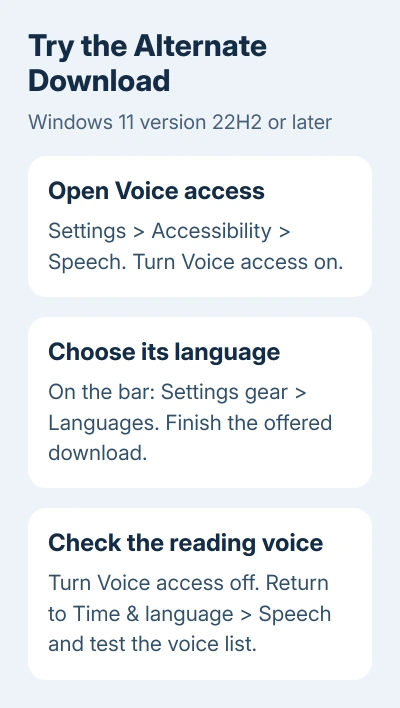
Voice access requires Windows 11, starting with version 22H2. Windows 10 doesn't include Voice access, so use the language-feature download and Windows repair checks instead.
If your language isn't offered, don't substitute another region and assume you've installed the voice you wanted. Continue with the supported system-voice choices and the next checks.
To dictate into a text box, use Windows voice typing, a separate feature. Its Windows + H shortcut doesn't open the Voice access language menu used here.
4. Use Narrator's own installer for natural voices
A missing Narrator natural voice needs its own download. Press Windows + Ctrl + N, find Narrator's voice, then select Add beside Add natural voices. Choose an available voice, preview it and select Install.
After installation, select it in Narrator's Choose a voice menu. These voices are designed for Narrator. Don't judge their installation by whether they appear in every older text-to-speech application.
A natural voice can install successfully while Manage voices still shows a failed system package. Check which voice your application actually needs before removing languages that already work.
I'd get one voice working from start to finish before adding several more. Hearing its preview tells you more than a list of languages whose downloads might not have finished.
5. Repair the download failure when other features fail too
Let Windows finish any pending updates, including their restart. On Windows 11, open Settings > Windows Update. On Windows 10, use Settings > Update & Security > Windows Update. Retry the single language component after the restart.
If Windows updates or other optional components also fail, start an administrator Command Prompt. Run these two commands separately, letting the first finish before entering the second:
DISM.exe /Online /Cleanup-image /Restorehealth
sfc /scannow
The Windows repair procedure explains the results. Restart after repairs, then retry the voice download. An error from DISM needs attention before repeating the same failed installation.
Ask IT whether your managed PC can get optional language components through its update service. Give them the language and the download error rather than changing update policies yourself.
Why does the voice still show 0 MB?
Open Feedback Hub from Start and report the failed voice download. Include your Windows build from winver, language and region, which screen fails and whether other language components download.
Attach the error code or a screenshot of the 0 MB entry. Ask Microsoft support about the language-feature installation failure. Extensive resets failed for some owners, so don't assume a full reinstall is required.
The Short Version
Try the language's Text-to-speech download and test a preview. On Windows 11, the Voice access workaround can help with the 0 MB fault. Narrator natural voices have their own installer. Report persistent failures with the error details.
Checked November 16, 2026.
 If you have any business, I can build it online






