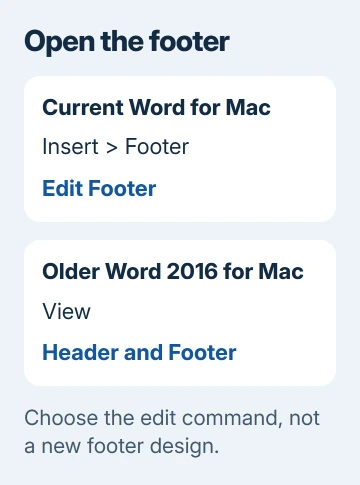
A footer that won't open with a double-click can still be editable through Word's menus. Try Insert > Footer > Edit Footer. Older Word 2016 for Mac also has View > Header and Footer, which bypassed this fault for one owner.
Check whether the menu opens the footer, whether a new document works, and whether it's missing only on certain pages. The right fix depends on those answers.
In this guide
1. Open the footer through Word's menu
Click a page containing the footer you need. Select Insert > Footer > Edit Footer in current Word for Mac. Use Edit Footer rather than a new footer design, which could change the existing layout.
Microsoft's footer editing steps give this menu route as an alternative to double-clicking. The insertion point should move into the footer.
The Header & Footer controls appear while that area is active. Click the text you need to change, make a small edit, then choose Close Header and Footer or press Esc to return to the document body.
For Word 2016 for Mac, try View > Header and Footer. This bypassed unreliable double-clicking in a document created largely with Word 2008 and 2011.
The owner confirmed the menu workaround let them keep updating the file. Use it to finish urgent edits, then check the document itself when the deadline has passed.
2. Compare the problem file with a new document
Use File > New Document to make a blank sample. Add a simple footer with Insert > Footer, close the footer area, then try opening it again. Test both double-clicking and the Edit Footer command.
This checks whether just your document has the fault or Word fails in every file. A new file that opens its footer normally makes an Office reinstall a poor first choice. Save your file under a new name and work in that duplicate.
Save that copy with a distinct name before changing its structure. A report with sections, page numbers and different first-page content can change in several places when you change its footer settings.
In the older report, a new document worked normally. The original file sometimes responded to double-clicking and sometimes didn't. An occasional successful click didn't mean the problem was fixed.
Try the affected document's first page and a later page. Note whether the menu fails everywhere or only in one section. A short list of the affected pages will help if you need to send a sample to support.
3. Check whether Word is showing a different footer
An editable footer can still look empty on the page you're checking. With the footer open, inspect Different First Page and Different Odd & Even Pages on the Header & Footer tab. These options give different pages their own content.
Don't switch them off just to make text appear. Compare pages one and two, then check an odd page against an even page. The footer you expect may belong to another page type.
A first-page footer can be intentionally blank while later pages contain a page number or company details. Edit the footer for the intended page type instead of duplicating its content across all the different areas.
Documents with sections also have Link to Previous. When it's enabled, a section's footer is connected to the preceding section's footer. An edit can therefore affect more pages than the one currently on screen.
For a report whose layout needs separate page groups, review Word's section-break controls before changing that link. A page break alone doesn't create a separately controlled footer.
These settings explain content appearing on the wrong pages. They don't explain a double-click that does nothing. If the area still won't open through a menu, move on to a copy of the file rather than repeatedly changing page options.
4. Keep the original while checking an older document
Check the filename's extension in Finder or Word's save dialog. A file carried forward from an older Word version may still use .doc. Save a separate .docx copy through File > Save As, then reopen that copy and test its footer.
Renaming the extension in Finder won't convert the file. Word needs to save it in the new format. Keep both files and compare their page counts, tables, page numbers and footer text.
I'd try this copy before rebuilding the report. Comparing it against the original is easier than a rushed layout job just before a deadline, especially when the report contains several sections.
If the converted file behaves the same way, continue editing through the menu and send that copy for a document check.
If a new document works but this file doesn't, make a copy, remove its private details and send it to IT. Ask them to check document damage and section structure, with the affected page numbers and exact menu result.
5. Separate an editing fault from a printing fault
Once the footer opens, save your edit and reopen the document after closing it. Check the changed footer text, then inspect File > Print. This checks whether the change survived and where it will print.
If the footer is editable but disappears only in print, use the header and footer printing checks. Repeatedly reopening the footer won't repair a printing option.
If even a fresh document fails, record Word > About Microsoft Word, your macOS version and whether Edit Footer opens the area. Update your supported Word installation, then repeat the blank-document check.
Office 2016 for Mac is an old, unsupported release. If the fault continues there, check which current Office edition your Mac can run. The old build won't receive a new patch.
For a supported release, use Help > Contact Support if available, or Microsoft's Contact Us page. Include a harmless sample, the Word version and the result in a new document.
The Short Version
Open Edit Footer from Insert, or use View > Header and Footer in the older Mac interface. Try a fresh document before an Office repair. Check page-specific footer settings only after the editing area opens.
Checked November 17, 2026.