Missing Word documents in the taskbar's right-click menu usually need Windows recent-item settings or a rebuilt Jump List, rather than a larger Recent Documents count inside Word. Check the Windows switch before clearing any saved history.
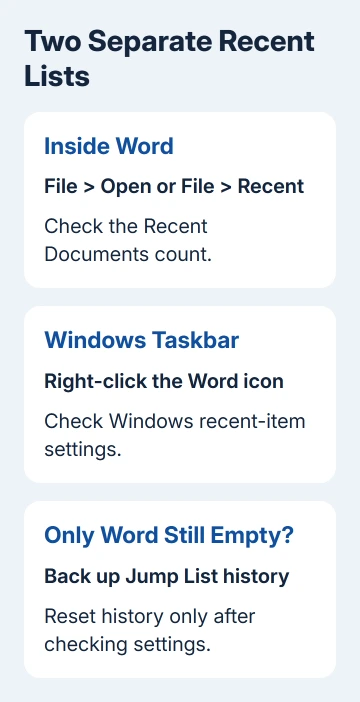
Word's own Recent page and its Windows Jump List are separate lists. If recent files still appear inside Word but not beside its taskbar icon, check the Windows settings first. If both lists are empty, check Word's setting too.
In this guide
1. Turn on recent items in Windows
Right-click Word's taskbar icon and look for recent documents. This menu is called a Jump List. Click the app icon normally to open Word if you need to compare it with the list inside the program.
On Windows 11, open Settings > Personalization > Start. Enable the option for recent files and Jump Lists. Depending on the build, it can mention recommended files in Start, recent files in File Explorer, and items in Jump Lists.
Windows 10 uses Settings > Personalization > Start > Show recently opened items in Jump Lists on Start or the taskbar and in File Explorer Quick Access. Turn that switch on if you want Windows to keep this history.
For Windows 7, right-click Start > Properties > Start Menu. In Privacy, enable Store and display recently opened items in the Start menu and the taskbar, then choose Apply > OK.
Open and save a local Word document that doesn't contain private information, close it, then right-click Word's taskbar icon again. Look for that newly used file rather than expecting Windows to recover an old list that was cleared earlier.
If the switch is locked or changes back, ask IT about the recent-document history policies. Microsoft lists policies that hide recent Jump Lists or clear document history at sign-out.
Your administrator needs to decide whether that workplace policy can change. Don't bypass it with registry changes. If the setting stays enabled and Excel has a working Jump List while Word doesn't, continue with Word's list and shortcut.
2. Restore Word's own list when that is empty too
Open Word and choose File > Open to inspect its Recent files. Word 2010 has File > Recent. A missing entry here doesn't mean its document has been deleted from the saved folder.
A Mac using Office 2016 needs different Recent-list repairs when listed documents fail but their Finder originals still open.
Select File > Options > Advanced. Under Display, set Show this number of Recent Documents to a number greater than zero, such as 15, then confirm with OK.
Find a saved document in Explorer, open it, then check Recent again. When history was previously disabled, documents you open and save start filling the list again; turning the count back on doesn't recreate every old entry.
If an entry points to a moved file, locate that file through File > Open instead. The Word Recent-entry and file-deletion explanation explains why removing a list entry doesn't delete the document.
If the file is genuinely missing from storage, use the missing Word document checks before changing more history settings. Rebuilding the shortcut list won't recover the file itself.
Once Word's list records new documents, compare the taskbar again. A working in-app list with an empty Jump List means raising Word's count further won't address the remaining Windows problem.
3. Replace an obsolete Word taskbar shortcut
Save the open document, then exit Word. Right-click its taskbar icon and choose Unpin from taskbar. Then search Start for your installed Word version and open that application directly.
Right-click the running app's taskbar icon and select Pin to taskbar. Open a local document from that Word window, close the document, and check the new icon's right-click menu.
This is useful after changing Office versions, when a pinned shortcut may still point at a previous installation. A Word symbol alone doesn't tell you which installed version the shortcut opens.
Keep the new shortcut only when it opens the correct Word. If several editions appear in Start, ask IT which should handle your documents rather than pinning another old copy of the program.
On Windows 7, a Start-menu Word pin can be removed and recreated separately. Current Windows Start menus don't reproduce every Windows 7 menu behavior, so compare the taskbar Jump List instead.
If repinning doesn't help and other apps' Jump Lists still work, a damaged saved list is the next possibility. Note the shortcuts you rely on before resetting history.
4. Rebuild saved Jump Lists after the settings checks
In the original Word case, an owner confirmed that resetting AutomaticDestinations restored recent documents. This resets the saved history; it doesn't repair or change the documents themselves.
Close Word and other applications with Jump Lists. Press Windows + R, paste %AppData%\Microsoft\Windows\Recent\AutomaticDestinations, and press Enter. This opens a hidden Windows history folder.
Before changing its contents, copy the files into a separate backup folder and record your pinned documents. Resetting these files can remove recent and pinned entries across applications, so you'll need to add useful pins again.
The historical fix starts with unusually large files of 1 MB or more in this folder. In Explorer, choose Details view. Sort the Size column and look for files meeting that description.
Remove those history files from AutomaticDestinations after backing them up. If there aren't any files that large, the thread's next step is clearing the files in that folder to rebuild the saved lists for the other apps too.
Leave the folder itself in place. Don't delete similarly named files from Documents or from a search result covering the whole drive. Work only in the exact AutomaticDestinations location opened through Run.
Open Word, use a local document, and check its taskbar menu again. New recent items should start collecting as apps are used. Repin important documents afterward; the reset doesn't restore the previous pins for you.
5. Get help when history keeps disappearing
If a list works until you sign out or a cleanup tool runs, ask IT to check history-clearing policy and any privacy-cleanup tool. Note when the list disappears and whether Excel or another app loses its list at the same time.
I'd stop resetting the cache once the same pattern returns. Give IT your Windows build, Word version, the recent-item switch state, and whether Word's own list survives. Ask what might be hiding or clearing Jump List history.
The Short Version
Enable Windows recent items, check Word's own Recent count, and recreate an obsolete taskbar pin. Back up AutomaticDestinations before using the history reset, since recent entries and document pins can be lost across apps.
Checked November 16, 2026.
 If you have any business, I can build it online