Spaces that appear only after the next letter can point to the paragraph you're editing. Try replacing that paragraph in a saved copy. Show formatting marks too, so you can preserve any section break beside the text.
The original reports describe the cursor staying beside the last word even after several presses. Other owners restored normal typing by rebuilding only the affected paragraph. Check that paragraph before changing the whole document.
In this guide
1. Show the spaces Word has actually recorded
Open the affected document and select Home > Show/Hide in the Paragraph group. Its button uses the paragraph-mark symbol. On Windows, Ctrl + Shift + 8 toggles the same display.
Type a word, press Space once, then type another letter. With formatting marks visible, spaces normally show as dots between words. These marks help you see what Word stored; they don't add printed dots to the document.
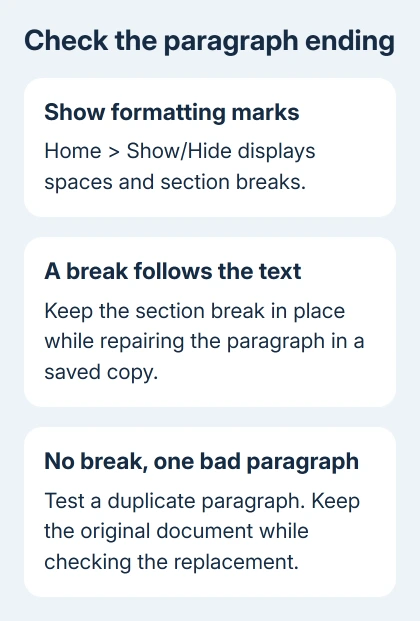
If the expected spaces appear when the next letter arrives, stop pressing Space repeatedly to push the cursor forward. Those extra presses can become multiple real spaces in the sentence once the display catches up.
Microsoft's formatting-mark controls also let you keep individual marks visible under File > Options > Display. Use the temporary Home button first if you only need this check.
If dots between words are the only complaint, turn off Show/Hide after checking. Visible space marks and delayed cursor movement are different symptoms. The paragraph checks here address the delayed movement.
2. Check whether a section break follows the text
With the marks visible, look immediately after the text for a labeled Section Break. This boundary separates parts of a document that can have their own layout, such as different margins or columns.
Keep an unchanged document copy before editing near that boundary. Note whether the affected paragraph sits immediately before it, since you'll want to preserve the break when replacing the paragraph's text.
The old discussion suggested a blank paragraph before a section break. That answer was marked accepted, but the replies don't confirm it worked. Replacing the paragraph, as in the next section, has clearer owner reports of success.
If the marks show no section break, continue with the same paragraph comparison. That repair works without adding a section break. Replace the text while keeping any existing section break in place.
3. Rebuild only the affected paragraph
Click in another ordinary body paragraph and type a short test phrase, then undo the test. If spaces work there, focus on the original paragraph or its position in the document. Word isn't failing every time you type a space.
In your working copy, paste a duplicate of the affected paragraph into a new paragraph nearby. Check its words, punctuation and links. Test spaces in the replacement before removing the faulty version.
One owner restored typing by duplicating the last paragraph and removing the faulty copy. Another removed its formatting through Notepad, then pasted the text back. That's why I'd repair the paragraph first.
Try the duplicate before Notepad. Notepad keeps only plain text, so formatting and embedded objects won't survive that route. For fields, citations or special layouts, use the duplicate document and review the replacement closely.
After the replacement behaves normally, apply the intended paragraph style again if necessary. Check the surrounding text too. Make sure the cursor moves properly and any footnote references you need are still there.
4. Keep section formatting and paragraph spacing separate
Don't delete a section break simply because you can see it. Removing a break merges the sections and applies the formatting of the section that followed it. That can change page orientation, margins, columns or other section settings.
The section-break explanation describes this effect. Adding a paragraph before a break and deleting the break are different operations, even if both change where the cursor sits.
If the problem is large gaps between lines rather than invisible spaces after words, use the Word line-spacing controls. Paragraph spacing won't repair a cursor that refuses to advance after a single Space press.
If an unwanted blank page appears after editing the break, use the Word blank-page checks to identify its cause. Keep the layout marks visible while comparing the changed document with your saved copy.
5. Check the keyboard and Word when every paragraph fails
Type a short sentence with spaces in Notepad or another plain text field. If the spacebar fails there too, check the keyboard connection or the laptop keyboard. A document's section break can't explain a missing key across unrelated apps.
If spaces work outside Word, create a new blank Word document and repeat the test. If the new document works, focus on the original file. If several unrelated documents fail, check Word itself next.
Record the version under File > Account > About Word. For a supported Windows Office installation, use Update Options > Update Now on the Account page and reopen Word after updating. Ask IT about updates on a managed computer.
The thread dates to Word 2013. Its Disable hardware graphics acceleration suggestion had no confirmed success in these replies. Don't hunt for that old checkbox when your current version doesn't offer it.
When typing still behaves incorrectly
Send your IT desk or Word support a short copy that reproduces the problem without private text. Include your Word build and what happened when you typed beside a break, in another paragraph and in an empty document.
For one failing file, ask support to check paragraph and section formatting. If spaces fail in Notepad too, take that keyboard result to the laptop maker. Keep the intact original while support checks the example.
The Short Version
Display the formatting marks, then look for a nearby section break. Try a blank paragraph before it or rebuild the affected paragraph in a saved copy. Test another document and Notepad when the fault isn't limited to one paragraph.
Checked November 17, 2026.
 If you have any business, I can build it online