

You open Task Manager because your PC feels slow, and several WorkloadsSessionHost processes hold gigabytes of memory while doing nothing. That is a worry when you never started them. I would check one Windows service first.
Owners on Copilot+ PCs and other new laptops have measured it on Microsoft's Q&A board. The biggest question has 6 people marked as seeing the same thing, and one owner freed 5 GB with a single step.
What these processes are
Owners traced them to Microsoft's own WindowsWorkload.Manager package, the host for Windows AI features. One counted eight copies at once, and in their words "all of these instances show 0% activity across CPU, Disk, and Network columns".
A second owner on a Surface Laptop measured it more closely. Eight copies were running, and about 16 GB of their 32 GB was in use right after starting Windows.
A Microsoft support moderator looked at the first report and replied: "By the look of it, the memory used in this case is definitely not normal".
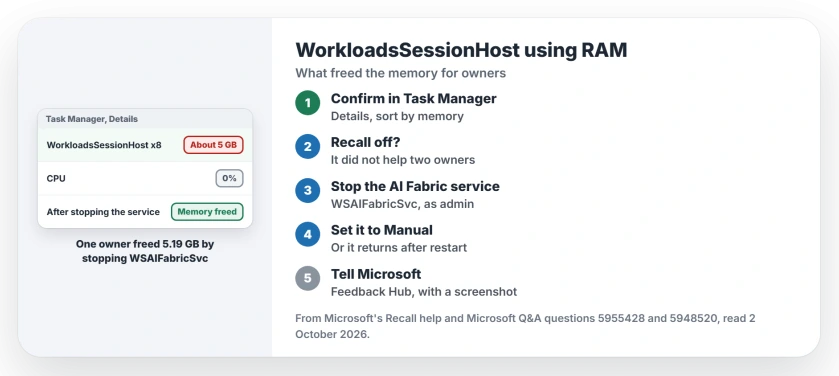
Status: checked 2 October 2026. No Microsoft fix yet. Stopping the Windows AI Fabric service freed about 5 GB for one owner; turning off Recall did not help two others.
1. Confirm it is this process
Open Task Manager, select Details, and sort by memory. Look for several entries named WorkloadsSessionHost.exe near the top, with almost no CPU use. Note the total.
If you see one strange name you do not recognize instead, the strange .exe page shows how to check where it lives.
2. Try turning off Recall and Click to Do
The Microsoft moderator's advice was to switch off the features that use it. In their words, "there is no built-in limit for this services, so the best way to go forward is to disable the features using this to reduce usage".
Microsoft's Recall privacy help puts the snapshot switch under Settings, Privacy & security, Recall & snapshots.
Be ready for this not to work. The Surface owner reported: "Removing or disabling Recall did not resolve the problem". A third owner had "Recall and click to do are diabled in the cmd and settings" and still lost about 4 GB.
3. Stop the Windows AI Fabric service
The step that worked came from the Surface owner. They stopped the Windows AI Fabric service, WSAIFabricSvc, in an administrator PowerShell window, then ended the remaining processes:
Stop-Service WSAIFabricSvc -Force
Get-Process WorkloadsSessionHost -ErrorAction SilentlyContinue | Stop-Process -Force
After 20 seconds the processes were gone. They measured 5.19 GB of physical memory released.
4. Set the service to Manual
The fix does not survive a restart on its own: "After rebooting, eight WorkloadsSessionHost processes returned".
The same owner found a longer answer. Their words: "Setting WSAIFabricSvc to Manual and stopping it keeps WorkloadsSessionHost from consuming the memory, at least until another Windows component starts the service again".
Ours: I would open Services, find Windows AI Fabric Service, set Startup type to Manual and press Stop. Put it back to its old setting if an AI feature you use stops working.
5. Tell Microsoft
The moderator pointed that owner to the Feedback Hub app, since they could find no other reports. Ours: I would attach a screenshot of your Task Manager, because numbers make the case.
Memory use in general is often normal on Windows. Gigabytes held by processes doing nothing on your PC is the exception here.
What did not help
Turning off Recall and Click to Do did not free the memory for two owners. And a restart undid the service fix, so one stop does not last.
All of these results are user-reported, from owners measuring their own PCs.
What is WorkloadsSessionHost.exe?
It is part of Microsoft's WindowsWorkload.Manager package, which hosts Windows AI features. Owners found it on Copilot+ PCs and other new laptops running Windows 11 25H2.
Is it safe to stop WorkloadsSessionHost?
One owner stopped the Windows AI Fabric service and the processes without trouble, and freed about 5 GB. AI features that depend on it may stop until the service runs again.
Will turning off Recall reduce the memory use?
Not for the owners here. It may not help you either. Two of them had Recall off and still saw gigabytes held by these processes.
The Short Version
- WorkloadsSessionHost hosts Windows AI features.
- Copies can hold gigabytes while idle.
- Turning off Recall did not help two owners.
- Stopping WSAIFabricSvc freed 5 GB for one.
- The processes return after a restart.
- Setting the service to Manual keeps them down.
- Report it in Feedback Hub.
Where to Next
Check Task Manager first, then stop the Windows AI Fabric service and watch the memory drop. If it helps, set the service to Manual.
If a feature you rely on breaks afterwards, tell me which one, so I can warn the next person on this page.

Isaac Smith is the founder and editor of PC Glance, a website that covers computers, laptops, and technology. He is a tech enthusiast and a computer geek who loves to share his insights and help his readers make smart choices when buying tech gadgets or laptops. He is always curious and updated about the latest tech trends.