
Nothing arrives in Mail on your iPad. Then you open the app, it refreshes, and a whole morning of email lands at once.
There are two controls at work here rather than one, and most advice only ever mentions the first.
Let me show you both, because the second is usually the one holding your mail back.
The two rows that decide this
Go to Settings, tap Apps, tap Mail, tap Mail Accounts, then tap Fetch New Data.
There are two separate controls on that screen and they do different jobs.
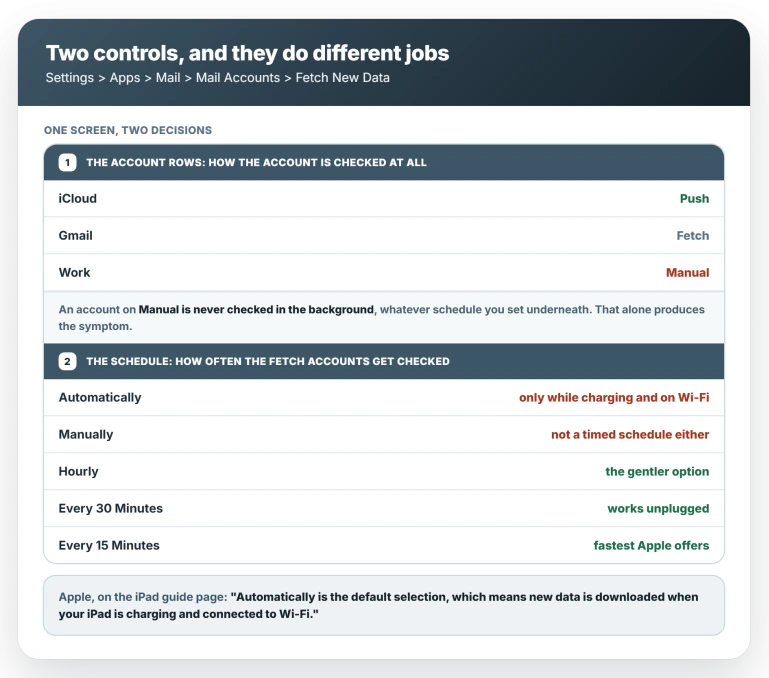
Each account has its own row, near the top, set to Push, Fetch or Manual. That decides how the account is checked at all.
An account on Manual is never checked in the background, whatever else you change, and that alone reproduces the symptom in this article's title.
The schedule at the bottom decides how often the accounts on Fetch get checked. The five options are Automatically, Manually, Hourly, Every 30 Minutes and Every 15 Minutes.
Note that Manually there is not a timed schedule either.
Notice what the account rows do not offer: an interval. There is no "every 15 minutes" on an account row. The interval exists once, at the bottom, and every Fetch account runs on it.
So the fix is two steps. Confirm the account row says Fetch, then set the bottom schedule to Every 15 Minutes, or Hourly if you would rather it woke less often.
Yahoo tells its own users to do exactly that pair: pick the interval at the bottom, then make sure Fetch is selected under the account.
What "Automatically" means on an iPad
Apple states it plainly on the iPad's own guide page. Read it twice:
> "Automatically is the default selection, which means new data is downloaded when your iPad is charging and connected to Wi-Fi. To fetch more often outside of these conditions, choose a timed schedule."
The default is not "as often as possible". It is a condition with two halves, and an iPad that lives on a side table, in a bag or in a drawer can go days without meeting either.
Charging habits are the reason this reads as an iPad problem when the setting is identical on an iPhone.
It is a tendency rather than a rule, and iPhone owners do hit it too, but a phone that goes on a bedside charger every night meets the condition daily and an iPad often does not.
One owner described exactly that split when his mother's iPad stopped receiving mail: "The problem is not present on her iPhone."
Check whether the setting moved on its own
Do this even if you are sure you set a schedule years ago.
A second owner, on a 9.7 inch iPad Pro, reported the classic symptom: "No notifications and no emails unless I manually open the mail app and pull down and then the emails flood in. It does not matter how much time passes, they won't automatically update." When he went looking, he found "fetch schedule was set to automatic despite previously being set to 15 minutes".
He had set a schedule and it had gone back to the default. Read the value on screen rather than relying on what you remember setting.
Confirm it worked
The setting sticking is not proof that mail is arriving.
Unplug the iPad. Send yourself a message from another device or a webmail page. Leave the iPad alone, screen off, for longer than the interval you chose. Then wake it and look at the Mail badge without opening Mail.
If the badge is there, it is fixed. If it only appears once you open the app, work through the section further down.
Be prepared for it not to be enough.
One owner had already chosen Every 15 Minutes and reported that mail still only arrived on the charger, adding that he had expected the timed options to behave differently "but it turns out they all work the same way".
Two more owners in these threads were already on Fetch, one on a 30 minute schedule, before they ever posted.
The default explains what is happening, and the schedule fixes it for some owners rather than all of them.
Some accounts never had the choice
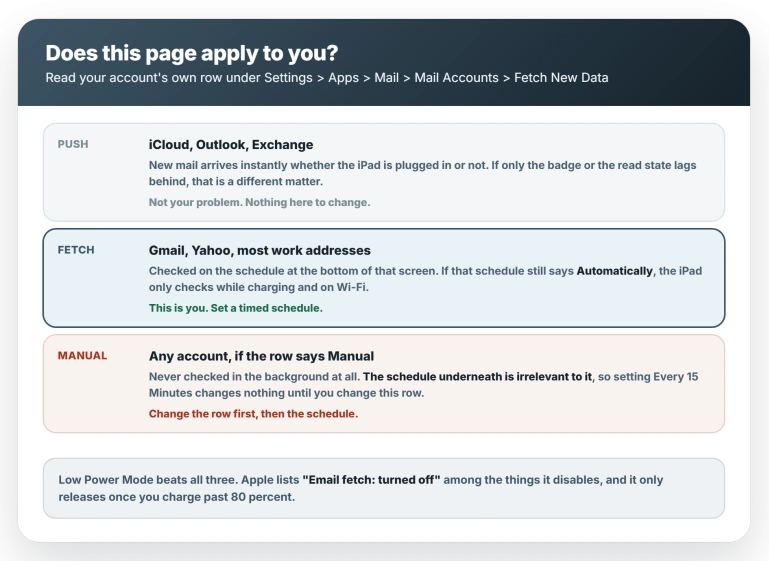
If Apple never offered you Push, your account was always on Fetch.
Apple's wording is that "if Push isn't available as a setting, your account will default to Fetch", and in practice Gmail and Yahoo land there.
Work addresses usually do not: Apple's own deployment guide says Exchange ActiveSync supports push email, so Microsoft 365 and Exchange behave like iCloud rather than like Gmail.
That side of it, including what to do about it, is covered in why Mail notifications stop arriving.
It also means the charging condition does not apply to every account.
One owner running iCloud was explicit that "I receive push notifications for new emails without any issues" while his read and deleted status still refused to sync unless the device was plugged in.
If new mail arrives instantly and only the badge or the read state lags, you are on Push and this article's fix is not yours.
Low Power Mode switches email fetch off
This one is absolute, and it defeats any schedule you set.
Go to Settings, tap Battery, and look at Low Power Mode.
On Apple's Low Power Mode page, updated December 2025, the affected features are listed individually and they include "Email fetch: turned off" and "Background app refresh: turned off".
The exit condition is on the same page and it matters: "When you charge the device to 80% or higher, Low Power Mode turns off." An iPad you keep topping up to 60 percent can sit in that state for weeks.
If it still only updates when you open it
In this order.
Read the account row, not just the schedule. If it says Manual, no schedule will help until you change it to Fetch.
Check the account is switched on. Settings, Apps, Mail, Mail Accounts, tap the account, and confirm Mail is turned on for it.
Check notifications, which are separate from fetching. Mail can collect messages perfectly and tell you nothing.
Go to Settings, tap Notifications, tap Mail, then tap the account, because iPadOS 26 sets these per account and one address can be silent while the rest work.
While you are in Settings, tap Focus and check that no Focus you set up months ago is filtering that account.
If the account is iCloud, check your iCloud storage. Go to Settings, tap your name, then iCloud.
Apple states that if you run out of iCloud storage "you won't be able to send or receive emails with your iCloud email address".
That happens on Apple's servers, so no setting on the iPad works around it, and it applies only to an iCloud address.
Expect the result to be good rather than perfect.
That 9.7 inch iPad Pro owner changed his schedule and reported it "seems to be better generally", then added that it "does still require me to open mail app when I first turn on the iPad".
He does not say whether he meant waking it or powering it on, so it is not clear what remained.
Status: this is the documented default rather than a bug, and the wording has been the same for years. What is not explained is why a schedule reverts on its own, which owners report and Apple does not address. Recheck if Apple changes the Fetch New Data options or drops the Automatically default.
What a faster schedule costs
More checks mean more wake-ups, so the question is fair.
There is no measurement. Not from Apple, not from any publication we could find, and none at all for an iPad. Anyone quoting a percentage is guessing, and the folklore does not agree on direction.
Two things are useful instead.
Apple's battery drain guidance, updated March 2026, offers brightness, auto-lock, Wi-Fi and Low Power Mode as the settings to change, and never suggests changing how often Mail checks.
Mail fetch appears on that page only in the list of things Low Power Mode switches off.
That is a hint about its size rather than proof.
And if you came here from an iPad that is draining fast, the two pages agree more than they look. That one suggests Hourly or Manually.
Hourly is compatible with this fix and Manually is not, because Manual is the state that produces this symptom by design. If battery is your worry, choose Hourly.
What does not help
- Turning Background App Refresh on for Mail. Apple treats email fetch and background app refresh as two separate items on its battery pages, and an Apple Community Specialist told an owner in 2021 that for the built-in Mail app "you will not find this app listed in Background Refresh". Apple does not document the exclusion anywhere, so treat that as one staff answer rather than a rule.
- Choosing Automatically. It is the default and the thing causing the complaint, yet several guides recommend selecting it.
- Leaving Mail open in the background. A long-standing forum answer insists Mail "doesn't update unless the application is open, and it never has". Its author later softened that to mean the app must have been opened once since the last restart, and his wording throughout refers to windows and iconifying, which are Mac ideas. Apple's own pages describe fetching in the background, and Low Power Mode would have nothing to switch off otherwise.
- Deleting and re-adding the account. Apple's own troubleshooting page does suggest it, so it is not useless, but it is a large step for this symptom and the account's row returns to whatever the provider defaults to, which may be the thing you just changed. Try the two rows first.
- Clearing space on the iPad. The storage that stops mail is iCloud account storage, not free space on the device.
Why does my iPad only show new email after I plug it in?
Because the Fetch schedule is on Automatically, the factory default, which fetches in the background only while the iPad is charging and connected to Wi-Fi.
Choose a timed schedule at the bottom of Settings, Apps, Mail, Mail Accounts, Fetch New Data and it will check on that schedule whether it is plugged in or not.
Does my iPad have to be plugged in to receive email?
On the default setting, for background delivery, in practice yes. A timed schedule removes that requirement.
Accounts that support Push, such as iCloud and Outlook, are not affected this way and arrive instantly regardless.
I set my iPad to fetch every 15 minutes and it still does not work
Check the account's own row rather than the schedule underneath. If that row says Manual, the account is never checked in the background and the schedule below is irrelevant to it.
Set the row to Fetch. If it already says Fetch, check Low Power Mode, which turns email fetch off completely.
The Short Version
- Two controls, not one. The account row says Push, Fetch or Manual. The schedule at the bottom sets how often Fetch accounts are checked.
- An account on Manual is never checked in the background, whatever schedule you set underneath it.
- "Automatically" is the factory default and, for accounts on Fetch, means your iPad only checks while charging and on Wi-Fi. Apple states this on the iPad guide page.
- Every 15 Minutes is fastest, Hourly is the gentler option. Both end the charging requirement.
- Read the value on screen. One owner found his schedule had returned to Automatically on its own.
- Test it unplugged. Send yourself a message and watch for the badge without opening Mail.
- Low Power Mode turns email fetch off entirely and only releases once you charge past 80 percent.
- If new mail is instant and only the read state lags, you are on Push and this is not your problem.
- No measurement of the battery cost exists. Apple's own battery guidance never lists fetch frequency as a setting to change.
Where to Next
Two controls, not one, and the second is the one that catches nearly everybody out.
Set the account to Push or Fetch, then look at the schedule underneath it, because that is what decides whether anything happens while you are not looking.
If both look right and mail still only arrives when you open the app, tell me which provider it is, because a few of them behave differently on iPad.

Isaac Smith is the founder and editor of PC Glance, a website that covers computers, laptops, and technology. He is a tech enthusiast and a computer geek who loves to share his insights and help his readers make smart choices when buying tech gadgets or laptops. He is always curious and updated about the latest tech trends.