
You have been watching the same percentage long enough to wonder whether the number is even alive. Twenty-five percent, usually. It is a horrible place to sit, because nothing tells you whether to wait or step in.
I want to start with the thing almost nobody puts first. The top item on this list is very often not a fault at all. From there we work down to the ones that need your hands.
These are nine separate solutions, not nine steps. Start at one. Stop as soon as yours moves.
1. It probably is not stuck yet
Windows updates stall at the same few percentages, and they always have.
Owners on the Windows 11 forum name the exact numbers.
One of them, on 10 October 2024, put it plainly: "Always 25, 35, 69/70% stall points in every cumulative update I've done in the last couple of years."
A second owner on the same thread timed his: "About 15 mins at 25%. Stalled again at 69% for 5mins. Pending restart has appeared."
The person who started that thread came back a short while later with "actually now it's finally progressing." Nobody had done anything.
So give it a proper wait first. Half an hour at one of those numbers is ordinary. It is not alarming. Check the drive activity light. If it is still flickering, the machine is working.
The rest of this page is for when the wait has genuinely gone on too long.
A busy Windows Modules Installer Worker in Task Manager is a sign the install is still moving, and it settles once the update finishes.
Another update process, MoUsoCoreWorker.exe, can keep the PC from sleeping while an update waits, and installing the update, then restarting, cleared that for owners.
If the PC restarted and now sits on Getting Windows ready with no percentage at all, check the drive light before you touch power.
2. Restart, then let it try a second time
You have already thought of this one. It is here because it does something specific. A restart clears a half-finished download, so the next attempt starts clean instead of resuming something broken.
Documented by Microsoft in its guide to update problems: select Update and restart or Update and shut down, then run the update again.
The bit people skip is that second attempt. Restart, then go back to Settings, Windows Update, Check for updates. Skip that and the machine sits on the same stalled state.
If Windows 10 is only waiting for an action, match its pending status to the next control before starting repairs.
3. Unplug everything you do not need
This sounds like filler advice and it is not. It is one of Microsoft's own numbered steps.
Documented by Microsoft, in its words: remove "any external storage devices and drives, docks, and other hardware plugged into your device that aren't needed for basic functionality."
So: the external drive, the dock, the monitor hub, the game controller, the card reader you forgot was in there. Keep the keyboard, the mouse and the power lead. Then try again.
Docks are the worst offender. They sit between the machine and half its hardware. An update rewriting drivers has to account for every bit of it.
4. Check you have the space, and it is more than you think
Documented by Microsoft: "Your device requires at least 16 GB of free space to upgrade a 32-bit OS, or 20 GB for a 64-bit OS."
Twenty gigabytes. Almost every machine sold in the last decade is 64-bit, so that is your number.
Open Settings, then System, then Storage. Read the figure at the top. Under twenty gigabytes free, nothing further down this page will help until that is sorted.
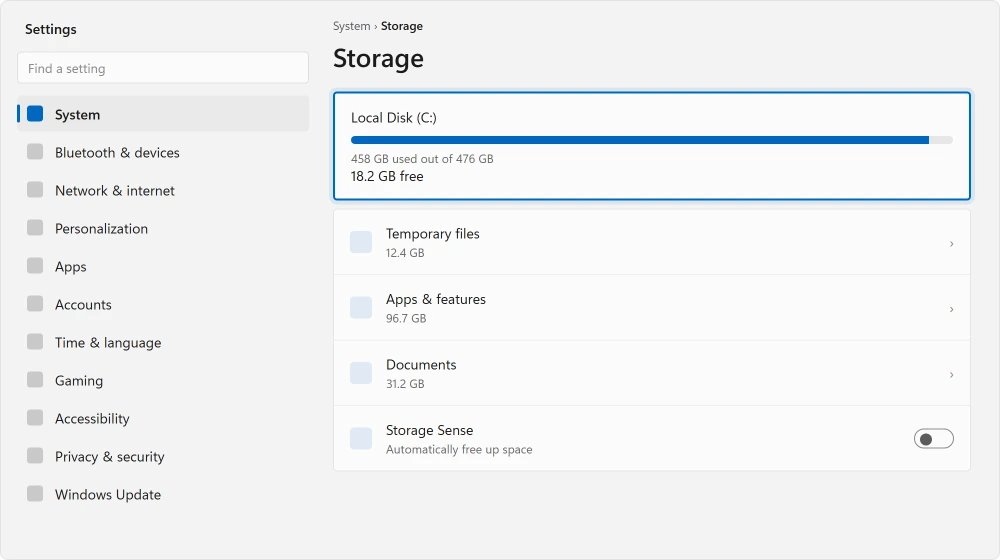
The quickest wins are the Downloads folder and the Recycle Bin. Storage also has a Temporary files entry, which shows what Windows itself is holding on to.
If you are permanently short of room, how much SSD you actually need is worth a read.
5. Run the troubleshooter and let it fix what it finds
Documented by Microsoft as the first thing to try, at Settings, System, Troubleshoot, Other troubleshooters, then Run beside Windows Update. On Windows 10 the route is Settings, Update & Security, Troubleshoot, Additional troubleshooters.
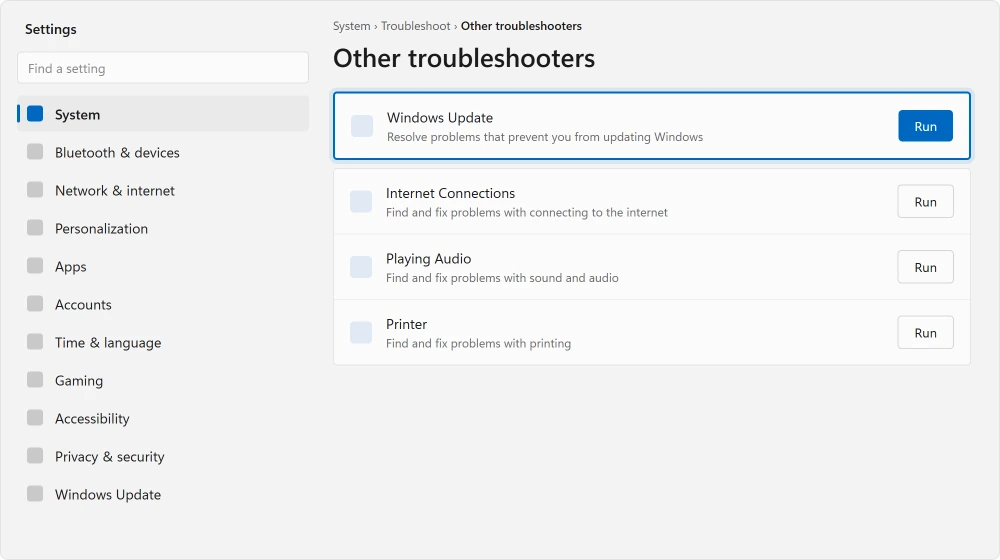
The part worth knowing is what it says when it works. Two messages come up most often. One names a potential Windows Update database error. The other says a service registration is missing. It repairs both, and it asks first. Say yes.
6. Check the clock
An update that cannot verify a certificate fails, and certificates are checked against your system time.
Documented by Microsoft: confirm the date and time at Settings, Time & language, Date & time, with the automatic settings switched on.
If the clock slips again after each restart, how far off it is tells you why.
This is worth thirty seconds, because of how badly it presents itself. A clock that is out by hours does not announce itself as a clock problem. It shows up as an update that downloads and then refuses to install.
Two machines get this. Ones that have sat unused for months, and ones whose motherboard battery has died. If yours has been in a drawer since last year, check this before anything else.
A dead motherboard battery usually shows itself in other ways too, and the common laptop faults page covers what else to look for.
7. Clear the update cache
Now you are into the ones that need a command prompt. This is the one that fixes a genuinely corrupted download.
Documented by Microsoft as clearing the Windows Update cache. The folder is C:\Windows\SoftwareDistribution. Windows rebuilds it from scratch if it is missing, so you cannot break anything permanent here.
Open Terminal or Command Prompt as administrator and run these in order:
net stop wuauserv
net stop bits
net stop cryptsvc
ren C:\Windows\SoftwareDistribution SoftwareDistribution.old
ren C:\Windows\System32\catroot2 catroot2.old
net start wuauserv
net start bits
net start cryptsvc
Then restart and check for updates again. The download starts from nothing, which is the whole point.
Rename, do not delete. If it goes wrong you still have the old folder sitting right beside the new one.
8. A privacy tweak you made years ago may be blocking it
This one is narrow. It sits this far down because it hits very few people. But when it is your problem, nothing above it will touch it.
Windows decides whether your machine can take a feature update using a scheduled task. It is called Microsoft Compatibility Appraiser. Privacy and telemetry guides routinely tell people to switch it off.
With it off, Windows never establishes that your PC is eligible. So the update never arrives, or never moves.
Reported working by an owner, on 25 February 2025, on Windows 11 24H2 build 26100.3194. They had disabled it during a round of privacy tweaks, found it again, and wrote: "That was the culprit!!! After that 24H2 started downloading immediately."
To check yours, open Task Scheduler and go to Task Scheduler Library, Microsoft, Windows, Application Experience. Look at Microsoft Compatibility Appraiser. If it is disabled, right-click to enable it, then right-click again and choose Run.
On 25H2 the task is Microsoft Compatibility Appraiser Exp, and MareBackup runs it too. If its CPU use made you switch it off, do that only for a while.
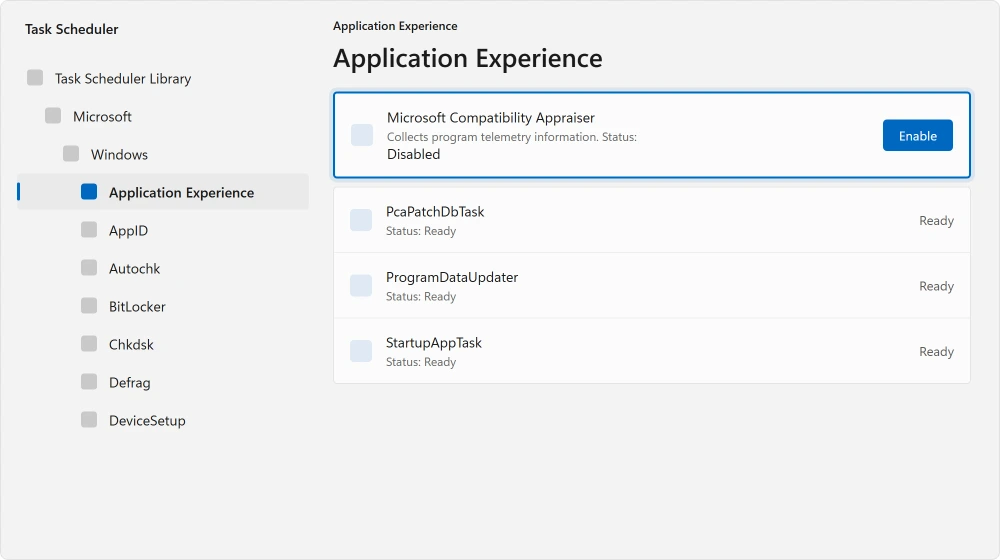
Never touched a privacy guide or a debloat script? Skip this one. If you have run one, check this before you do anything drastic.
9. Microsoft may be holding it back on purpose
The last one is not a fault on your machine at all. It explains the case where a feature update never even appears.
Microsoft blocks specific updates from specific hardware when it knows they break something. It calls this a safeguard hold.
Documented by Microsoft, in its own words: "Safeguard holds prevent a device with a known issue from being offered a new operating system version. We renew the offering once a fix is found and verified."
On the Windows Update page you see a message saying an update is on its way but not ready for your device, rather than a download button.
You can check whether one applies to you. Open Registry Editor and look at:
HKLM:\SOFTWARE\Microsoft\Windows NT\CurrentVersion\AppCompatFlags\Appraiser\GWX
A GStatus value of 2 means no hold. A GStatus of 0 means a hold is in effect.
Microsoft's advice, if you find one, is to leave it alone: "We recommend that you don't attempt to manually update until issues have been resolved and holds released."
There is a way to opt out. Microsoft attaches a caution to it, saying that doing so "can put devices at risk from known performance issues."
So that is a genuinely good reason to stop trying. You do not often get one of those.
What did not work for people
Worth knowing so you do not spend an evening on these.
Reported as failing by a Windows 10 22H2 owner on 27 May 2023, asked about each in turn. Restarting: "many times." Setting the connection to metered and back: "No, I did test using it to fix it… But it didn't help." Clicking the Download button: "yes, it does nothing. No loading, no changes."
There is one more worth reading, for what it says about patience. A Windows 11 24H2 owner spent two weeks on this in March 2025. They ran every diagnostic suggested to them.
Then they reported: "I ran another chkdsk, did two cold boots, and all of a sudden it decided to start working again." No single fix was ever confirmed.
I am including that because it is honest. Sometimes this clears on its own. Nobody can say which thing did it.
Status: checked 20 August 2026 against Windows 11 24H2 and Windows 10 22H2. Microsoft documents ten steps and none of them mentions the Compatibility Appraiser task, which is the one owners keep finding.
Windows pulls parts of an update from other PCs by default, which is worth knowing before you blame your connection. What that is and what it keeps.
Why does Windows Update get stuck at 25%?
Usually because it is not stuck. Owners name 25, 35 and 69 or 70 percent as the normal pause points on cumulative updates. Waits of five to fifteen minutes at each are typical. Give it half an hour before you treat it as a fault.
How long should I wait before forcing a Windows update?
At least thirty minutes at a single percentage. Longer for a feature update. Check the drive activity light first. Forcing a restart mid-install is the one action here that can genuinely leave you worse off.
Does deleting SoftwareDistribution break anything?
No. Windows rebuilds the folder automatically on the next update check. Renaming it rather than deleting it is safer still, because the old copy stays on disk until you are sure.
Why is a Windows update not showing up at all?
Either your machine is not eligible yet, or Microsoft has put a safeguard hold on your hardware. The registry value GStatus under the Appraiser key tells you which. A 0 means a hold is in effect.
The Short Version
- Stalls at 25, 35 and 69 percent are normal. Wait half an hour first.
- Unplug external drives, docks and hubs before retrying, as Microsoft instructs.
- A 64-bit machine needs 20 GB free, which is more than most people expect.
- Renaming SoftwareDistribution forces a clean download and is safe.
- A disabled Microsoft Compatibility Appraiser task silently blocks feature updates.
- A safeguard hold means Microsoft is blocking it deliberately, and it says to wait.
Where to Next
Once the update finally lands, the full screen prompt afterwards is a separate annoyance. It is one checkbox, and there is no app to uninstall.
If the update installed fine and your games started crashing afterwards, do not roll it back. Microsoft investigated that one and the update is not the cause.
If yours turned out to be the Compatibility Appraiser, go back through whatever privacy guide you followed. Check what else it switched off. That task rarely gets disabled on its own, and it is unlikely to have been the only one.
If the machine is generally struggling rather than just refusing this update, the common laptop faults page covers the wider ones.
Where one named update refuses to install however long you wait, there is a way to fetch it by hand, and Microsoft says who should be doing that.
Where updates keep failing rather than stalling, Windows can reinstall itself without touching your apps.
And if none of these moved it, tell me in the comments which build you are on and exactly where it stops. That percentage is genuinely diagnostic. I would far rather work through a real one than guess.

Isaac Smith is the founder and editor of PC Glance, a website that covers computers, laptops, and technology. He is a tech enthusiast and a computer geek who loves to share his insights and help his readers make smart choices when buying tech gadgets or laptops. He is always curious and updated about the latest tech trends.