
You press the down arrow and the whole sheet slides instead of the cell moving. Or the arrow key selects cells rather than stepping between them. Either way, the spreadsheet you have to finish is now slower than paper.
Everyone will tell you to press Scroll Lock. That is right about a third of the time, and I want to save you the other two thirds.
Because Excel is already telling you which of three faults you have. It is just doing it quietly, along the bottom of the window.
Look at the status bar first
Look along the bottom of the Excel window, left of the zoom controls. It names your problem, and that one glance is the whole point of this page.
Scroll Lock advice is everywhere, and it does nothing for the many people whose Scroll Lock was never on.
If it says Scroll Lock, that is your fault and the next section fixes it.
If it says Extend Selection, that is a different fault entirely and it is two sections down.
If it says neither, both of those are dead ends and you can stop pressing ScrLk. Skip to the last section.
If the status bar says Scroll Lock
Documented by Microsoft on its worksheet navigation page, which explains the behavior exactly:
"Pressing an arrow key while SCROLL LOCK is on will scroll one row up or down or one column left or right."
And the fix, in Microsoft's words: "To use the arrow keys to move between cells, you must turn SCROLL LOCK off. To do that, press the Scroll Lock key (labeled as ScrLk) on your keyboard."
On a full-size keyboard that key sits above the arrow keys. On a laptop it is often a second function on another key. You may need Fn with it.
When your keyboard has no Scroll Lock key at all
This is the part that traps laptop owners, and Microsoft documents a way round it.
Documented by Microsoft: "If your keyboard doesn't include this key, you can turn off SCROLL LOCK by using the On-Screen Keyboard. To open the On-Screen Keyboard, select the Start button on your Windows desktop and type On-Screen Keyboard."
Then, still in Microsoft's words: "To turn off SCROLL LOCK, select the ScrLk key, and then close the On-Screen Keyboard."
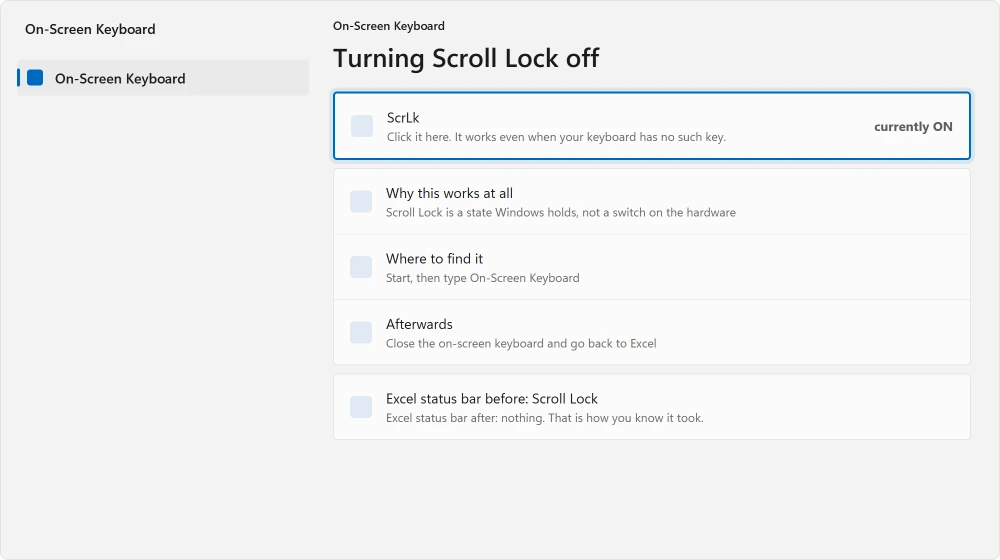
The on-screen ScrLk key works even though your physical keyboard has none, because Scroll Lock is a state Windows holds rather than a switch on the hardware. That is why the route works at all, and it is worth knowing.
If the status bar says Extend Selection
Different fault, different key, and almost nobody writes about it.
Excel has a mode where the arrow keys grow your selection instead of moving it. F8 turns it on. That is an easy key to hit by accident.
Reported by an adviser on Microsoft's Q&A boards, answering somebody with exactly this: does the status bar say "Extend selection"? If so, press F8 to clear it.
That is the whole fix. One key, and the arrow keys behave again.
If the status bar says nothing and the arrows still misbehave
Now the part where most of the internet gives up on you.
Reported by an owner, whose frustration had clearly been earned by a lot of bad advice:
"In excel the arrow keys no longer allow movement to other cells in any direction (up, down, left or right), instead when the arrow key is pressed it now selects the cells in the direction that the arrow key is pressed."
He then added, in capitals: "SCROLL LOCK is NOT ON, so DO NOT tell me that is the issue, cause it isn't."
A volunteer moderator gave him the answer that fits. Arrows that select rather than move mean something is behaving as though Shift were held down.
In the moderator's words: "It's your SHIFT key. Try reboot the machine, if the issue persists I guess your keyboard is damaged."
This is worth testing outside Excel, and a stuck or dead key sorts a stuck key by what yours does.
Ours, and marked as ours: test that in ten seconds without rebooting anything. Open Notepad and type a few letters. If they come out capitalized when you did not ask, a Shift key is stuck, and the problem was never Excel at all.
Nobody confirmed a fix on that thread. Two moderators offered two different causes, and the person who asked never came back. I am telling you that rather than implying it was solved.
Two more causes worth ruling out
Frozen panes. Part of your sheet refusing to scroll may be deliberate. Check View, then Freeze Panes.
To keep headings visible deliberately, set the row and column freeze together from the correct starting cell.
If your keys are slow rather than wrong, a keyboard lagging behind your typing has a cause almost nobody expects.
A protected sheet. If cells will not accept the cursor at all, the sheet may be protected with locked cells. Review, then Unprotect Sheet, if you have the right to.
Ours, and marked as ours: both of these feel like the arrow keys are broken and neither is. The giveaway is that they only affect part of the sheet, or only some cells, while a Scroll Lock problem affects every cell equally.
One more mode hides behind a single shortcut: a sheet that suddenly shows =A1+B1 everywhere has Show Formulas switched on.
Status: written 22 August 2026. Microsoft documents the Scroll Lock behavior and the On-Screen Keyboard route. Extend Selection and a stuck Shift key are adviser guidance.
Why do my arrow keys scroll the sheet instead of moving cells?
Scroll Lock is on. Microsoft describes it precisely: pressing an arrow key while Scroll Lock is on scrolls one row or column instead of moving the active cell.
Look at the status bar along the bottom of Excel. If it says Scroll Lock, that is confirmed.
How do I turn off Scroll Lock without a Scroll Lock key?
Use the Windows On-Screen Keyboard. Microsoft gives this as the official route: open Start, type On-Screen Keyboard, select the ScrLk key, then close it. It works because Scroll Lock is a state Windows holds rather than a physical switch.
Why do my arrow keys select cells instead of moving?
That is Extend Selection mode, which F8 turns on and off. Check the status bar for the words Extend Selection. If they are not there, a stuck Shift key produces the same behavior, and typing in Notepad will tell you in seconds.
My Scroll Lock is off and the arrows still do not work
Then look at the status bar for Extend Selection and press F8, and test for a stuck Shift key in Notepad. After that, check whether frozen panes or a protected sheet are limiting you.
Those affect part of a sheet rather than all of it, which is how you tell them apart.
Once the keys behave normally, learn a small Excel shortcut routine for editing, moving and selecting cells.
The Short Version
- The status bar along the bottom of Excel names which of three faults you have.
- Scroll Lock there means arrow keys scroll rather than move, exactly as Microsoft documents.
- No ScrLk key on your laptop? The Windows On-Screen Keyboard turns it off anyway.
- Extend Selection there means the arrows are growing a selection. F8 clears it.
- Neither showing, and arrows selecting rather than moving, points at a stuck Shift key.
- Frozen panes and protected sheets look like broken arrows and affect only part of a sheet.
Where to Next
Word has a similarly maddening one, where a page refuses to leave no matter how much you press Backspace. There is a character on it you are not allowed to remove.
Look at the bottom of your Excel window before you touch a single key. Ten seconds there tells you which of three completely different problems you have, and saves you the two you do not.
If the keys are misbehaving outside Excel too, keys that behave oddly outside Excel sorts that by what yours does, and a keyboard lagging behind your typing has a cause almost nobody expects.
And if the spreadsheet is misbehaving rather than the keyboard, VLOOKUP fails in a small number of predictable ways.
When wrapped text hides behind rows that never get taller, one cell in the row is usually the reason, and our AutoFit tests in a hidden Excel show which one.
If your status bar said something I have not covered, put it in the comments. I would rather this page named all of them.

Isaac Smith is the founder and editor of PC Glance, a website that covers computers, laptops, and technology. He is a tech enthusiast and a computer geek who loves to share his insights and help his readers make smart choices when buying tech gadgets or laptops. He is always curious and updated about the latest tech trends.