
You plugged in a monitor, and now your PC makes no sound at all. Or you picked the monitor as a sound output because Windows offered it, and got silence.
Before you go and buy anything, you should know that nothing is broken. Lots of monitors come without speakers, and Windows still lists them as if they had some.
I will cover how to tell whether yours has any, and how to get your sound back in two clicks. A monitor maker documents this exact trap on its own support pages.
The short answer: many do not
Plenty of monitors have no speakers, and not only cheap ones. Documented by Dell on its monitor audio page, its gaming and Alienware monitors "do NOT have in-built speakers."
Dell names one exception, the Alienware 55 OLED Monitor AW5520QF. Every other model in those ranges is silent on its own.
Some office and home monitors have small ones. So the only way to be sure about yours is its model number.
Why Windows lists a monitor with no speakers
Dell spells out the trap in one note: "Clicking the speaker icon in the taskbar shows the monitor as a playback device."
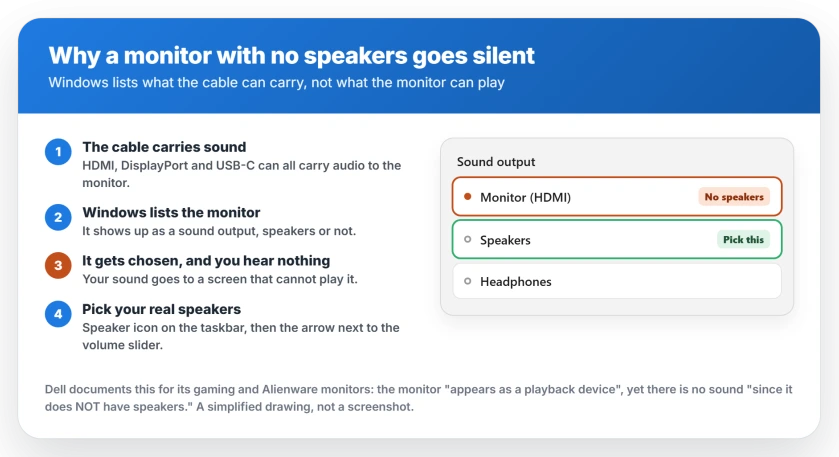
Then comes the important part: "Even though the monitor appears as a playback device, there is no sound from the monitor since it does NOT have speakers."
Our reading of why: HDMI, DisplayPort and USB-C can all carry sound. Windows lists what the cable can carry, not what the monitor can play.
Why your PC went silent when you plugged it in
This part is ours. Windows can move your sound to a newly connected screen by itself. You did not choose it, and nothing told you it happened.
If that screen has no speakers, your sound is now going somewhere that cannot play it. That is the whole fault, and it takes seconds to undo.
Get your sound back in two clicks
1. Pick your real speakers. Click the speaker icon near the clock on your taskbar. Next to the volume slider is a small arrow, so click it and pick your speakers or headphones.
2. Or use Settings. Microsoft's route is Start, then Settings, System, Sound. Under Output, select the correct device.
Microsoft says it plainly: "If multiple audio output devices are available, check that you have the appropriate one selected."
3. Make it stick. Microsoft's step is Start, Settings, System, Sound, then More sound settings and Playback. Right-click your speakers and select Set as default.
HDMI sound has a few more settings of its own. They live apart from the display settings, which is why they are hard to find.
How to tell whether your monitor has speakers
Look for a headphone socket on the monitor first. A monitor with an audio out often has speakers too, but not always, so take it as a clue rather than proof.
Then look up the model number. It is on a label on the back. The maker's specification page lists speakers when a model has them, usually with a wattage.
Or test it. Select the monitor as your output and play something, with the volume up in Windows. Silence means no speakers, or the monitor's own volume is at zero.
If it has speakers and still stays silent
Check the monitor's own volume first, in its on-screen menu, because it is separate from Windows and can be turned down or muted there.
Check the cable. HDMI, DisplayPort and USB-C can carry sound. VGA never does, and DVI normally does not either.
Then check Windows is sending sound to the monitor, using the same list as before, and if the monitor is missing from that list, your graphics card's audio driver may be too.
And if the screen itself is not being detected, deal with that first. Start by proving which end is at fault.
No speakers? Two easy ways out
Dell gives the first one. A headset or external speaker "is required to receive audio" from those monitors, and you connect it "to the headphone port at the back of the monitor."
That works because the sound still arrives over the cable. The monitor passes it out instead of playing it. Dell adds that "Some monitors have separate ports for headset and speakers", so check the manual.
The second way is simpler. Plug your speakers or headphones into the PC and ignore the monitor's audio entirely.
Are built-in monitor speakers any good?
This verdict is ours. They are small drivers squeezed into a thin case, and they sound like it.
They are fine for a video call or a notification. For music or a film, even cheap separate speakers will sound fuller, so I would not pay extra for a monitor because it has them.
Status: checked 25 September 2026 against Dell's article on audio from its gaming and Alienware monitors and Microsoft's Windows 11 page for no sound from speakers or headphones. Dell says those monitors have no speakers, with one named exception, yet still appear as a playback device. Microsoft's fix is to select the correct output. No monitor was tested for this page.
Do computer monitors have built-in speakers?
Many do not. Dell says its gaming and Alienware monitors, except one model, do not have in-built speakers. Some office and home monitors include small ones. Look up your model number on the maker's specification page to be sure.
Why does Windows show my monitor as a speaker?
Because HDMI, DisplayPort and USB-C can carry sound, Windows lists the monitor as a playback device whether it has speakers or not. Dell documents this exact behavior for monitors with no speakers.
Why did my PC go silent when I plugged in a monitor?
Windows can move your sound to the new screen by itself. If that screen has no speakers, everything goes quiet. Click the speaker icon, then the small arrow next to the volume slider, and choose your real speakers.
How do I get sound through my monitor?
If your monitor has speakers, select it as the output and turn up its own volume in the on-screen menu. If it has none, plug headphones or speakers into its headphone port, or into your PC instead.
The Short Version
- Many monitors have no speakers, including Dell's gaming and Alienware ranges bar one model.
- Windows lists the monitor as a sound output anyway, because the cable can carry sound.
- Choosing it on a monitor with no speakers is why your PC goes silent.
- Fix it from the small arrow next to the taskbar volume slider.
- Microsoft's Set as default step makes your choice stick.
- A headphone socket on the monitor is a hint, not proof.
- VGA never carries sound. HDMI, DisplayPort and USB-C can.
- No speakers? Use the monitor's headphone port, or plug into the PC.
Where to Next
Your sound is almost certainly fine, just pointed at the wrong place. Check the output list first, before any cable or driver.
If you are buying a monitor, decide where your sound will come from before you choose. Separate speakers will beat built-in ones.
Still silent after picking the right output? Post your monitor model and cable type in the comments, and we can narrow it down together.

Isaac Smith is the founder and editor of PC Glance, a website that covers computers, laptops, and technology. He is a tech enthusiast and a computer geek who loves to share his insights and help his readers make smart choices when buying tech gadgets or laptops. He is always curious and updated about the latest tech trends.