

Stereo music normally plays through the front speakers of a 5.1 system unless an upmix feature sends it to the other channels.
If Windows test tones reach every speaker but a song doesn't, check the source and your sound software's Speaker Fill or Surround option first.
If the rear or center speakers also fail their test tones, check the connections and speaker setup instead. Those two results need different repairs. Turning on Mono audio doesn't turn a stereo recording into a proper 5.1 mix.
In this guide
1. Test the six outputs before changing the driver
Open Settings > System > Sound > More sound settings in Windows 11. In the older Sound window, select the Playback tab, choose the output connected to your speakers, and select Configure.
For an analog speaker set attached to the motherboard, that output is often Speakers (Realtek Audio). For a receiver connected by HDMI, select the HDMI output that actually reaches the receiver. Don't configure an unused monitor output.
Choose 5.1 Surround if the device offers it, then use Test. Listen for each position and note which speaker responds. Keep the volume comfortable, since a test tone can be louder than the song you were playing.
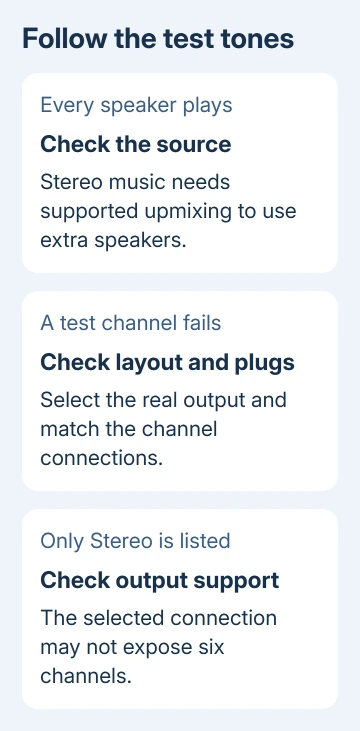
If every position plays from the correct speaker, Windows can send separate channels through that output. Move to the source and upmix checks. Reinstalling the whole audio driver isn't the first useful move for that result.
If a test tone is silent or comes from the wrong speaker, note exactly what happened. A rear-left tone coming from front-left points to a mapping or connection problem, rather than a music recording that contains only two channels.
If Configure offers only Stereo, Windows doesn't see a six-channel speaker layout for that output. Check the connection and the device's supported formats in section 4 before trying to force a layout it doesn't expose.
2. Compare real 5.1 material with the stereo song
Play a local file you know contains a 5.1 audio track, or use a game's own surround-speaker setup and channel test. Select the 5.1 track in the player if the file includes several audio choices.
The label on a video or a surround-themed title isn't enough. The recording, chosen track, player and output path all need to carry multiple channels.
An ordinary two-channel song doesn't contain separately recorded rear and center channels.
If the known multichannel source works, the hardware and channel configuration are doing their job. The choice is whether to keep music in stereo or enable processing that spreads it across the speaker set.
If Windows test tones work but the known 5.1 source doesn't, check that app's selected output and audio mode. A game's Headphones mode or a player's stereo output setting can produce two channels even when Windows is configured for six.
In Windows 11, Settings > System > Sound > Volume mixer also lets you check an app's output device. Make sure it isn't sending sound to a headset, monitor, or another output with a different speaker layout.
I'd keep one known multichannel file or game test for this comparison. Jumping between streaming sites adds player and service differences before you've checked what the PC can send.
3. Enable upmixing when the source is stereo
Open the audio control app supplied for your PC or sound card. On supported Realtek installations, look for Speaker Fill. The PC maker chooses which controls its audio package provides.
Enable Speaker Fill to spread stereo music across the additional speakers. Play the same passage again and compare.
This spreads stereo sound across more speakers; it can't recover separate surround channels that weren't recorded.
Creative says its surround controls include CMSS or Surround under SBX Pro Studio for spreading stereo or mono sources across supported analog multichannel speaker systems.
On those supported Sound Blaster products, use the sound card's own app and speaker configuration. Don't install another manufacturer's audio utility to try to add its controls to a Realtek output.
If Speaker Fill is absent, check your exact PC or motherboard model's audio package. Generic drivers can expose fewer controls than the manufacturer's package. Ask whether that model supports stereo upmixing.
Some upmix effects run through the device's audio enhancements. If you previously disabled all enhancements, restore the device's supported effects and compare again.
Don't keep switching effects after the desired channels are working.
Leave Settings > Accessibility > Audio > Mono audio off for this surround comparison. Mono combines the left and right information. Hearing that combined signal from several speakers isn't a substitute for separate directional channels.
4. Match the connection to six-channel output
Analog speaker plugs
For an analog 5.1 speaker set with three audio plugs, connect each plug to the jack assigned to its channel pair in the motherboard or sound card manual. The common groups are front left/right, rear left/right, and center/subwoofer.
Read the labels and the model's jack diagram, rather than relying only on plug colors. Some boards let an audio console reassign a jack, so a physically connected plug can still have the wrong job in software.
A single ordinary stereo headphone output won't carry six separate analog channels. A splitter duplicates its existing signal; it doesn't add the missing channel outputs. Use the speaker system's supported multichannel connection.
HDMI and optical outputs
For HDMI, select the receiver or display's HDMI audio output, turn the receiver on, and check that its selected input supports the intended format. A display in the middle of the connection can change the capabilities Windows sees.
For optical S/PDIF, check both devices' manuals for supported surround formats. Stereo PCM and encoded multichannel audio are different signals. What works depends on the source, sound device and formats the receiver can decode.
When a new desktop replaced the old PC, compare their physical outputs. A speaker set can be perfectly functional while the new machine lacks the same analog jacks or encoding feature.
For a monitor that appears as an output but stays silent, the monitor speaker explanation helps identify what that HDMI entry represents before you buy an adapter.
5. Repair a channel failure that survives the setup check
If test tones still miss a speaker, install the Windows 11 audio package supplied for the exact PC or motherboard model. For a separate sound card, use its manufacturer's supported driver and control app.
The Windows audio repair steps cover output selection, driver updates and driver reinstallation. Record the current output and driver version before using a rollback or reinstall.
After restarting, repeat the channel test once. If the same speaker stays silent, try the speaker system's own test or another supported source. That helps you tell a speaker or amplifier fault from a PC output problem.
Don't select Windows Sonic for Headphones as a repair for analog 5.1 speaker wiring. That setting is for headphone spatial processing and doesn't supply a missing rear-speaker connection.
Contact the PC or sound-card maker with the connection type, selected output, available Configure layouts and exact failed channel.
If every test tone passes but Speaker Fill is absent, ask specifically about stereo upmix support for that model.
The Short Version
All test tones working means you should check the source and upmix settings first. Missing test channels call for speaker layout, cable and driver checks.
Mono audio isn't a 5.1 repair; use a supported upmix control for stereo music or a genuine multichannel source.
Checked November 16, 2026.
 If you have any business, I can build it online






