

You click a folder in Finder's column view, and the window just sits there. Its contents are off to the right, and you have to scroll across by hand. Or you try to drag a column wider, and nothing grabs.
That is annoying when column view is how you have always worked. Owners report two separate faults in Tahoe, and each one has a workaround. I will take them one at a time, since they need different fixes.
Fault 1: Finder does not scroll to the folder you picked
In the forum thread that started it, the first poster said the window "fails to automatically pan to the right to show its content". It happens in save and export dialogs too, and it did not happen in Sequoia.
A Level 9 volunteer's first reply: "This is a known issue that has been reported in multiple threads". So your Mac is fine.
It did not get better with updates, either. One owner on Tahoe 26.6 wrote: "I just updated to 26.6, hoping this would be fixed, but I feel like it got worse?"
They also found a second trigger: "when I create a new folder, it kicks me back like 3-4 columns".
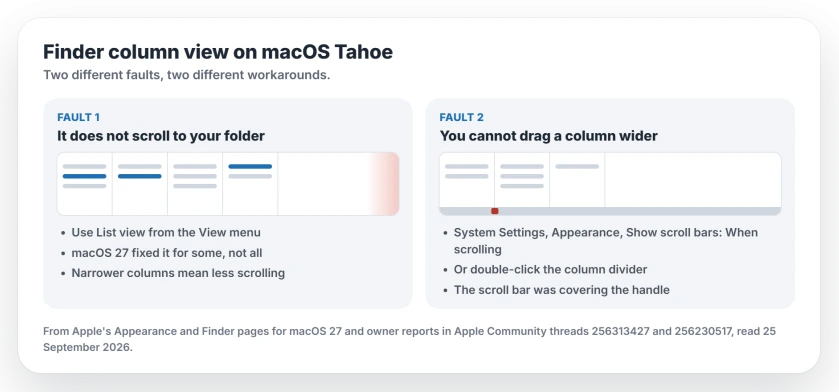
Status: macOS Tahoe 26 and macOS 27, checked 25 September 2026. The scrolling fault is a known Tahoe bug. A Level 9 volunteer says macOS 27 fixes it, but one owner still has it there.
What helps with the scrolling
The volunteer's workaround is List view, from the View menu. You lose the columns. But folders open in place, and nothing slides off the side of the window.
Then there is macOS 27. When an owner asked "Can someone say if this is fixed in MacOS 27?", the same Level 9 volunteer answered simply: "Yes".
A week later another owner disagreed: "Not in my case. I'm still experiencing the exact same issue in macOS 27". So the upgrade may fix it for you. It is not guaranteed.
A middle road, and it is ours: make your columns narrower. The narrower they are, the more of them fit on screen, so the new column is more likely to be visible already.
Fault 2: you cannot drag a column wider
This one is different. The owner who reported it wrote that the resize handle at the bottom of each column divider "is blocked by the horizontal scroll bar".
The fix is a single setting. A Level 9 volunteer pointed to the scroll bar option, and a Level 10 volunteer explained why it works: it "makes the entire length of the divider a drag-able thin line".
Apple's Appearance settings page gives the route on macOS 27: choose Apple menu, System Settings, then Appearance. Under Show scroll bars, pick When scrolling, which Apple describes as "Hide scroll bars until you start scrolling".
The owner called it "a good work-around but doesn't solve the bug". Fair enough, but it does let you resize again.
One more resize trick from Apple
You may not need to drag at all. On its Finder page, Apple says that to show every filename in full, you can "double-click the column divider".
That widens the column to fit the longest name in it. It is quick. It also skips the blocked handle entirely.
Tell Apple
Both faults are Apple's to fix, so report them through the macOS feedback page, and say which fault you have and whether you are on Tahoe or macOS 27.
Other Mac window problems
If your keyboard stops working in every window instead, the phantom focus fix gets typing back in seconds. And if Mission Control misbehaves on macOS 27, that page has what works for now.
Why does Finder column view not scroll to the folder I selected?
It is a known bug in macOS Tahoe, reported in several forum threads. It also affects save and export dialogs, and it did not happen in Sequoia.
Is the Finder column view bug fixed in macOS 27?
A Level 9 volunteer says yes. One owner still sees it on macOS 27, so it may not be fixed for everyone.
Why can't I resize columns in Finder on Tahoe?
The horizontal scroll bar covers the resize handle. Set Show scroll bars to When scrolling in Appearance settings, or double-click the column divider.
What should I use while Finder column view is broken?
List view, from the View menu, avoids the scrolling problem. You can switch back to columns once the bug is fixed on your Mac.
The Short Version
- Two different Tahoe faults hit column view.
- If Finder does not scroll to your folder, use List view or try macOS 27.
- One owner still had it on macOS 27.
- Narrower columns mean less scrolling.
- If you cannot resize columns, set Show scroll bars to When scrolling.
- Or double-click a column divider to fit the names.
Where to Next
Change the scroll bar setting first, since it takes about ten seconds and fixes the resizing problem straight away.
If you upgrade to macOS 27, tell me in a comment whether the scrolling bug went away for you. The thread is split on it, and every answer helps.

Isaac Smith is the founder and editor of PC Glance, a website that covers computers, laptops, and technology. He is a tech enthusiast and a computer geek who loves to share his insights and help his readers make smart choices when buying tech gadgets or laptops. He is always curious and updated about the latest tech trends.