
Your Studio Display XDR used to offer 120Hz, and now Displays settings stop at 60. That is annoying when smooth motion was half the reason you bought it. I would check your Mac's chip first, because some Macs never get 120Hz here.
Then try what worked for a Mac Studio owner on MacRumors. A restart did nothing for them, and a full power cycle of the display did.
What owners saw after the update
The opening poster runs an M4 Max Mac Studio. In their words: "After updating MacOS from 26.6.1 to 26.6.2, My Studio Display XDR doesn't list 120hz anymore as an optional refresh rate in System Settings > Displays."
They noticed it in a game they were building. The display "now maxes out at 60hz", and their frame count dropped with it.
Another owner runs two XDRs in a chain. For them, "Every cold boot would screw up the refresh rates of the monitors, often defaulting back to adaptive 60Hz, with no 120Hz option available".
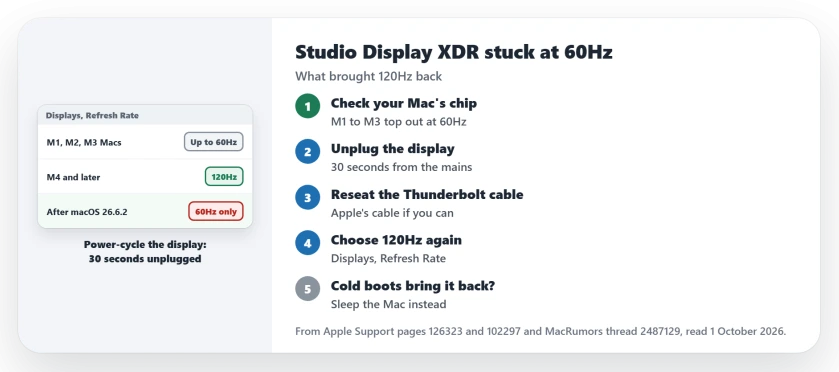
Status: checked 1 October 2026. Unplugging the display from power brought 120Hz back for the opening owner. Apple says Macs with M1, M2 and M3 chips run this display at up to 60Hz.
1. Make sure your Mac can do 120Hz
Not every Mac gets the top rate. Apple's tech specs say: "Mac models with M1, M1 Pro, M1 Max, M1 Ultra, M2, and M3 support Studio Display XDR at up to 60Hz."
Apple adds that "All other Studio Display XDR features are supported". The limit is documented by Apple. So on those Macs, 60Hz is normal.
Check your chip under About This Mac in the Apple menu. An M4 or later should list 120Hz.
2. Unplug the display from power
This fix is user-reported, and it worked. The opening poster wrote: "I unplugged the monitor and back in again. It was the solution!"
They had tried the obvious step first. In their words: "I just tried to reboot my Mac and sort of panicked when it didn't help."
A member's advice was to "fully power-cycle the display (pull it from mains for 30s, not just sleep)". Sleep is not enough, so pull the power cord itself.
3. Reseat the Thunderbolt cable
The owner with two displays had a second route. They wrote: "The only fix I've found is unplugging the Thunderbolt 5 cable". They pull it at the Mac and plug it straight back in.
Use the cable from the box if you can. Apple ships the display with a "Thunderbolt 5 Pro cable (1 m)", and the member who suggested a power cycle also advised swapping a non-Apple cable for Apple's.
4. Choose 120Hz again in Displays
Reconnecting does not always restore your choice. The same owner had to "go through settings and reconfigure each display back to 120Hz".
Open System Settings, click Displays, and pick 120 Hertz from the Refresh Rate menu. For a varying rate, Apple says: "On Studio Display XDR, select Adaptive (47-120 Hertz)."
5. If it comes back after every cold boot
For the owner with two displays, it returned on most cold starts. Their stopgap was sleep: "I'm putting the computer to sleep a lot more than I used to just to avoid having to deal with the plug finagling."
Updates may help too. An owner with a Dell monitor that lost 120Hz the same way wrote that "its been fixed on 27.0 touch wood".
To see what macOS thinks the display can do, open System Information and look under Graphics/Displays. The member who suggested the power cycle uses that check.
If your XDR crashes the Mac at 120Hz instead, the XDR kernel panic page covers that. And for a second monitor chained from this one, see the daisy-chain page.
Why is my Studio Display XDR stuck at 60Hz?
On an M1, M2 or M3 Mac, Apple says this display runs at up to 60Hz. On newer Macs, owners lost 120Hz after a macOS update until they power-cycled the display.
How do I set my Studio Display XDR to 120Hz?
Open System Settings, click Displays, and choose 120 Hertz from the Refresh Rate menu. Adaptive (47-120 Hertz) varies the rate instead.
Does Studio Display XDR run at 120Hz on an M2 Mac?
No. Apple's specs list Macs with M1, M2 and M3 chips at up to 60Hz on this display.
The Short Version
- M1, M2 and M3 Macs top out at 60Hz.
- M4 and later Macs should offer 120Hz.
- Unplug the display from power for 30 seconds.
- Reseat the Thunderbolt 5 cable.
- Use Apple's cable from the box.
- Pick 120Hz or Adaptive again in Displays.
- Sleep the Mac rather than shutting it down.
Where to Next
Pull the display's power cord now and wait half a minute before plugging it back in. Then open Displays and look for 120 Hertz.
If 120Hz still will not show on an M4 Mac, post your Mac, your macOS version and your cable in a comment. I will add every fix owners find to this page.

Isaac Smith is the founder and editor of PC Glance, a website that covers computers, laptops, and technology. He is a tech enthusiast and a computer geek who loves to share his insights and help his readers make smart choices when buying tech gadgets or laptops. He is always curious and updated about the latest tech trends.