
Your mouse jumps and lags, and Task Manager blames Spooler SubSystem App, even though you are not printing anything. That is frustrating, because the name gives you nothing to go on.
I would clear the print queue first. A stuck job keeps the spooler busy, and an owner on a 90+ thread got their CPU back that way. If the queue is empty, look at what you installed lately.
400+ people have clicked Same question on the busiest Microsoft Q&A thread about it.
What Spooler SubSystem App is
It is spoolsv.exe, the Print Spooler service. Microsoft says "The print spooler is a file that manages the printing process", and every document you print waits in its queue first.
So when it burns the processor with nothing printing, it is usually stuck on something it cannot finish, or another program keeps feeding it.
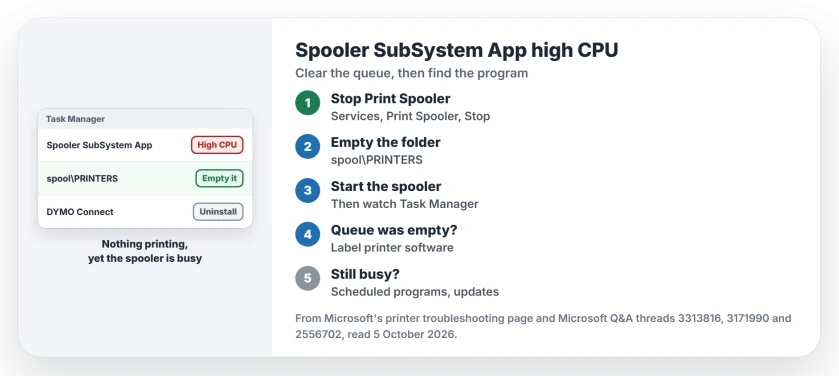
Status: checked 5 October 2026. Owners fixed it by clearing the print queue, by uninstalling DYMO Connect, and with a Windows update. One traced it to a backup program running in the day.
1. Clear the print queue
Microsoft's printer page puts it plainly: "you may need to clear spooler files and restart the spooler service". Stop Print Spooler in Services, empty the spool folder, then start it again.
The folder is C:\Windows\System32\spool\PRINTERS, and Microsoft's instruction is to "delete all files in the folder". Ours: the files there are only waiting print jobs, so nothing you saved is lost.
The owner of a 90+ thread did exactly that. In their words: "The Spooler SubSystem does not now take over the CPU".
The same thing in one go
Another owner saved three commands as a batch file and ran it as administrator. They said it "worked beautifully for me":
net stop spooler
del /Q /F /S "%systemroot%\System32\Spool\Printers\*.*"
net start spooler
Ours: run it from an administrator Command Prompt rather than saving a file if you only need it once. The full queue-clearing steps are on our printing page too.
2. Queue already empty? Think about label printer software
The asker on the 400+ thread found the PRINTERS folder empty: "There were no jobs there". Two owners on that thread then traced it to one program, DYMO Connect for label printers.
One wrote: "DYMO Connect was the problem with my print spooler as well". After uninstalling it, the other said "my Windows spooler subsystem now behaves well".
Ours: check Settings, Apps for any printer or label tool you added before the slowdown.
3. Check what runs on a schedule
One owner had no printing at all during the problem. A backup program meant for the night was running in the daytime: "after I fixed the backup program settings the spooler is working correctly".
Ours: a program that prints a report or a PDF when it finishes can do this, so look at anything with its own schedule.
4. Install pending Windows updates
The 400+ asker's spike ended after a Windows update and a restart: "the CPU usage is now back to normal". If Windows Update has something waiting, install it before you uninstall anything.
Can I just stop the Print Spooler service?
You can, and printing stops with it. Ours: treat that as a test. If the CPU drops, the spooler really is the cause, so clear the queue and turn it back on.
Is spoolsv.exe a virus?
The real one lives in C:\Windows\System32 and belongs to Windows. Ours: a copy anywhere else deserves a scan.
Does this affect printing to PDF?
It can. Microsoft Print to PDF goes through the same spooler, so a stuck PDF job sits in the same queue as a paper one. If PDF printing fails outright from Edge, that is a separate Edge 154 fault.
The Short Version
- Spooler SubSystem App is the Print Spooler service.
- Stop the spooler, empty the PRINTERS folder, start it again.
- Queue empty? Uninstall label printer software like DYMO Connect.
- Check programs that run on a schedule, like backups.
- Install waiting Windows updates.
- Stopping the spooler for good stops printing too.
Where to Next
Clear the queue now and watch Task Manager for a minute. If the CPU stays down, you are done.
Was yours a stuck job or a program? Name the program in the comments, because a label printer tool is not the only one that can do this.

Isaac Smith is the founder and editor of PC Glance, a website that covers computers, laptops, and technology. He is a tech enthusiast and a computer geek who loves to share his insights and help his readers make smart choices when buying tech gadgets or laptops. He is always curious and updated about the latest tech trends.