
You click Update Now on your Mac and get a refusal instead: "The requested version is no longer available. Please check for a new update and try again". You check again. The same update is still listed, and it fails the same way.
I would stop clicking and install that update by its exact name in Terminal. An owner on macOS Sequoia did that for 15.7.9, and their Mac took the update after a restart.
The question on Ask Different has had 672 views since 30 August, with an accepted answer.
What the full message says
The owner's Mac showed two lines together: "The available software updates have changed. Try again or contact Apple support for assistance". Then came the line about the requested version.
Their Software Update window offered three things at once: a Safari update, macOS Sequoia 15.7.9 and macOS Tahoe 26.6.2. Ours: the button kept failing while a newer major version sat in the same list, waiting to be installed.
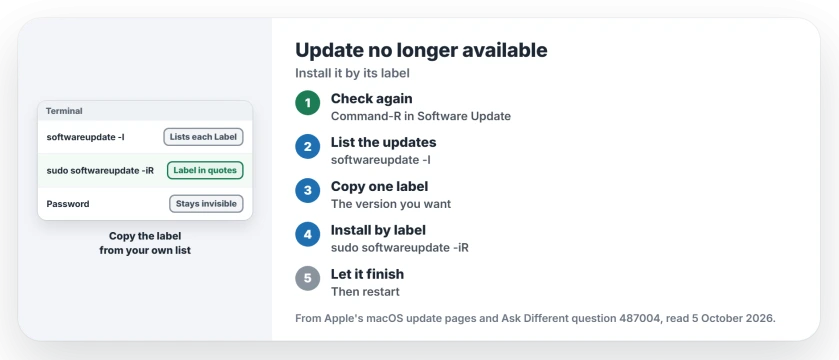
Status: checked 5 October 2026. A Mac mini on macOS Sequoia 15.7.7 kept refusing 15.7.9 with this message. Installing the update by its label in Terminal got it through.
Apple's page on failed updates is fair here: "The cause of such messages can vary, and sometimes they're only temporary". So retry once, then move on.
1. Check again the way Apple describes
Open System Settings, General, Software Update. Apple's update guide says: "To check again, click Check for Updates, press Command-R, or close and reopen Software Update".
Did the same message come back after a fresh check? Then you have this fault, not a glitch.
2. List the updates in Terminal
Start Terminal, which sits in Applications, Utilities. Then run this:
softwareupdate -lA member asked the owner for exactly this output. It prints every update with a Label line. The owner's list showed "macOS Sequoia 15.7.9-24G830" for the update that kept failing.
3. Install it by its label
The accepted answer used the label inside quotes:
sudo softwareupdate -iR "macOS Sequoia 15.7.9-24G830"I would copy the label from your own list, not from this page, because the build number at the end changes with each release.
The answer warned it will "Require you to enter the password for your admin account" and that it "Will restart your Mac to install the update". Save your open work first.
Ours: in -iR, the i installs and the R lets the tool restart the Mac when it finishes.
4. Type your password even though nothing appears
Terminal shows no dots or stars as you type the password. That is normal. The owner saw a key symbol and "no further sign of activity", so they waited.
A reply under the answer explained that Terminal hides what you type on purpose. Type the password, press Return, and give it a minute.
5. Let it finish, even if it looks stuck
The owner's download "seemed to freeze @ 96.77%". After they pressed Return a few times, it moved on and reached 100 percent.
Then a pop-up said that some software could not be installed, but they used a Restart option in System Settings anyway. In their words, they "eventually got the updates".
Ours: that pop-up did not mean failure here, so I would restart before judging the result. Apple says to let installation finish "without putting your Mac to sleep or closing its lid".
If Terminal fails too
Apple's guide for failed installs asks you to look at storage space and the connection first. It also suggests a start in safe mode before you install through Software Update.
The same fault can show up as an update that never appears at all. The macOS Tahoe 26.7 update that will not show walks through safe mode and Low Data Mode. For an install that starts and then fails, see macOS Tahoe installation failed.
Is the Terminal update the same update?
Yes. softwareupdate is Apple's own command line tool, and Apple's download guide uses it to fetch full macOS installers. It reads the same list of updates that Software Update offers, as the owner's own output showed.
Will this upgrade me to the next macOS by mistake?
Not if you copy the right label. The owner's list held a Tahoe upgrade too, but only the Sequoia label went into the command. Check the version number in the label before you press Return, because Tahoe and Sequoia labels look alike.
The Short Version
- "The requested version is no longer available" can repeat on the same update.
- Check again once in Software Update, the way Apple describes.
- In Terminal, run softwareupdate -l and find the update's Label.
- Install it with sudo softwareupdate -iR and the label in quotes.
- The password stays invisible while you type it.
- A stall near the end and a pop-up did not stop the owner's update.
Where to Next
Run softwareupdate -l now and read the labels. If yours shows a major upgrade next to a minor update, copy only the one you want.
Did the Terminal install work on your Mac? If a different message appeared, paste it into the comments.

Isaac Smith is the founder and editor of PC Glance, a website that covers computers, laptops, and technology. He is a tech enthusiast and a computer geek who loves to share his insights and help his readers make smart choices when buying tech gadgets or laptops. He is always curious and updated about the latest tech trends.