
You open Terminal to a bare black window. No tabs along the top, no title bar to drag, no X. Ctrl+Shift+T opens tabs you cannot see.
I would check focus mode before anything else. Microsoft built it to hide exactly those two things, and it can be switched on from the command palette or a setting without you noticing.
Full screen hides the tabs too, and so does one appearance setting.
Asked by a Windows 11 owner on a fresh install, the Super User question has 21,165 views.
Three settings hide the tab row
Microsoft's list of Terminal actions says focus mode "hides the tabs and title bar". That is the whole feature, and it passes for a broken window.
Full screen hides the tabs as well. The third is Always show tabs: switched off while the title bar shows, the tab row stays away until you have more than one tab.
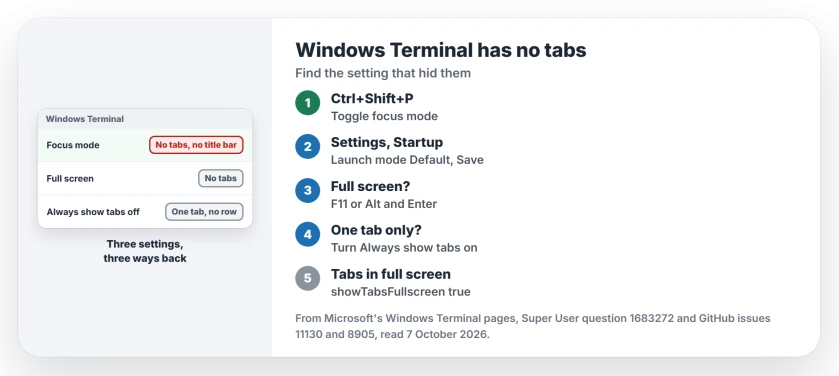
Status: checked 7 October 2026. Focus mode hides Windows Terminal's tabs and title bar. Press Ctrl+Shift+P, run Toggle focus mode, then set Launch mode back to Default and press Save.
Ours: the Windows Terminal we checked is version 1.24.12741.0, on Windows 11 Home. Its settings file holds none of the three settings, which leaves each one at its default.
1. Leave focus mode from the command palette
Press Ctrl+Shift+P. Microsoft's command palette page gives the same keys: "Type Ctrl+Shift+P to open the command palette".
Type focus, then choose Toggle focus mode. Your tabs and title bar come straight back.
That was the top answer on Super User, and one reader replied "I had the same issue here, I did not even know about focus mode, nor the Command Palette".
2. Set Launch mode back to Default, then press Save
If the tabs vanish again next time, Terminal is starting in focus mode. Press Ctrl and the comma key to open Settings, select Startup, and look at Launch mode.
Microsoft's startup settings page describes the focus value: "Setting this to focus is equivalent to launching the terminal in the default mode, but with focus mode enabled". Maximized focus does the same in a maximized window.
Choose Default, or Maximized if you like a big window, then press Save at the bottom. A commenter on the answer pointed out that Settings quietly drops your change if you close it without saving.
The same Settings window holds the box that stops multi-line pastes, and it can be set to Never under Interaction.
One owner in March 2026 could not find Toggle focus mode in the palette at all. They opened the settings file from the bottom of Settings, deleted the launchMode line set to focus, and that fixed it.
3. Full screen hides the tabs too
F11, or Alt and Enter, leaves full screen. Both are Microsoft's default keys for it, and both are easy to hit by accident.
An owner who reported it on GitHub found tabs fine in a window, but in full screen "there are never tabs shown". Their report became the request for a setting.
That setting now exists. Microsoft's appearance page lists Show tabs in fullscreen, where true means "tabs remain visible in fullscreen mode".
It is off by default; add showTabsFullscreen set to true in your settings file to keep them. I would only bother if you work in full screen all day.
4. Only one tab, and no tab row
Open Settings, Appearance and find Always show tabs. With it off and the title bar showing, Microsoft says "tabs only appear after more than one tab exists".
That setting works alongside Hide the title bar. In Microsoft's words, "This setting has no effect when showTabsInTitlebar is true", so with the title bar hidden your tabs show regardless.
Turn Always show tabs on, then restart Terminal. Microsoft notes these appearance changes need a new Terminal window.
How do I close a tab in focus mode?
With the X hidden, use the keyboard. Ctrl+Shift+W closes the current pane, and with one pane that closes the tab.
An early tester got stuck in the Settings tab this way, since "In Focus mode, the X to close the tab is hidden". They escaped with Ctrl+Tab and the command palette, then later found Ctrl+Shift+W closed it.
Terminal is also where WSL opens. If yours stops with an error code rather than missing tabs, our WSL 0x80370114 page and the WSL file not found page start from there.
The Short Version
- Focus mode hides the tabs and the title bar in Windows Terminal.
- Ctrl+Shift+P, then Toggle focus mode, brings both back.
- Settings, Startup, Launch mode: choose Default, then press Save.
- F11 or Alt and Enter leaves full screen, which hides tabs too.
- One tab and no tab row? Turn Always show tabs back on.
Where to Next
Press F11 once before anything else. If the window shrinks and the tabs return, it was only full screen.
If none of the three brings your tabs back, tell me the version shown in Settings, About, and I will check what changed in that release.

Isaac Smith is the founder and editor of PC Glance, a website that covers computers, laptops, and technology. He is a tech enthusiast and a computer geek who loves to share his insights and help his readers make smart choices when buying tech gadgets or laptops. He is always curious and updated about the latest tech trends.