
You open Task Manager and count five, ten or fifty Console Window Host entries, with no Command Prompt window open anywhere.
I counted 53 on this laptop while writing this. Each copy belongs to one program that runs in a console, often an invisible one. So the count tells you how many of those are running. It does not mean a virus.
A 2011 Super User post about several conhost.exe copies has 126,858 views. Two Microsoft Q&A threads on it show 100+ under Same question.
What Console Window Host does
Console Window Host is conhost.exe. Microsoft says it "handles all console API servicing called from any attached command-line application", in its console roadmap, and it draws the window when there is one.
Any program you run that is built as a console program gets its own copy, shown or not.
On Super User, grawity put it this way: "The Conhost process will always be shown as a child of the program that created the console". Find the parent, and you have the cause.
Since 2018 there is a second mode. Microsoft calls it the pseudoconsole and says it "permits any application to launch the console host in a non-interactive mode". Windows Terminal and many developer tools run commands this way.
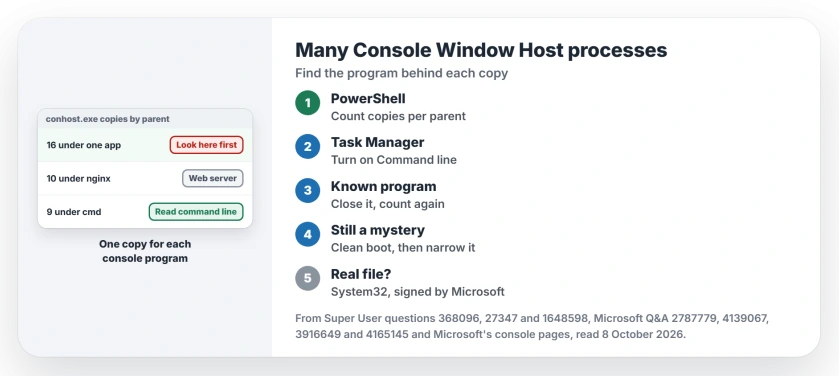
Status: checked 8 October 2026. Each Console Window Host belongs to one console program. List the parent of each copy, read the command lines, then close or stop the program behind them.
Ours: Windows 11 25H2, build 26200. 53 copies of conhost.exe, about 154 MB of memory between them. 26 came from a local web server app, 16 from an AI coding tool's terminal sessions, 9 from cmd.exe and one each from NVIDIA and ASUS helpers.
1. List the parent of every copy
Task Manager does not show which program owns a conhost. PowerShell does. This one line needs no admin rights:
Get-CimInstance Win32_Process -Filter "Name='conhost.exe'" | ForEach-Object { (Get-Process -Id $_.ParentProcessId -ErrorAction SilentlyContinue).ProcessName } | Group-Object | Sort-Object Count -Descending | Select-Object Count, NameYou get a count per program, biggest first. Here it was 16 under one app, 10 under nginx and 9 under cmd, with the rest spread thinly. A blank name means the parent closed.
Ten of the 53 on this laptop were started with the --headless switch. Those are pseudoconsoles, usually a terminal window or a code editor running commands for you in the background.
2. Read the command lines in Task Manager
Is the parent cmd or PowerShell? Then you need to know what that shell is running. In Task Manager, right-click any column header on the Processes tab and turn on Command line. A 2024 Super User answer suggested that.
In one Microsoft Q&A thread, an owner checked those command lines. One named Malwarebytes, which they had not opened, and another was a Microsoft Edge instance.
On this laptop, two of the cmd.exe entries were running AMD's Radeon software helper and a browser extension's native host. Both are normal.
3. Close the program, or stop it starting
Once you have a name, close that program the normal way and count the copies again.
One owner on Super User had about a dozen copies, all sitting under csrss.exe in Process Explorer. They closed Visual Studio 2012 and wrote "Once I closed VS 2012 it all went away".
Another owner had two copies at every boot. One came from a Wi-Fi helper, the other from the Alps touchpad software. A third fix was reported by an owner in 2014: uninstalling a phone manager called Mobogenie took the extra copy with it.
If you cannot tell which program it is from the name alone, try a clean boot. An owner on Microsoft Q&A turned off all non-Microsoft services in System Configuration. The copies stopped, but only for the next start.
Then narrow it down service by service, as the adviser in that thread suggested, until the copies come back. The last one you switched on is the program.
When the number keeps climbing
A count that grows by the hour means one program keeps opening console helpers and never closes them.
One owner who used hibernate instead of shutting down found 3,466 processes in all. Hundreds of them were Windows Command Processor and conhost.
They came back hours after a restart, which points at a program that starts with Windows. Run the PowerShell line twice, an hour apart, and see which parent gains copies in between.
Does your PC refuse to sleep? Look here first.
The Q&A owner with copies at every start wrote "When i kill the cohost.exe the PC can go to sleep". Our page on a PC that won't go to sleep shows how to name the request that keeps a PC awake.
Is it a virus?
Usually not. The real file is C:\Windows\System32\conhost.exe, signed by Microsoft Windows like the rest of the system files. In Task Manager, right-click an entry, choose Open file location, and check the folder.
An adviser on Microsoft Q&A told one owner the processes "should only appear in Task manager if you have a Command Prompt window open". That is not what Windows does. I had 53 here, and almost none of them had a window on screen.
If the file sits anywhere else, or the parent is a program you never installed, treat it as malware. Our page on strange .exe files in Task Manager covers how to check it.
Do not end it blind
Ending a conhost usually ends its program too. That can stop a service or lose work in a hidden window. Find the parent first, then close that parent the normal way, from its own window or tray icon.
The Short Version
- Each Console Window Host belongs to one console program. Many copies mean many programs.
- Run the PowerShell line to count copies per parent program.
- Turn on the Command line column to see what cmd and PowerShell are running.
- Close or uninstall the parent. A clean boot narrows it down.
- The real file is in System32, signed by Microsoft.
Where to Next
Give it an hour of normal use, then run the PowerShell line a second time. Did one name grow? If you cannot place it, paste both lists into a comment, and I can trace it for you.

Isaac Smith is the founder and editor of PC Glance, a website that covers computers, laptops, and technology. He is a tech enthusiast and a computer geek who loves to share his insights and help his readers make smart choices when buying tech gadgets or laptops. He is always curious and updated about the latest tech trends.