
You took ownership of C:\Program Files\WindowsApps to look inside or change one file. Now you want it back the way Windows had it. Or your Store apps have stopped opening.
The command most answers hand you is icacls with /reset and /t, and on this folder it can make things worse.
I would rewrite only the folder's own rules from a known string. Then hand ownership back to TrustedInstaller. A changed subfolder needs more.
The Super User question has 94,732 views, and a 2022 Microsoft Q&A thread about the same mistake counts 40+.
What a healthy WindowsApps folder looks like
Normally even your admin account cannot open it without a warning, and that lock is on purpose.
Ours: a normal window on this Windows 11 laptop got "Access is denied" from icacls. It was only trying to read the folder's permissions.
Each app folder has its own rules too. AgentRev notes that Windows can check for them before it lets an app start.
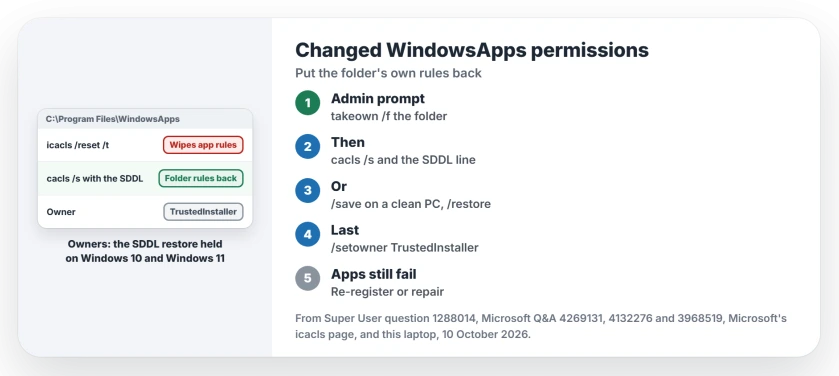
Status: commands and owner reports checked 10 October 2026. Microsoft documents what icacls /reset, /save and /restore do; owners confirm the SDDL restore on Windows 10 as well as 11.
A Microsoft Community Support Specialist was blunt about it in that Q&A thread: "Microsoft does not recommend users to change the operating permissions of this folder".
Skip icacls /reset /t on this folder
Microsoft's icacls page says /reset "Replaces ACLs with default inherited ACLs for all matching files". Your WindowsApps folder does not inherit from Program Files, so that default is the wrong one.
AgentRev put a warning under the most popular Super User answer. "The /reset /t command will break most UWP apps by deleting special permissions that are unique to every folder inside WindowsApps."
That answer's author later told readers to stop using it. Another reader wrote in capitals: "THIS ANSWER WILL BREAK THINGS WORSE".
Some owners did get away with it. One fixed a dead Start menu that way, booted from a recovery USB stick. Others were left with apps that never started. I would not take that chance.
1. Take ownership, then write the folder's rules back
This is the accepted Super User answer, by Gidsik. Open Command Prompt with Run as administrator, and make sure you own the folder first.
takeown /f "%ProgramFiles%\WindowsApps"Next, replace your folder's rules with the original set. It is one long SDDL string, so copy it rather than retype it.
cacls "%ProgramFiles%\WindowsApps" /s:"D:PAI(A;;FA;;;S-1-5-80-956008885-3418522649-1831038044-1853292631-2271478464)(A;OICIIO;GA;;;S-1-5-80-956008885-3418522649-1831038044-1853292631-2271478464)(A;;0x1200a9;;;S-1-15-3-1024-3635283841-2530182609-996808640-1887759898-3848208603-3313616867-983405619-2501854204)(A;OICIIO;GXGR;;;S-1-15-3-1024-3635283841-2530182609-996808640-1887759898-3848208603-3313616867-983405619-2501854204)(A;;FA;;;SY)(A;OICIIO;GA;;;SY)(A;CI;0x1200a9;;;BA)(A;OICI;0x1200a9;;;LS)(A;OICI;0x1200a9;;;NS)(A;OICI;0x1200a9;;;RC)(XA;;0x1200a9;;;BU;(Exists WIN://SYSAPPID))"Yes, cacls still ships on your PC. Windows 11 prints a note that it is deprecated. Its help says /S:SDDL "Replaces the ACLs with those specified in the SDDL string".
Gidsik ran the commands you see here on Windows 10 and on Windows 11 21H2. In February 2026 a reader called it the correct answer: "i have used many times".
2. No cacls? Copy the rules from an untouched PC
Got a PC whose WindowsApps you never touched? In an elevated Command Prompt there, save that folder's rules to a file.
icacls "%ProgramFiles%\WindowsApps" /save "%USERPROFILE%\Desktop\windowsapps.acl"Microsoft says /save "Stores DACLs for all matching files into an access control list (ACL) file" for /restore to use later. Copy the file to your own desktop, then run this on your PC.
icacls "%ProgramFiles%" /restore "%USERPROFILE%\Desktop\windowsapps.acl"Note the path. /restore points at Program Files, the folder that holds WindowsApps. A Super User answer gives the same route from a backup.
Writing the rules into a text file yourself? One reader warned: "You may need UTF-16 encoding when create temp.txt".
3. Hand it back to TrustedInstaller
Last, return the owner. Gidsik's answer ends with this line.
icacls "%ProgramFiles%\WindowsApps" /setowner "nt service\trustedinstaller"Did it fail? Do it by hand. Right-click the folder and choose Properties, Security, Advanced, then Change next to Owner. Type NT Service\TrustedInstaller, select Check Names, then OK and Apply.
Restart your PC. The folder should block you again, as it did before. That is the healthy state.
Apps still broken after that?
Then the damage went past the top folder, and each app's own folder lost its rules. That is what /reset /t does, and what ticking Replace all child object permission entries can do.
One owner on Microsoft Q&A ran an adviser's full sequence. It ended by re-registering every app in PowerShell, and got them "about 95% almost like new", though Calculator still crashed.
Several Super User readers fixed the subfolders with a script AgentRev put on GitHub. One wrote: "After running it everything worked fine!" It is third-party, so check what it does first.
The last resort one Q&A owner chose was a Windows 11 reinstall that kept their files.
If only the Store misbehaves now, Microsoft Store keeps crashing covers the next checks. Commands that stopped working may be app execution aliases. Those live in a different WindowsApps folder, inside your user profile.
Can I look inside without changing anything?
Not from File Explorer, as a normal user. Need one file from an app? My advice is to see whether the app can export it. That beats unlocking the folder again.
The Short Version
- Skip icacls /reset /t on WindowsApps; it wipes each app's own rules.
- Take ownership, then write the folder's rules back with the cacls SDDL line.
- Or save the rules on an untouched PC and /restore them onto Program Files.
- Give ownership back to NT Service\TrustedInstaller and restart.
- Apps still failing? Re-register them, or repair Windows keeping your files.
Where to Next
Did you use the cacls line, a saved ACL file, or re-register your apps? Write which one in the comments. I want to see which routes hold on Windows 11.

Isaac Smith is the founder and editor of PC Glance, a website that covers computers, laptops, and technology. He is a tech enthusiast and a computer geek who loves to share his insights and help his readers make smart choices when buying tech gadgets or laptops. He is always curious and updated about the latest tech trends.