

An easystore hard drive can store files through File Explorer without first setting up a backup schedule. For an easystore Portable, connect its USB cable, open the drive, and copy a small file before moving a large collection.
On a Mac, check WD's NTFS-driver option before formatting a drive that already contains files. Reformatting is not the only way to make the listed portable models writable.
In this guide
Confirm that the drive is an easystore Portable
These instructions cover the portable HDD models listed in WD's easystore Portable data sheet. Check the model on the drive rather than applying another easystore product's setup.
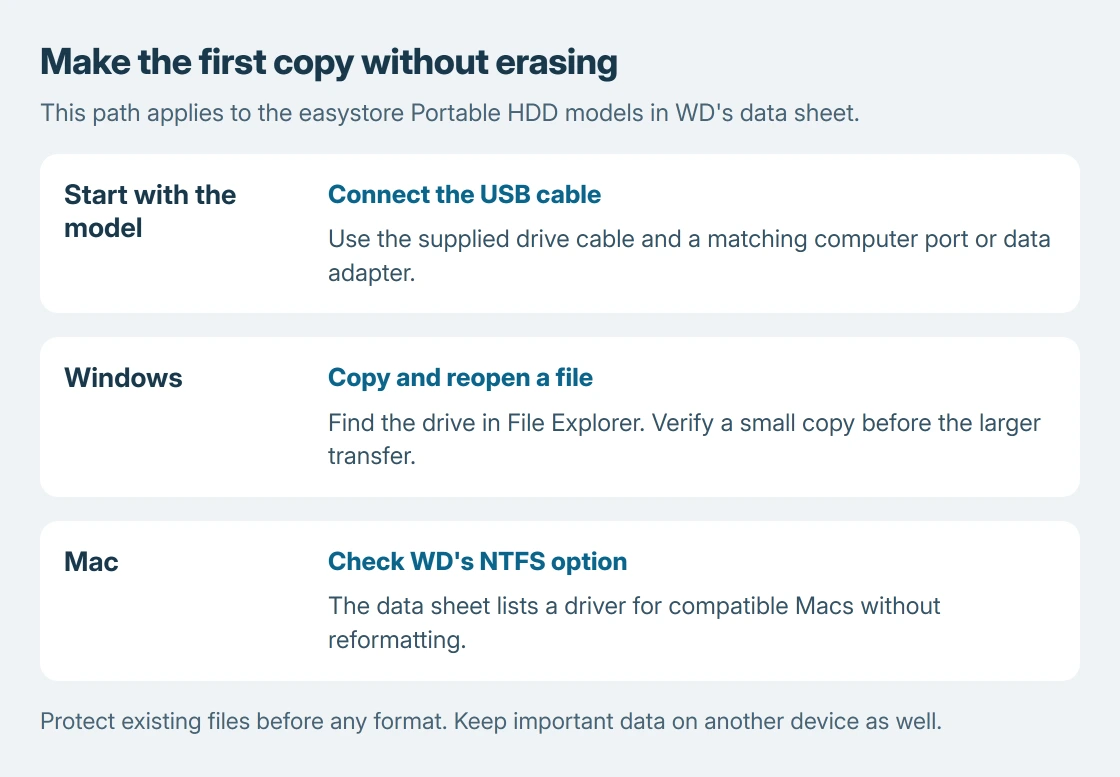
WD lists a USB-A cable in the box. Connect the supplied drive cable to the computer's matching port. If the computer has only USB-C ports, use an appropriate data-capable adapter rather than forcing the rectangular connector.
Status: easystore Portable setup checked October 25, 2026, using WD's model-specific data sheet and Microsoft's file-copy procedure. No external disk was connected or formatted.
The data sheet describes plug-and-play storage and separate downloadable backup software. Saving a file manually and configuring automatic backups are two different tasks.
Copy a small file in Windows before a large folder
Microsoft says to connect external storage and open File Explorer in its external-drive copying instructions.
- Open File Explorer > This PC. Find the external drive and open it. Check its name and capacity so the destination is clear.
- In another window, select a small file from the PC. Use Copy, open a folder on the easystore, and choose Paste. Copying preserves the PC's original.
- Wait until the transfer completes. Open the copy from the external drive and confirm that it is readable before copying the larger folder.
The small-file trial is ours. It checks that the intended destination can accept and reopen a file before a long transfer. It cannot prove the drive's entire capacity is healthy.
Microsoft documents the final checks: browse the copied files and select Eject before disconnecting. If Windows says the drive is busy, close files opened from it and retry removal.
On a Mac, check the NTFS driver before erasing
For compatible Macs, WD lists a downloadable NTFS driver that enables reading and writing on macOS 11 or later without reformatting. Hardware and operating-system compatibility still apply.
Use WD support for the exact model's download and its current compatibility requirements. Do not install a random driver from a similarly named download page. A model's file-system support matters more than its enclosure's appearance.
If a different format is needed, first save every required file elsewhere. The format selection guide explains the NTFS, exFAT and FAT32 choices. Formatting removes existing contents from normal access.
Stop if the drive is missing or requests a format
A used drive that Windows asks to format needs a data check before accepting that prompt. The external drive detection guide covers checking recognition without assuming erasure is the fix.
Keep important files on another device as well. An external drive holding the only remaining copy is storage, regardless of whether its folder is named Backup.
For a new drive that still cannot accept a file, give WD the model, operating system and exact message. For a drive holding irreplaceable files that has become unreadable, stop writing to it and seek recovery advice before trying repairs.
The Short Version
Identify the Portable model, connect it, and verify a copied file in Windows. WD lists an NTFS-driver route for compatible Macs. Protect existing files before considering any format, and keep another copy of important data.
 If you have any business, I can build it online






