

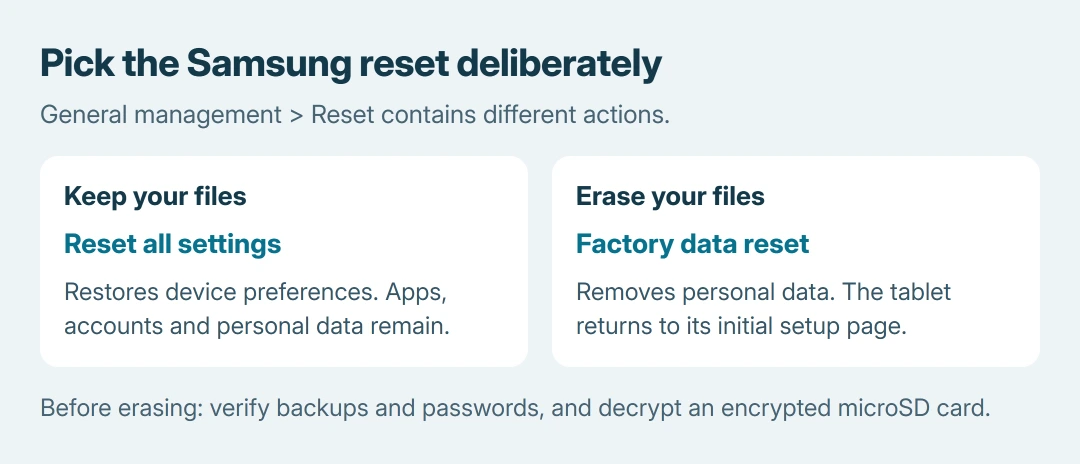
Resetting a Samsung tablet can mean restoring its settings or erasing everything on it. Reset all settings keeps apps and personal data. Factory data reset removes them and returns the tablet to initial setup.
For a factory reset, first check backups and account passwords. For a problem with preferences, start by choosing the smaller reset that matches the problem rather than wiping the tablet immediately.
In this guide
Choose what the tablet should keep
Open Settings > General management > Reset. Read the complete option name before tapping it. Samsung says its Galaxy reset controls have different effects on stored information.
Reset all settings restores device preferences without erasing accounts, apps or personal data. Samsung also excludes security settings, language settings and downloaded apps' own settings from that reset.
For a connection-only fault, Samsung network reset choices explain the separate cellular and Wi-Fi/Bluetooth controls.
Status: Samsung's tablet and Galaxy reset instructions checked October 26, 2026, with Google's account preparation guidance. No tablet was erased or reset.
A tablet needing only different menu text can use the Samsung language controls. A language change does not require a factory reset.
Prepare the backup, accounts and memory card
Save needed files, photos and app information outside the tablet. Open the saved copies to check them. Our Android backup coverage guide describes gaps that can leave app data without a saved copy.
Google says to confirm the Google Account and password already associated with the device before a reset. If that password was just changed, its reset preparation instructions say to wait 24 hours.
Have the tablet's screen lock and Samsung account password available too. Samsung states that a signed-in Samsung account can require its password to finish the reset, and a network connection is needed to sign out.
If a microSD card is encrypted, decrypt it before resetting. Samsung warns that otherwise the tablet may be unable to read the encrypted data afterward. Search Settings for Decrypt SD card and follow the device's prompts.
Copy important card files elsewhere as well. Do not assume an account backup or the reset itself protects removable storage.
Run Factory data reset from the unlocked tablet
- Open Settings > General management > Reset > Factory data reset.
- Review the information about data and accounts that will be removed. Stop if a required file still has no saved copy.
- Tap Reset, then complete the screen-lock and account verification prompts shown on the tablet.
- Confirm Delete all when ready for the erase. Prompt order can vary with the software version.
- Let the tablet finish and restart. It should return to the initial setup page.
Samsung's tablet-specific reset page also allows searching Settings for Factory data reset when the menu layout differs.
If keeping the tablet, complete setup and restore the available saved data.
For a continuing software fault, check its behavior before reinstalling every previous app. That comparison helps establish whether a particular app brings the fault back.
Use Reset all settings when personal data should stay
Return to Settings > General management > Reset > Reset all settings. Read the summary, tap Reset settings, then confirm Reset. Samsung documents a restart after this operation.
Check the setting or behavior that prompted it. This option is useful only for the settings it covers. It will not erase a downloaded app's own preferences or remove that app's stored data.
If the device is locked, cannot reach Settings or requests an unavailable account password, stop at that condition.
When the tablet stays dark, work through Galaxy Tab power and startup checks before considering an erase.
Ask Samsung for the model's recovery procedure and account assistance. Button-reset methods vary across Galaxy tablets.
A reset does not remove ownership checks after every recovery method. Do not erase repeatedly to try to bypass account verification. Give Samsung the model and exact setup message if the tablet cannot be activated afterward.
The Short Version
Choose Reset all settings to keep personal data, or Factory data reset to erase it. Prepare backups, passwords and any encrypted card first. Complete the on-screen confirmations and expect initial setup after a factory reset.
 If you have any business, I can build it online






