

An HP laptop showing Boot Device Not Found with Hard Disk (3F0) can't find a usable system to start. Run its built-in storage test before reinstalling Windows. The result helps tell a drive failure from a problem with startup settings.
That message doesn't automatically mean your files are gone. The repair depends on whether the drive fails its test, isn't detected at all, or passes but still won't start Windows.
In this guide
1. Disconnect extra storage and record the error
Turn the laptop off and remove USB drives, memory cards and a dock. Leave the correct power adapter connected. Start it again and check whether the same 3F0 message returns without those accessories.
If Windows opens, copy your important files to separate storage before continuing. A startup failure that comes and goes is a reason to save your data while you can still reach it.
Write down the full message, including 3F0, and your laptop's product number. A blue Windows INACCESSIBLE_BOOT_DEVICE screen happens at a different stage. The 3F0 message comes from the laptop's built-in startup software, or firmware.
If your laptop stays completely dark and never shows 3F0, use the HP power checks. The computer needs to turn on and display a menu before you can run diagnostics.
If 3F0 stays on screen, run the next check before trying Windows repair commands. It works outside Windows and tests the storage hardware itself.
2. Open the F2 storage diagnostics
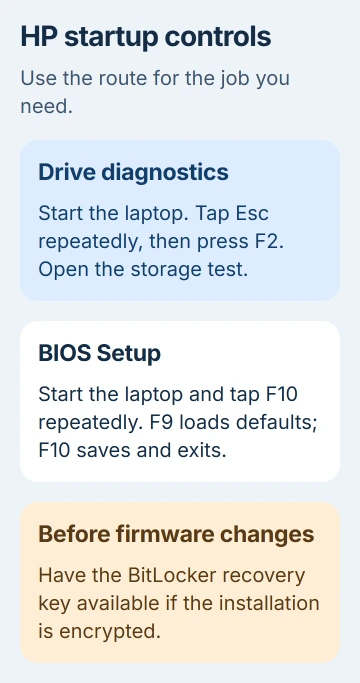
With your laptop off, press Power and immediately tap Esc repeatedly. At the Startup Menu, press F2 to open HP PC Hardware Diagnostics UEFI. This tool tests hardware before Windows starts.
HP says to choose Symptom Tests > Hard disk/SSD drive issue in its 3F0 procedure. Select the internal drive with the problem, or the all-drives option if your laptop has several drives.
Some versions put the tests under Component Tests > Storage instead. Choose the storage or hard-drive test your model offers. If you can't find the menu, that doesn't mean the drive has failed a test.
Run the short or Quick Test first and read the result. Keep the adapter connected. If diagnostics won't open, ask HP how to run them on your model before trying changes to firmware settings.
This test checks the hardware without replacing your Windows files. If the drive passes, continue to startup settings. If it fails, the next job is protecting your data and arranging service for the drive.
3. Keep the failure ID, or follow a missing-drive result
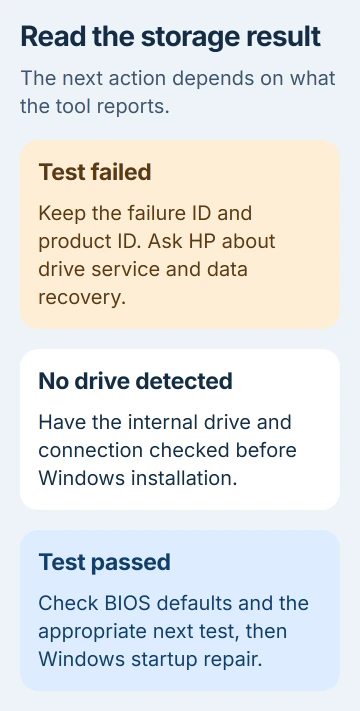
If a test fails, write down its 24-digit failure ID and the product ID. You may also find the result in Test Logs. Take a clear photo if your laptop can't save or send the report.
Give HP those details and say which type of storage your laptop has. Ask how the repair affects your files before agreeing to replace the drive. Fitting another drive won't copy the files from the failed one.
If no internal drive appears, the drive, its connection or the hardware that controls it needs checking. This isn't just a Windows setting to repair. The computer must detect a drive before you can reinstall the operating system.
If the drive disappears and holds files you can't replace, I'd ask about data recovery before running more tests. Stop using a mechanical drive that has started clicking, and tell the repair team about the noise.
For sealed storage, follow your model's service instructions or have a technician check the connection. A SATA cable is only one type of drive connection; advice to unplug it won't fit every NVMe SSD or laptop with soldered storage.
4. Restore BIOS defaults when the drive remains available
If the laptop detects the drive and it hasn't failed its test, restore the firmware's default settings. This resets the BIOS settings. It doesn't erase Windows or run factory recovery.
Have your BitLocker recovery information ready before changing firmware settings. If your Windows drive is encrypted, it may ask for the recovery key afterward.
Start the laptop and repeatedly tap F10 for BIOS Setup. Press F9 to load defaults, then F10 to save and exit. Read the confirmation and choose Yes when asked to save the changes.
Let the laptop try starting from its internal drive again. If Windows opens, save your files and try another normal restart. If 3F0 returns, continue with the testing and recovery options that follow.
RAID, AHCI, Legacy and Secure Boot depend on how Windows was installed, so avoid experimenting with them together. For a separate boot-order message, use the proper boot device guide.
5. Match further testing to the drive and tool version
For a mechanical hard drive, the Extensive Test checks more than the quick run. Let the test finish and keep the result. If your laptop has an SSD, check the diagnostic tool's version and your model's instructions first.
The UEFI version 8.0 instructions warn against running its Extensive Test on SSDs because it includes a write test. With that tool, don't test an SSD using the mechanical-drive sequence.
The startup-error overview lists storage testing and BIOS defaults for 3F0. If the laptop still won't start after those checks, the next option is system recovery.
Firmware updates must match your model. If HP recommends one for your laptop, follow its instructions for updating a PC that can't start Windows. An update meant for a similar-looking laptop won't do.
6. Repair Windows only after the storage checks
If the laptop detects the drive and it passes testing, try Windows recovery. If the built-in recovery won't open, you can use prepared Windows installation media to reach the repair tools without starting a new installation.
Choose Troubleshoot > Advanced options > Startup Repair and restart if prompted. The startup repair tool can fix damaged startup files and the settings Windows uses to start.
If repair fails, keep its report and ask support about recovery. Copy accessible files to separate storage before an erase or reinstall. Opening the recovery menu doesn't back up those files.
For other startup screens on the same laptop, match the HP boot failure before choosing a Windows rollback.
7. Choose service or recovery from the result
A failed hardware test or a drive the laptop consistently can't find needs HP or a repair shop. If the drive passes but Windows is damaged, you may need recovery or reinstallation after saving your data.
Give support your product number, the full 3F0 message, test result and any failure ID. Mention any recent drive replacement or firmware change. Those details help support pick a repair, without guessing from just the error.
The Short Version
Run the F2 storage test after disconnecting accessories. Keep any failure ID. A failed or missing drive needs service; for a passing drive, check BIOS defaults and consider Windows startup repair. Match further testing to the drive type.
Checked November 5, 2026.
 If you have any business, I can build it online






