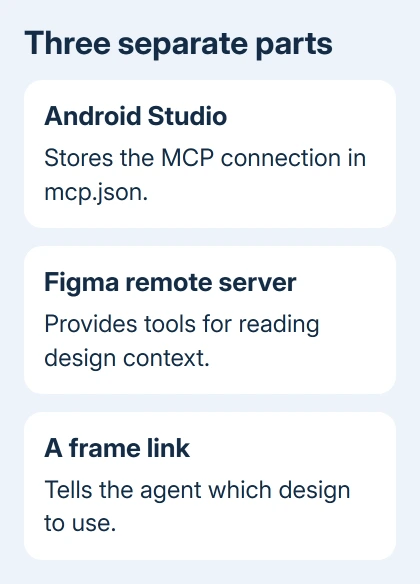
No, Figma doesn't supply an mcp.json design download for Android Studio. Add its remote MCP server in Studio, which stores the connection in its own mcp.json. Then sign in to Figma and give the agent a design frame link.
MCP is the connection that lets an AI coding agent read design information through tools. The JSON file holds that connection's settings. It isn't the design, a collection of exported images or a finished Android project.
In this guide
Add the connection inside Android Studio
Open your Android project and find File > Settings > Tools > AI > MCP Servers. On macOS, start from the Android Studio menu instead of File. With multiple Studio installations, open settings in the one you'll use for this project.
Google's steps in the current Android Studio MCP instructions offer a marketplace or Add via JSON. If Figma is available in your marketplace, use that entry. Manual JSON is the other supported route.
The marketplace arrived in Android Studio Quail 3. Gemini settings can look different in earlier versions. If MCP Servers is missing, check your Studio version and its release notes before creating configuration files.
I'd use the settings page first. It avoids guessing which version-specific configuration directory Studio is reading, especially with stable and preview installations on the same computer.
Use Android Studio's JSON format
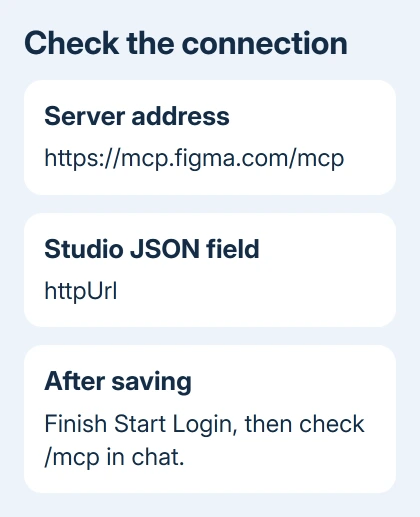
Choose Add via JSON and use this minimal Figma configuration. Keep any existing servers when merging it into an existing file:
{
  "mcpServers": {
    "figma": {
      "httpUrl": "https://mcp.figma.com/mcp"
    }
  }
}
The server name, figma, labels the connection. httpUrl tells Android Studio the web address of the remote server. The braces and straight double quotes matter because this is JSON, rather than a list of instructions for the agent.
Save with OK and watch the connection notification. A successful connection or a sign-in permission error means Studio has reached the service. If you see a JSON syntax error, fix the configuration's formatting first.
Don't paste a second complete outer object into the middle of an existing configuration. Add the Figma entry inside its existing mcpServers object. A missing comma between server entries can stop the whole configuration from loading.
Studio saves mcp.json in its configuration directory, which depends on the operating system and Studio version. A file placed beside build.gradle in your project won't become active just because it has the right name.
Other editors can use a different JSON structure or a url field. Follow the Studio example here: its streamable HTTP configuration uses httpUrl. Android Studio's documentation uses url for an older connection method called HTTP SSE instead.
Finish the Figma sign-in
After Studio accepts the address, the service can still require you to sign in and approve access. When Studio offers Start Login, select it. Sign in through the browser, approve the requested Figma connection and return to Studio.
Look for a successful server connection, then check that its tools are available. Saving the JSON alone doesn't give the agent permission to read private designs. Use the Figma account that can already open the file you need.
If Chrome specifically blocks the sign-in window, allow the blocked pop-up for the expected site. The Chrome pop-up controls show how to allow an individual site without permitting every website.
The Chrome pop-up guide covers that browser step in more detail. If no browser window was blocked, return to Studio's error instead of changing unrelated browser settings.
If you get a permission error with no way to sign in, note your Studio version and the error message. Try the supported marketplace entry when available. Report a persistent failure through Android Studio's issue tracker with those details.
Give the agent the right frame
Open the Figma Design file and select the frame or layer you want implemented. Right-click it and choose Copy link to selection. Paste that link into your request in Android Studio's agent chat.
For a crowded file, zoom to the selected frame before copying its link. Selecting the whole intended screen gives the agent a clearer target than linking only a small icon inside it.
Ask for what you need, such as implementing that frame in Jetpack Compose with the project's existing theme and components. The link shows the agent the design. Your request still needs to say which Android UI framework to use.
Type /mcp in the chat to check the agent's available tools. Ask it to read the linked frame before attempting a large implementation. That smaller request checks whether the connection works and your account can read the selected frame.
Review the resulting layout in your project. Compare text, spacing, assets and interactive behavior with the intended design. The agent now has the design information, but you'll still need to build the app and check its screens.
For XML output with a disappearing reusable section, check the include layout in Studio before changing the Figma connection.
Fix access errors without replacing the JSON
If tools load but one design can't be read, open that link using the same Figma account. The connection can only read files that account can already use. If you can't open the file, ask its owner for access.
Figma's access and rate-limit reference also distinguishes permission errors from usage limits. When a tool reports a limit, check your plan and seat before changing a working server address.
The remote route doesn't require the Figma desktop app. The desktop server uses a different setup. Mixing a local address from another tutorial with the remote configuration can send Studio to a service that isn't running.
Android Studio currently lists limits to its MCP support, including no stdio transport, MCP resources or prompt templates. Even if a server works in another editor, Studio might not support all the same features.
If it still fails, send Android Studio support your version, connection method and error. Remove any access tokens before sending those details.
For file-access problems, ask the Figma file owner or workspace administrator to check your account's access.
The Short Version
Add Figma in Studio's MCP Servers settings with the marketplace or httpUrl JSON. Finish sign-in, check /mcp, and paste a selected frame's link into your prompt. Figma doesn't provide a design mcp.json download.
Checked November 10, 2026.