Touchpad buttons that won't click while movement still works can have a disabled gesture or a problem with the click mechanism. Check taps and the click area first; a completely dead touchpad needs a different approach.
A two-finger tap that opens a menu tells you Windows still receives touch gestures. A button that sticks, feels different, or won't register anywhere needs a closer look at the hardware after the settings and driver checks.
In this guide
1. Compare a tap with a physical press
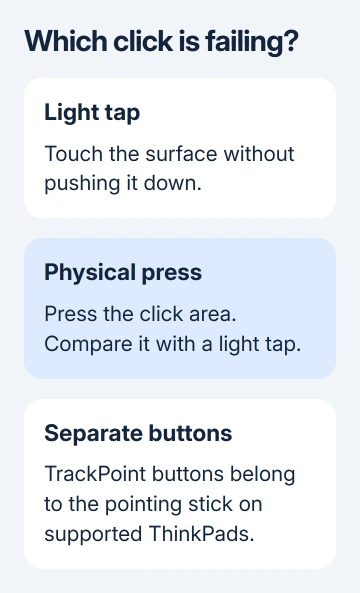
Open File Explorer and move the pointer over a file or folder. Try a light one-finger tap, a normal press in the pad's click area, and a two-finger tap. Note which action selects the item or opens its shortcut menu.
On supported Windows touchpads, a two-finger tap or a press in the lower-right corner performs a right-click. Microsoft's touchpad gesture instructions describe those actions.
Try the same actions in a second app. If the problem occurs only in one program, close and reopen that program before changing the driver for the whole computer.
A tap isn't a mechanical press. If tapping works but pressing doesn't, tapping can keep you working while you check the click mechanism and its settings. It doesn't mean the physical switch is healthy.
If moving a finger doesn't move the pointer either, use the broader touchpad recovery checks. This procedure is for missing clicks, especially when movement remains normal.
2. Turn on the click action that's missing
On Windows 11, open Settings > Bluetooth & devices > Touchpad. On Windows 10, open Settings > Devices > Touchpad. Expand Taps if that section is available.
Check Tap with a single finger to single-click for ordinary taps and Tap with two fingers to right-click for the two-finger menu gesture. For a failed corner click, check Press the lower right corner of the touchpad to right-click.
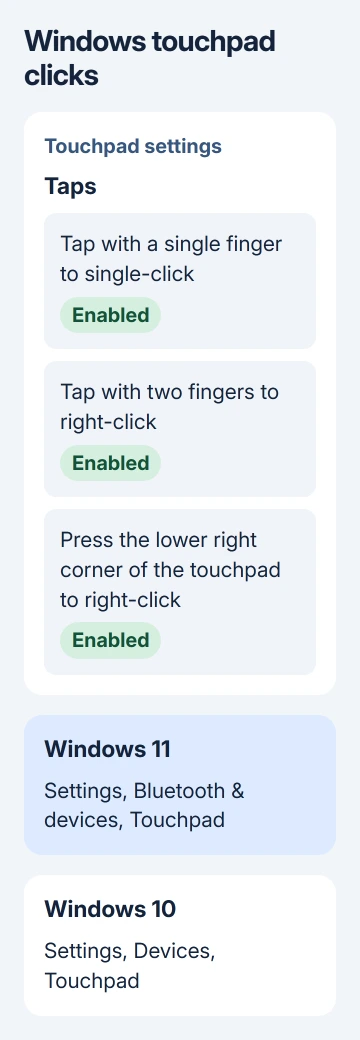
Test the action you just enabled in File Explorer. If it works again, that gesture was turned off in settings. Leave the other controls alone unless their actions also fail.
Those options depend on the laptop's touchpad and driver. An older Synaptics or ELAN device may have extra controls in its own settings instead of the Windows Taps section.
Without a working click, press the Windows key, type touchpad settings, and press Enter. Use Tab to reach a control and Space to change a selected checkbox or switch. Watch the keyboard highlight as you move.
I'd use a USB mouse if one is available. It makes the remaining checks easier and avoids changing the wrong control while navigating a long settings page from the keyboard.
3. Identify separate buttons and haptic click zones
Some laptops have physical buttons beneath the pad. A clickpad has clicking built into its surface. A haptic pad produces click feedback electronically, so don't expect it to move the same way as an older button.
ThinkPads add another possibility: the buttons beside the red pointing stick can belong to TrackPoint, a separate pointing device. The center button works with the stick for scrolling; it isn't simply a third ordinary click.
For the actual menu gesture, compare Lenovo right-click methods before treating a working TrackPoint button as a touchpad setting.
For example, the X1 Carbon Gen 13 manual directs you to search Windows for Mouse settings, then open TrackPoint settings to change that device's controls. Use the manual for your model before changing these options.
On the ThinkPad P1 Gen 8 haptic pad, enabling TrackPoint Three Buttons changes the click zones shown in the manual. Compare the enabled and disabled layouts rather than pressing the same corner repeatedly.
If your Lenovo's whole pad stops responding, the model-specific Lenovo controls explain that separate fault. The pointing stick can work even when the flat pad is turned off.
4. Restart and install the correct driver update
Save any open files, then select Restart from the Start menu's Power options. After signing in, repeat the click that failed before opening your usual applications. A fresh Windows session may clear a temporary input problem.
Next, check Settings > Windows Update > Check for updates on Windows 11. Windows 10 keeps Windows Update under Settings > Update & Security. Apply the available packages and restart Windows if prompted.
For driver updates, Windows 11 also offers Windows Update > Advanced options > Optional updates. Expand Driver updates if it appears and look for the relevant input-device update.
A touchpad driver lets Windows communicate with its hardware. Microsoft's touchpad repair steps recommend Windows Update before a manual driver change.
If the manufacturer supplies a model-specific touchpad package, match the full model and Windows version. Don't choose a driver simply because it contains Synaptics or ELAN in its name.
5. Reinstall only the identified touchpad device
If updates haven't restored clicks, press Windows+X and select Device Manager. Look under Human Interface Devices or Mice and other pointing devices for the touchpad.
Before removing an input device, connect a mouse or make sure you can navigate with the keyboard. Confirm the entry from its name and the laptop's support information; don't remove several generic HID entries to see which one helps.
Right-click the identified touchpad, choose Uninstall device, and restart Windows. Windows then tries to install its driver again. Repeat the same tap and press checks when you're signed in again.
If the device can't be identified, stop at that point and ask the manufacturer which entry belongs to the pad. Tell support if the touchpad is missing from the list or its name is unclear, rather than deleting more entries.
6. Arrange service for a button that still fails
A button that sticks or no longer moves as it used to needs a physical inspection. Stop pressing harder or prying at the surface. A raised touchpad or bulging case also needs prompt service rather than more driver changes.
Use the laptop maker's support contact for the exact model and ask about touchpad or button repair. Report whether movement, taps, left press, right press, and an external mouse work, plus any recent spill, drop, or driver change.
For a laptop still covered by warranty, ask whether the faulty button belongs to the touchpad assembly and whether that repair is covered. A working tap can keep you productive, but it doesn't repair a damaged switch.
The Short Version
Compare taps and presses, then check gesture settings and separate button controls. Restart and update before reinstalling a known touchpad driver. If the physical button still fails, ask the manufacturer about a repair.
Checked November 10, 2026.