PowerPoint for Windows can send slides to Word through File > Export > Create Handouts. Choose a notes or outline layout, then save the resulting Word document. Renaming a .pptx file to .docx doesn't convert its contents.
Decide whether you need slide pictures with notes or text you can rewrite. The handout layout controls that result. Mac and browser users need a different route when the Windows export command isn't available.
In this guide
Choose what the Word document needs to contain
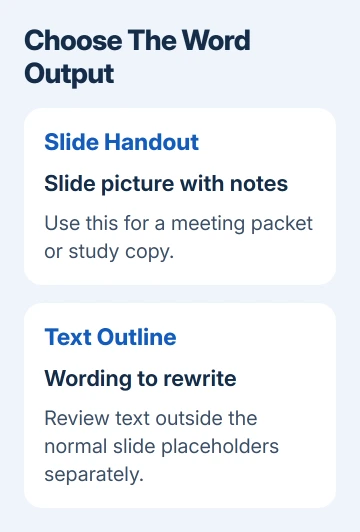
A slide handout keeps a small version of each slide beside writing space or speaker notes. It's useful for a meeting packet or a study copy. A text outline suits a report you're going to reorganize into ordinary paragraphs.
The slide image isn't a collection of editable Word text boxes. Editing the surrounding notes in Word won't change the words inside that picture. Choose an outline or copy the actual text when rewriting slide content is the main job.
Save the presentation before exporting. Check speaker notes before sharing the document: private reminders, rehearsal comments, and background details can appear in a handout when the layout includes notes.
Use desktop PowerPoint on Windows, including Microsoft 365, PowerPoint 2024, or PowerPoint 2021. You'll need Word on that computer too. The command opens Word on your PC to create the handout.
If you only need a printable copy, save the presentation as a PDF instead. Use Word to revise handout text or arrange material around the exported slides.
Send the presentation to Word on Windows
Open the deck in PowerPoint, select File, then Export. Choose Create Handouts in the export list. In the panel headed Create Handouts in Microsoft Word, select the Create Handouts button.
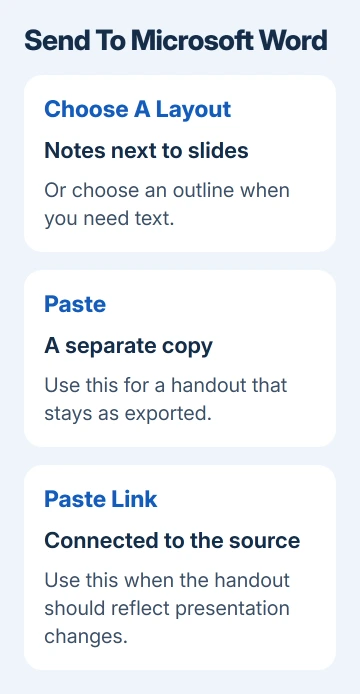
The Send to Microsoft Word dialog asks for a page layout. Choose Notes next to slides for a side-by-side arrangement or the notes-under-slides option for a stacked page. Blank-line layouts leave room for handwritten notes.
Choose Outline only for the presentation's text outline rather than slide thumbnails. Compare it with the slides afterward. You may need to copy separate text boxes and words inside images yourself.
Select Paste for a copy that stays as exported. Choose Paste link when you want the Word document to reflect changes to its source presentation. Select OK and wait for Word to open the new document.
Microsoft's handout export instructions describe both paste choices. For a document you're about to send, I'd choose Paste unless you need it to keep updating.
A separate copy is easier to share with someone who doesn't have your presentation. A linked document still depends on that original. Treat it as a working file and check that its updates have come through before you share it.
Save the new file and check its first and last pages
In Word, use File > Save As, or Save a Copy where that is the available command, and give the document its own name. Keep the Word format selected. Your original PowerPoint presentation remains a separate file.
Read the first exported slide, a slide from the middle, and the final slide. Check that the slide order and notes match the presentation. Word can open the document even when the end of a large presentation hasn't transferred.
For an outline, check anything outside the slide's standard title and content boxes. Review charts, photographs, and separately positioned labels. Copy any required text or objects into Word as you work through the slides.
For editable text, select the words inside PowerPoint, copy them, and paste into a Word paragraph. Use the paste options to change formatting if the font or color doesn't fit. Select the text itself, rather than its slide thumbnail.
Before printing, preview the pages in Word and check whether notes or slide pictures are split awkwardly. If you actually wanted one slide with its notes on each page, PowerPoint's Notes Pages printing option may be the shorter route.
Handle an export that stops or reports a Word error
For PowerPoint couldn't write to Microsoft Word, save your changes before restarting the computer. Reopen just PowerPoint and repeat the export. PowerPoint can need a lot of memory to send a large presentation to Word.
If a large deck exports only partly, make another copy through Save As. In that copy, remove the slides that have already transferred successfully. Export the remaining slides and keep the two Word outputs until you've checked both.
Combine the Word documents once you've checked for repeated or missing slides. Keep all slides in your original presentation. Deleting them from your only copy would leave you with missing slides as well as a failed export.
If a small deck also fails, record the complete message and both Office app versions. Ask Microsoft 365 support or your Office administrator about Create Handouts export to Word, rather than a generic printing issue.
Move the text manually in other editions
If your edition doesn't have Create Handouts, start a new Word document and copy the material you need. The Windows export panel isn't a command that every PowerPoint edition provides.
On a Mac, select the text inside a slide's text box, press Command+C, switch to Word, and press Command+V. Add a heading for that slide and repeat in order. Copy speaker notes separately when the document needs them.
In PowerPoint and Word on the web, select the source text and use Ctrl+C, then Ctrl+V in the destination document on Windows. Use the corresponding Command shortcuts on a Mac. Allow a clipboard prompt only for the app you're using.
This takes longer than the Windows export, but it gives you editable wording rather than an image of each slide. For a long deck that needs automatic handouts, use the Windows desktop export on a computer with both apps available.
Check the reading order, then save before sharing. Connections that are clear in a slide layout can need explaining in a report. Add a heading and connecting sentence wherever copied material would feel disconnected.
The Short Version
Export through Create Handouts in Windows PowerPoint, then select a layout and save the Word output. Compare it against the deck. Copy actual text when you need editable wording or the export command isn't available.
Checked November 10, 2026.