The Instagram icon on Android changes through your phone's launcher or Home screen settings. Use a launcher with individual icon editing for Instagram alone, or Samsung and Pixel styles to change several icons together.
Decide first: a replacement picture for Instagram, or a new color for your icons? Start with the options your phone already has, then change launchers only if those don't give you the result you want.
In this guide
Choose between a new picture and a new style
A launcher is the app that runs your phone's Home screen and app list. It controls how Instagram looks there, while Instagram still controls the screens inside the app. Changing that picture doesn't change your profile photo or account.
An icon pack gives you replacement pictures for apps. A themed-icon setting usually changes colors or styling across a collection of apps. Pick an icon pack for a replacement picture, or a themed-icon setting for a shared style.
I'd check the built-in style first if you only want Instagram to match your wallpaper. Replacing an entire Home screen is a bigger change than choosing another color.
Keep a picture of your current Home screen before switching launchers. The new launcher can have its own arrangement, widgets and folders, so it won't necessarily look like the screen you just left.
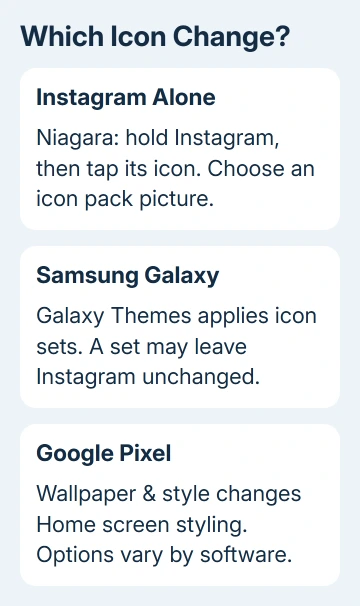
Replace just Instagram's icon with Niagara Launcher
Niagara's own individual icon instructions give a direct method: hold the app, then tap its picture in the dialog. This is useful when the phone's original launcher only offers whole sets.
- Install Niagara Launcher and a compatible icon pack from Google Play. Check the pack's preview for an Instagram design you actually want.
- Open Niagara and follow its setup. Make it your Home app when Android offers that choice.
- Find Instagram in Niagara's app list or favorites. Touch and hold its entry.
- Tap the app icon in the dialog. Tapping its name changes the label instead.
- Choose a replacement from an installed icon pack. Open Instagram from the updated Home screen to check the result.
The new picture should appear in Niagara and still launch the same Instagram account. It doesn't replace the app's installed identity everywhere Android displays it, such as its system settings page.
Niagara doesn't let you pick a picture from your gallery for this feature. Use an icon from an icon pack. If your goal is a personal photo, this particular launcher won't provide that option.
Niagara can't use pictures from Galaxy Store packs as individual replacements either. Choose a compatible Google Play icon pack for the individual-edit method, rather than buying a Galaxy Themes set for it.
Apply an icon set on a Samsung Galaxy
Galaxy Themes is the built-in route on supported Samsung phones. It can replace a collection of icons, but a set may leave Instagram unchanged if it doesn't include a matching design.
- Hold a blank spot on your Home screen, then choose Themes.
- Tap Icons and browse the available sets.
- Open the set's details and inspect its preview. Choose Download for a free set, or review the price for a paid one.
- Apply the downloaded set. For something already saved, open Menu > My stuff > Icons, choose it, then tap Apply.
- Confirm Apply again if asked, then check Instagram on your Home screen.
The Galaxy Themes instructions warn that icon sets may not change every app. If other apps have changed but Instagram hasn't, the download hasn't necessarily failed.
Galaxy Themes also doesn't use your own image files as icons through this method. Use individual launcher editing if you need one replacement rather than a coordinated set.
To undo a set, return to Themes > Menu > My stuff > Icons and apply Default. Changing the wallpaper alone isn't the same as restoring the original icons.
Change Instagram's style on a Pixel
Pixel's available controls depend on its software. Google says its current wallpaper controls include Wallpaper & style > Icons, with style and shape options. Older software can show Themed icons instead.
On a Pixel with the newer menu, keep a finger pressed against unused Home screen space. Open Wallpaper & style > Icons > Style, then choose an available style. Follow the download and apply prompts when the selected style needs them.
For the shape, use Wallpaper & style > Icons > Shape, select the shape you prefer, and tap Apply. These controls style the Home screen's icons together; they aren't an Instagram-only picture picker.
On software with Themed icons, use that switch to match supported icons to the phone's color scheme. Turn it off if Instagram became a flat or monochrome design and you want its normal appearance back.
The all-apps list can look different from your Home screen. Check the location you wanted to customize before deciding the change didn't work. One screen showing the original picture isn't a reason to reinstall Instagram.
Why does the old icon still appear?
If the wrong Home screen appears after setup, check Android's default Home app. Open Settings > Apps > Default apps, then choose the Home app control your phone provides. Select the launcher whose settings you changed.
Switching back to your original launcher returns to its own icon setup. A replacement chosen inside Niagara won't automatically carry over to Samsung's or Pixel's launcher.
For another way to personalize your phone, the Android ringtone settings control sound separately. For a bigger phone migration, review the Android backup limits before assuming a custom layout will transfer.
If individual editing is missing in Niagara, use its in-app help. Include the app version, phone model and which screen you were on when you held the icon.
For a Galaxy Themes purchase that doesn't match its description, open the set's details and use its seller support option.
The Short Version
Use a compatible launcher's individual editing for Instagram alone. Galaxy Themes applies sets; Pixel styles its Home screen. Check pack coverage before downloading. Restore the original launcher or default set to undo the change.
Checked November 10, 2026.