The installed iOS version is in Settings > General > About, beside iOS Version. That number tells you what's running now; a version offered on the Software Update screen hasn't necessarily been installed.
A connected Mac or Windows PC can also show the version. Try that route if you find the phone's Settings screen hard to read and the computer can recognize and access your iPhone.
In this guide
Read the version already installed on the phone
Open Settings, tap General, then tap About. Look for iOS Version and copy the complete number shown beside it. Older software can label the same information Software Version.
Apple says to read the software version in About for the direct check. Reading it doesn't download an update, restart the phone or change its settings.
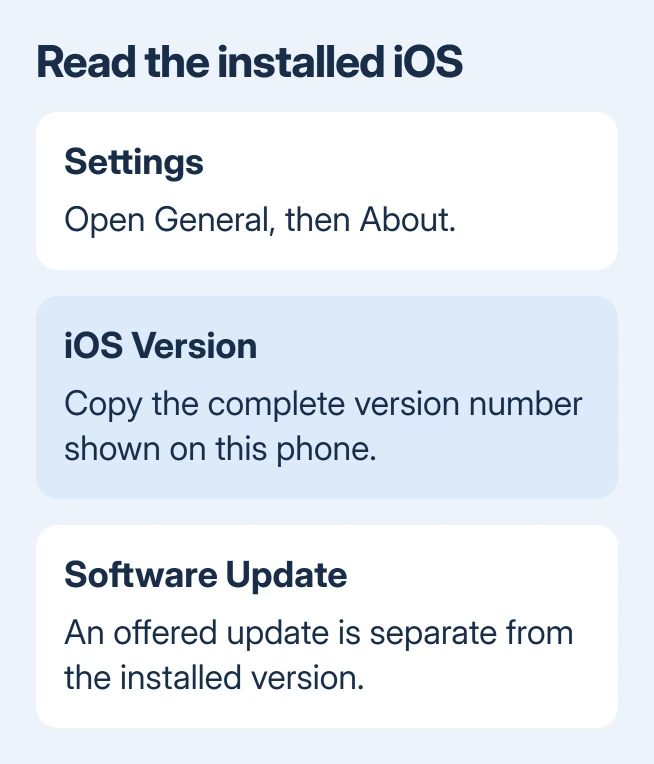
Keep all the parts of the number; just the first number can't confirm a particular update is installed. I'd copy the full entry before closing Settings, especially when reporting a fault that appeared after an update.
The nearby Model Name answers a different question: which iPhone you own. Model Number identifies its hardware. Neither is the iOS version, even though all three appear on the same About page.
If you're checking several family phones, write each model beside its software version. That keeps a support conversation from mixing the version on one phone with a symptom on another.
Compare installed software with an available update
Go back to General, then open Software Update. This page checks whether software is available for that iPhone. A download or installation button means you can get that update. It doesn't mean the update is already installed.
An update can be downloaded and still be waiting to install. If the question is whether a particular fix is already on the phone, return to About and read the installed version there.
The iPhone update procedure explains the installation steps separately. Back up the phone before deciding to update; simply checking its version doesn't need that preparation.
After an installation finishes and the iPhone starts again, open About once more. The version shown there confirms what's now running. Scheduling an update doesn't tell you whether it finished.
If the computer can't see the phone for a version check, use the iPhone recognition checks before attempting an update. Trying to open the phone's tab again won't help until the computer recognizes it.
Find the version through a Mac
On macOS Catalina or later, use Finder. Connect the iPhone with a cable, open Finder and select the iPhone in its sidebar. Open the General tab and find the software information for the selected phone.
Unlock your iPhone if asked. If a Trust This Computer? alert appears, approve it only on a computer you trust and enter the device passcode when prompted. The computer may also ask you to confirm trust.
Choose the iPhone itself rather than a backup file or an imported photo folder. The software field on its General page is the connected device's version; a date attached to a backup tells you when that backup was made.
For a Mac with Mojave or an earlier macOS release, use iTunes. Use the device control to select your connected iPhone, then open Summary. Read its software version there instead of looking for the newer Finder controls.
Both apps show the installed version. Choose the app that goes with your macOS version, so you aren't hunting for Finder controls on an older Mac.
Check through Apple Devices or iTunes on Windows
Connect the iPhone to the PC and open Apple Devices. Choose your phone from its device list, then open General. The software version appears in that device view, along with the controls used to manage the phone.
If you're using iTunes on Windows, select the iPhone and open Summary instead. Apple's instructions cover both Windows apps: use Summary in iTunes and General in Apple Devices.
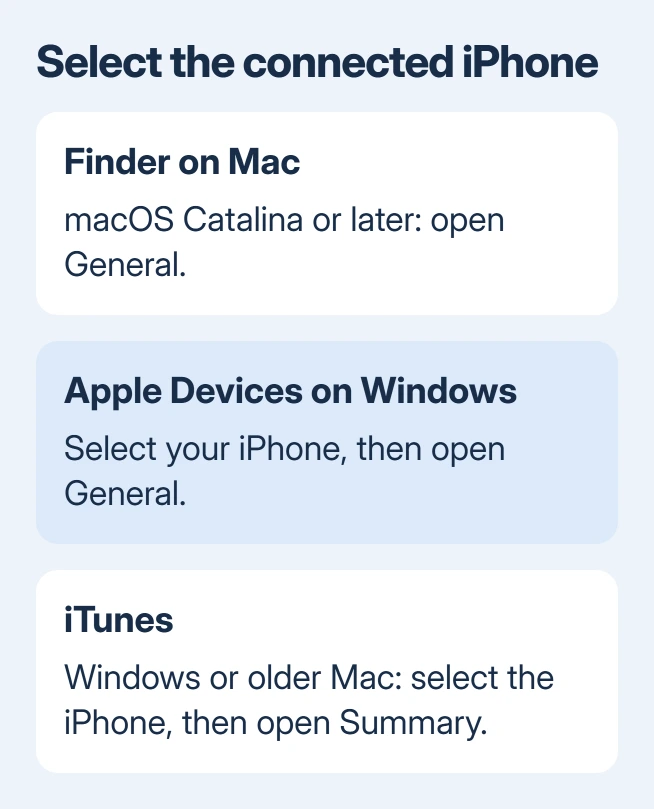
You don't need to choose Check for Update, Update or Restore just to read the version. Use the information already on screen. Restoring the phone is a different task and affects its contents.
If the device isn't listed, unlock it, check the cable connection and look for the trust prompt. The iPhone computer-trust checks cover a missing or repeatedly appearing prompt.
Use the number to answer the original question
For an app requirement, read its minimum iOS requirement and compare that with your installed number. Check the full requirement instead of assuming that a newer-looking phone automatically has newer software.
Legacy games have another limit: 32-bit iOS games need compatible older software, even if their minimum version looks low enough.
If you're checking because a feature is missing, write down your iPhone model too. Some features depend on supported hardware as well as software, so matching the required iOS version may leave a model restriction to check.
For a fault after updating, send support your exact installed version, iPhone model and the error or behavior. Give the number instead of saying you have the latest update; that description changes when another release arrives.
If both routes fail, use the connection guidance linked from Apple's version page, then contact Apple Support with the recognition error. Ask them to identify the connected iPhone before agreeing to an update or restore.
The Short Version
Read Settings > General > About > iOS Version for the installed software. On a computer, select the iPhone and use General in Finder or Apple Devices, or Summary in iTunes. An offered update isn't the installed version.
Checked November 10, 2026.