

Green flickering pixels on a monitor often point to trouble with the video connection. Start by reseating the cable, then try a compatible spare without a dock or adapter.
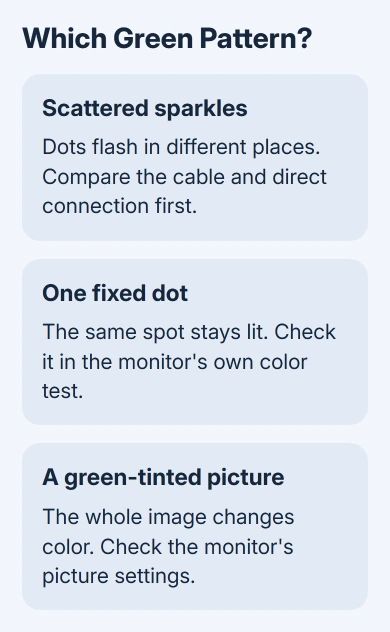
Scattered green sparkles need different checks from one green dot that never moves or a whole screen with a green tint.
Check whether the marks come from the computer or also appear in the monitor's own test. Work through the connection first, then use that test before paying for a replacement display.
In this guide
1. Reseat both video plugs
Turn the computer off, then switch the monitor off. Unplug the HDMI, DisplayPort or USB-C video cable at both ends, inspect the plugs, then reconnect them fully. A connection that looks seated can still be loose at the computer.
Check whether a desk arm, tight bend or heavy adapter pulls sideways on a plug. Leave enough slack for the monitor to move without tugging the connection. Don't force a damaged connector back into its port.
Turn everything on and look at the same dark picture or desktop area where the sparkles were easy to see. If they disappear, use the display normally before changing anything else.
If the marks come and go, give them time to return before deciding the problem is fixed.
If the entire picture is green rather than dotted with flashes, use the monitor color checks.
Picture presets and input color formats matter more for that symptom than for scattered digital noise.
2. Compare a spare cable without the dock
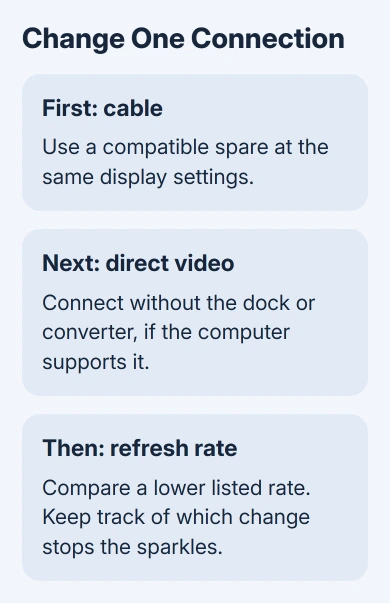
Try a spare cable that supports your monitor's resolution and refresh rate. Use a direct connection from the computer to the display when possible. That lets you check without the dock, converter or extension cable in the way.
Keep the same display settings for the first cable swap. If the replacement removes the green flashes, the original cable or its connection is the part to replace first. I'd try that cable before spending money on a graphics card.
I'd borrow a suitable cable before buying a monitor. It's a quick comparison, and a good result can spare you an unnecessary display purchase.
If direct video works but the dock route doesn't, reconnect the dock with the working cable. Check the dock's supported display modes for the number of screens attached. A dock can have different limits with one monitor and two.
When another matching port is available, try it too. Make each change separately. When the picture clears, you'll know which connection helped. If the sparkles remain with another cable and port, try the next check.
3. Compare a lower supported refresh rate
A display can work at a lower refresh rate but show faults when the connection has to carry more picture data. Try a lower rate to see whether the marks depend on that extra demand.
In Windows 11, open Settings > System > Display > Advanced display. Select the affected monitor, then use Choose a refresh rate to select a lower listed rate. Keep the resolution unchanged for this first comparison.
In Windows 10, open Settings > System > Display > Advanced display settings, select the monitor and use its Refresh rate control. On some older setups, you'll find it under Display adapter properties > Monitor.
Use only a mode Windows offers for that display.
Microsoft's refresh-rate instructions explain the available choices and why they vary by hardware.
If the dots stop at a lower rate, keep that working mode while checking the cable, adapter and port specifications. You won't know which part is at fault yet, but you'll have a usable setting and a specific problem to report.
On a Mac, open System Settings > Displays, select the external display and check Refresh rate if that option appears. Available choices depend on the display and connection. If the sparkles remain, test the monitor independently.
4. Check the monitor without the computer's picture
Bring up the monitor menu using its joystick or physical controls. Look for the marks over that menu, then find the exact model's built-in diagnostic procedure. The test draws its own colors instead of showing the computer's video signal.
For a Dell display, use the monitor self-test instructions to find the right procedure.
Button positions and joystick sequences differ, so another model's button sequence might select the wrong control.
Inspect each test color. A solid green test screen is normal; a green speck visible against another test color is the thing to report. Record whether the defect stays in one position or appears and disappears across the panel.
If the marks appear in the monitor's own test colors, the display itself is probably at fault. Stop changing Windows drivers and ask the monitor maker about service or its pixel policy for that model.
If the test looks clean, return to checking the video connection and computer. It can miss an intermittent fault, so compare it with the cable and refresh-rate results rather than treating one clean test as a final answer.
5. Follow the computer branch only when it fits
Connect another computer or console to the monitor with a suitable cable, or connect the original computer to another display. If only the original computer produces the marks across displays, check that computer's graphics output next.
For Windows flickering that affects the desktop as a whole, press Ctrl + Shift + Esc to open Task Manager.
Flickering there too points toward the display driver; an app becomes the stronger suspect when Task Manager stays steady as the desktop flickers.
That comparison is for general flicker. A few green sparkles alone don't justify declaring the driver faulty.
Follow the Windows flicker procedure when the wider symptom matches.
If a graphics update was followed immediately by this problem, open Device Manager > Display adapters, open the adapter's Properties, and choose Driver > Roll Back Driver when available.
Otherwise, check your computer maker's graphics update.
If multiple displays show corruption from that computer even before Windows loads, ask the computer manufacturer or a local repair technician to check its graphics hardware.
Give them the cable swaps, display modes and monitor-test results, rather than just saying the screen flickers.
The Short Version
Reseat the video cable, compare a compatible spare and connect without the dock. Try a lower supported refresh rate, then run the monitor's own diagnostic. Marks in that test need monitor service; computer-only faults need graphics checks.
Checked November 10, 2026.
 If you have any business, I can build it online






