

AirDrop sends a selection of iPhone pictures straight to a nearby iPad. For your whole library to stay available on both devices, turn on iCloud Photos using the same Apple Account instead.
Choose AirDrop when you want a one-time copy without linking the two photo libraries.
Neither method requires erasing the iPad. Start with a few pictures so you can check where they arrive before sending a larger selection.
In this guide
Decide how the iPad should receive your pictures
Use AirDrop for a handful of pictures, a one-time batch or an iPad belonging to someone else. Select the pictures on the iPhone, send them and accept them on the iPad when prompted.
Use iCloud Photos for two devices you own when you want the same library to remain available on both. It uploads and syncs photos over the internet, rather than creating an independent archive on the iPad.
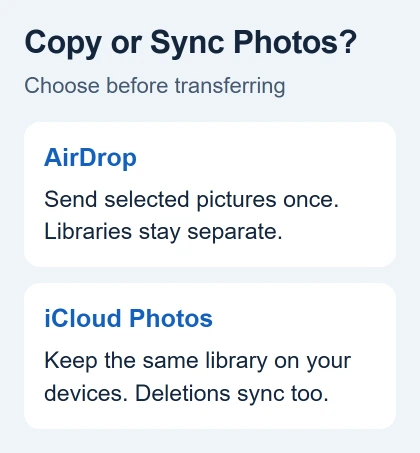
That distinction matters before deleting anything. With iCloud Photos enabled on both, deleting a synced picture on one device deletes it from the shared library on the other.
Choose AirDrop if you want a separate copy without keeping the libraries linked.
If the devices are already linked more broadly than you intended, the iPad and iPhone disconnection choices explain which settings control calls, messages and photos separately.
Prepare the iPad to receive an AirDrop transfer
Bring both devices nearby and turn on Wi-Fi and Bluetooth. Disconnect Personal Hotspot if it's active on either device. Keep the iPad awake and unlocked so its receiving controls and any approval prompt are visible.
On the iPad, open Settings > General > AirDrop. Choose Contacts Only when the sender is correctly saved in its contacts. Otherwise, use the ten-minute receiving option shown in the drawing to receive from someone outside its contacts.
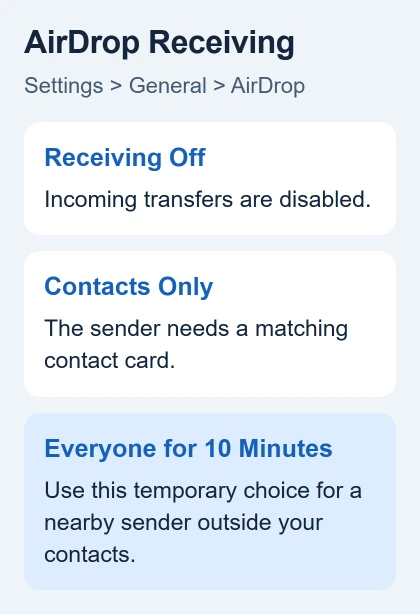
For Contacts Only, save the sender's account email or phone number in a contact on the iPad. If the iPad doesn't appear, use that temporary receiving setting before attempting another send.
Apple's AirDrop instructions describe a code for people outside your contacts when both devices use version 26.2 or later. Follow that prompt when it appears; older software can use a different receiving flow.
That temporary option changes back after its time expires. While signed in, it returns to Contacts Only; without an Apple Account signed in, it returns to Receiving Off. Reopen the receiving setting if the transfer starts much later.
Select and send pictures from the iPhone
Open Photos on the iPhone and display your pictures. Tap Select, then mark the pictures to send. Check the selection before opening the share sheet, especially when several pictures look similar.
- Tap the Share button.
- Choose AirDrop.
- Tap the receiving iPad or its owner's name.
- On the iPad, tap Accept if asked.
When both devices belong to you and share an Apple Account, acceptance can happen automatically. Pictures sent from Photos arrive in the receiving device's Photos app, so open that app to check the result.
If you see the newer code prompt, tap Get AirDrop Code on the receiving device and enter that code on the sending device. Keep the devices together until the transfer finishes rather than treating the code as the completed transfer.
Using the code adds that person to the Other Known List for 30 days. It helps explain why a later transfer between the same people may look different from the first one.
I'd send a small selection first, then the rest once one photo and one video open correctly on the iPad. That checks the destination and the kind of files you're sending without starting over with a large batch.
Choose whether to include the original photo data
Before sending, open the share sheet's Options when you need control over the file format or information included. These choices change the files the iPad receives, not the pictures you've selected.
Automatic chooses a suitable format for the destination. Current keeps the files in their current format. Most Compatible may convert the files to JPEG or MOV, which can help when the pictures will later be used in other software.
All Photos Data, available for AirDrop, includes the original file with edit history and metadata. Choose it when the receiving person needs that editing information, rather than just the picture's current appearance.
Metadata is information saved with a photo, such as when and where it was taken. Review the sharing options before sending private pictures to someone else's iPad. A successful send doesn't mean they need every photo detail.
Turn on iCloud Photos for ongoing access
On each device, open Settings, tap your name, then select iCloud > Photos. Turn on Sync this iPhone on the phone and Sync this iPad on the tablet. Check that the Apple Account matches on both devices.
Existing pictures on each device become part of iCloud Photos, and pictures already in that library become available on the other device. That keeps your collection together; it doesn't copy just a folder you select.
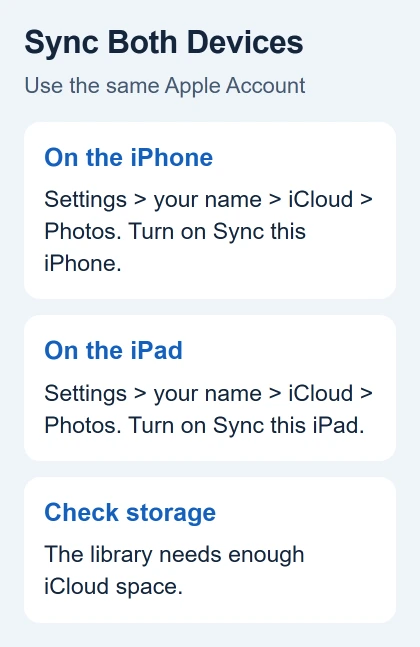
Check the available iCloud storage before enabling a large library. Photos use iCloud storage as well as space on the devices.
A library that exceeds the available cloud storage won't finish syncing just because the iPad has plenty of free space.
The iCloud Photos setup page explains the original-file storage and device optimization choices. With optimization, smaller copies save space on your device while the full-resolution originals stay in iCloud.
Expect a large collection to take time. The library's size and connection speed affect when the pictures appear. Keep both devices connected and check the sync status instead of switching the feature off and on during the upload.
Check progress or repair the receiving problem
On iOS or iPadOS 26 and later, open Photos > Collections, then open the profile button for library status. On version 18, open Photos and select the profile button. For 17 or earlier, open Library > All Photos; the status is at the end.
If a sync is paused, read the status before changing the storage settings. A paused sync hasn't necessarily finished copying your library. Compare a recent iPhone picture with the iPad after syncing resumes.
For an iPad that never appears in AirDrop, use the AirDrop connection checks. They cover receiving settings and contact matching; skip that guide's Mac-only instructions when transferring between these two mobile devices.
If neither method works, contact Apple Support through its AirDrop or iCloud Photos help page.
Include both device models, software versions and the method you used. Say whether the iPad never appears, the transfer fails or Photos shows a sync-status message.
The Short Version
Use Photos > Select > Share > AirDrop for a one-time copy. For an ongoing library, enable Photos syncing in iCloud settings using matching accounts.
Check the receiving iPad before removing originals; a linked iCloud library also syncs deletions.
Checked November 10, 2026.
 If you have any business, I can build it online






