Teams switches to Away when a desktop computer is idle, locked or asleep. Reset an away status you selected earlier, and change the sleep timer if the computer sleeps while you're working.
Available has no duration setting to hold the green dot all day. On a phone, putting Teams in the background can change its status to Away. A meeting or calendar entry can also change the dot even while you're actively using the computer.
In this guide
1. Reset a status you selected earlier
Open the Teams profile menu in the upper-right corner, then select the status shown. Choose Reset status to return control to Teams, or select Available when you're ready to receive messages.
This fixes a manually selected Appear away or Appear offline status that no longer matches what you're doing. Afterward, Teams still uses your activity and whether the computer is idle, locked or asleep to choose your status.
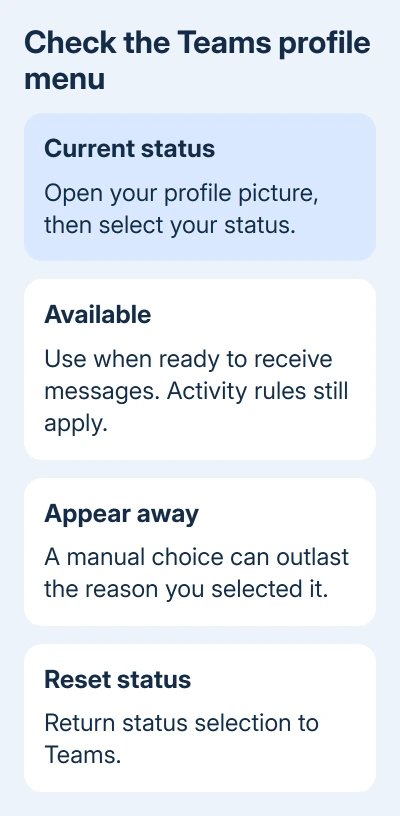
Microsoft's Teams status instructions explain that Available depends on activity and the calendar. Start with those controls rather than assuming every yellow dot means the app has disconnected.
Have a colleague check your chat's status after you resume work. Check whether they also see the old status, or whether only your own profile looks wrong. IT can use that difference when checking a persistent presence problem.
The desktop and web versions both check whether the computer is idle, locked or asleep. Keeping a browser tab open won't change that, so switching to the browser alone won't keep you Available.
2. Extend the sleep timer for the work you're doing
On Windows 11, open Settings > System > Power & battery > Screen, sleep, & hibernate timeouts. On versions that use the shorter label, open Screen and sleep in Power & battery.
Increase the appropriate Make my device sleep after period for the current session. Check whether you're plugged in or running on battery, because Windows keeps separate timers for each.
Windows 10 keeps these controls in Settings > System > Power & sleep. Change the relevant option under Sleep for battery or plugged-in use. A display turning off and the whole computer going to sleep are separate settings.
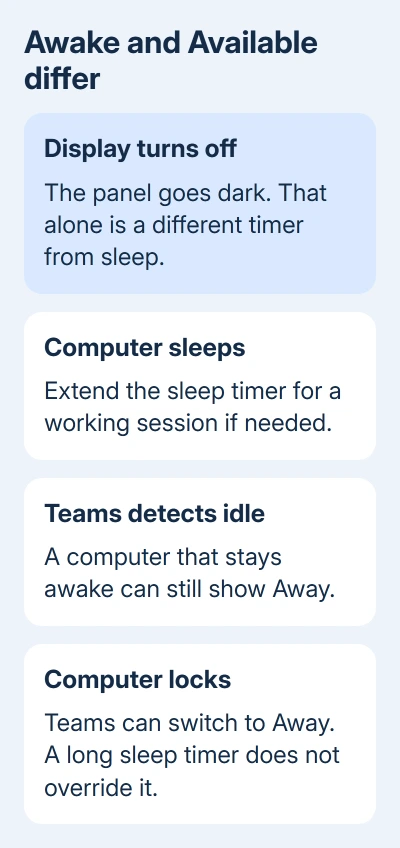
A longer sleep timer addresses a computer that actually sleeps while you're reading or working elsewhere. Teams can still detect inactivity, and a locked computer won't stay green.
Choose a timer that fits the work session and restore your usual battery-friendly setting afterward. A laptop left awake for hours can use its charge even when you're not touching it.
On a Mac laptop, open System Settings > Battery > Options. Where available, turn on Prevent automatic sleeping on power adapter when the display is off for plugged-in work. Keep the lid open for an ordinary laptop session.
On a Mac desktop, look in System Settings > Energy for Prevent automatic sleeping when the display is off. Options vary by model. Changing these sleep settings won't stop Teams from noticing when you're idle.
I'd adjust the sleep timer before reinstalling Teams when the status changes at the same moment the whole PC sleeps. Reinstalling the app won't change that power timer.
3. Check whether the status is Busy for a reason
A call or meeting can automatically set Busy, In a meeting or In a call. Look at your current Teams activity and calendar before trying to make every non-green dot disappear.
For a calendar block that no longer applies, correct the calendar entry rather than repeatedly resetting the profile menu. Teams can return to the meeting status while that event is still active.
Do not disturb is another distinct state. It lets you focus or present without notifications. If you selected it earlier, return to the profile menu and choose the status that fits what you're doing now.
Teams can also switch to Do not disturb during screen sharing. Its setting is Settings and more > Settings > Privacy > Set my status to Do not disturb when I'm sharing my screen. Clear it if you want notifications during presentations.
That changes presentation behavior, not the idle timeout. Use it for missing notifications during screen sharing. It won't fix an Away dot caused by inactivity.
4. Don't use Duration as an Available lock
Under your profile picture, select your current status and open Duration. The options let you choose a supported status and when it resets. Available is excluded from status durations.
For a status that does support duration, use Reset status after, choose a listed period or Custom, and select Done. At the end, Teams resumes choosing a status from your activity, calendar and computer state.
Setting a duration won't make Teams choose a more available status over a less available one. Setting Busy for a long period therefore won't reliably prevent Away when the computer becomes idle.
A long reset period won't hold the green dot. Use Duration to end a temporary status automatically, such as when you finish a period of concentrated work.
5. Keep mobile and desktop behavior separate
On a phone, Teams can switch from Available to Away when the app moves into the background. Leaving Teams on a phone and then opening another app doesn't work like remaining active in the desktop client.
If you're working at a computer, use the desktop or web session for that work. Keep the phone available for messages, but don't expect it to keep your dot green while it's in the background.
A status message is often clearer for work away from the keyboard. Open your profile menu, choose Set status message, and write when you can answer, such as that you're reading documents and can receive a call.
Choose when to clear that message and whether it should appear when people message you. That tells colleagues what you're doing, but it doesn't replace the colored dot or change when Teams marks you idle.
6. Repair a status that stays wrong during active use
When you're actively using Teams but its status doesn't update, quit and reopen the app. Check the account and organization shown on the profile menu, especially when several workplaces are listed.
For an app that also fails to refresh messages or connect, use the Teams connection and app checks. For account and conversation controls, the Teams chat and meeting guide covers the normal workflow.
If colleagues still see Away while you're actively using the correct session, ask IT why your account's status isn't updating. Give them the device, Teams version, affected time and whether the web app shows the same behavior.
The Short Version
Reset a manual status and stop unwanted sleep during work. Idle, lock, calendar and mobile-background behavior still apply. Available has no duration setting, so use a clear status message when the dot doesn't explain your work.
Checked November 11, 2026.