

A Stylish theme can fail while the Chrome extension is on. Open the affected website, choose Stylish > My Styles, and activate its installed style. If Chrome disables Stylish or reports damaged files, check the extension instead.
A missing toolbar icon, an empty style list and one broken theme need different fixes. Check which problem you're seeing before removing an extension that may still work.
In this guide
1. Find Stylish before changing its settings
Open the Extensions menu beside Chrome's address bar and look for Stylish. Select its pin control if you want the button visible on the toolbar. An unpinned button can disappear while the extension remains installed.
If Stylish isn't in that menu, open Extensions > Manage Extensions from Chrome's three-dot menu. Check the profile picture too: another Chrome profile can have a different extension list.
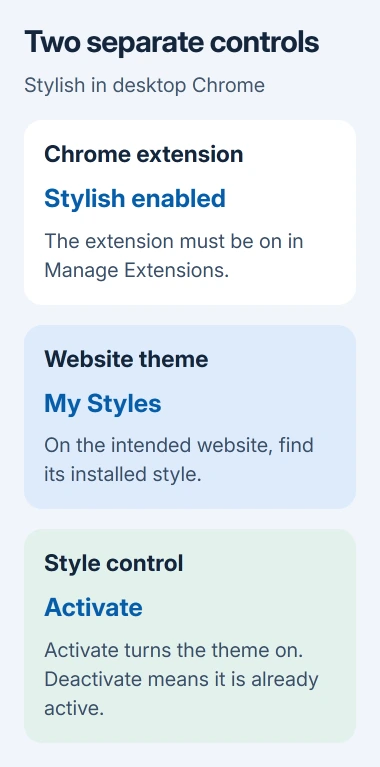
When the extension is listed and enabled, return to the website it should change. Pinning only makes the button easier to reach; it doesn't install or activate a website theme.
These instructions apply to desktop Chrome. The phone version of Chrome can't run these desktop extensions, so a theme installed on your computer won't appear in Chrome on your phone through these steps.
2. Activate the installed style for this website
On the website you want to change, click the Stylish button, then My Styles. This shows the styles installed for that particular site. Hover over the intended style and choose Activate if it's off.
If the button says Deactivate, the style is already active. Leave it on and compare the page's appearance with what you expected. Refresh the website after making a change so you can see the result.
The developer's Stylish Chrome instructions distinguish an installed style from the extension that runs it. A working extension can have a deactivated style or nothing installed for the current website.
Check the actual website, not just a picture of the theme in the library. A style made for one service won't automatically redesign an unrelated site, and the changes are visible on your computer rather than to other visitors.
If My Styles is empty for this site, go to the next step. If the style is present and active but its design is incomplete, skip to the step for comparing two styles.
3. Install a style when the list is empty
Open Stylish while visiting the intended website. Select Gallery to see available themes for that site. Choose one you recognize and use Add Style. Return to My Styles to check that it was installed.
Visit the website again and look for the expected change. The extension and its collection of styles are separate: installing Stylish doesn't, by itself, choose a design for each page you browse.
An empty Gallery can have another explanation. If you've opted out of sharing data in Stylish's options, the developer says Stylish stops showing available and recommended styles, though styles can still be installed through its website.
That setting is Send anonymous data to Stylish developers. Don't change your privacy choice just to make a recommendation panel appear. An empty suggestions panel doesn't automatically mean the extension has failed.
The FAQ explains that recommendation setting. Keep your privacy choice in place while checking a style that's already installed; missing suggestions and a broken existing style are different problems.
4. Allow Stylish to work on the affected site
In Chrome's extension manager, find Stylish and open Details. Review its site access. If access is limited to specific websites, check that the website you're styling is included.
Limit access to the intended website if that suits how you use Stylish. If Chrome only allows the extension to run when selected, select Stylish on the current page before checking whether the theme works.
Google's extension permission controls explain that selecting an extension can grant access just for the current open tab. Closing that tab means selecting it again in a later session.
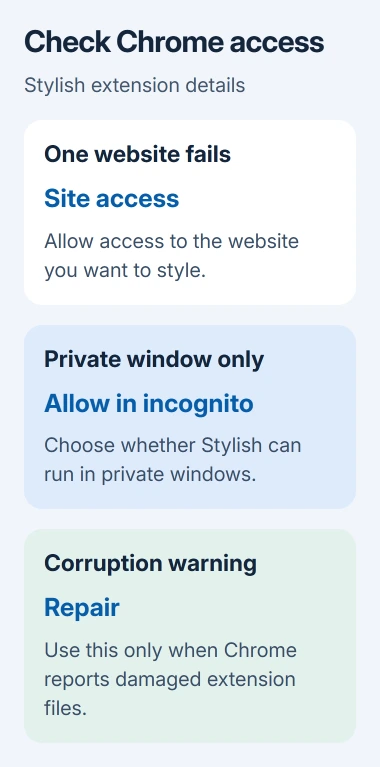
If Stylish only fails in private browsing, open Stylish's Details and review Allow in incognito. Enable it only if you want Stylish to run in those windows, then test the same website again.
If Chrome refuses to keep the extension enabled, use the disabled-extension guide. Approval requirements, administrator restrictions and retired extensions need different fixes from a theme that's active but looks wrong.
5. Compare a broken theme with another installed style
Deactivate the affected style in My Styles, then test another style intended for the same website. Leave only the style you're testing active so its changes are easy to recognize.
If the second design works, the first style needs fixing, not another browser reset. A site redesign can move or remove parts the style tries to change. Switching Chrome profiles won't repair that style's code.
Use Send Feedback on the affected style to report the problem to its creator. Include the website address, the style name and the part that's missing or unreadable. Mention whether another style works on that same page.
The Edit control opens the style editor. Unless you maintain that style yourself, I'd send the creator a clear report before changing its code. Random edits can introduce new problems that are hard to tell apart from the original one.
If the problem is really a replacement start page, our Chrome New Tab extension guide covers that separate browser behavior. A website theme isn't automatically a New Tab replacement.
6. Repair the extension only when Chrome reports corruption
Open Manage Extensions and look for a corruption warning on Stylish's card. Select Repair, then confirm Repair extension. After repair finishes, revisit the site and test your installed theme.
If the corruption returns, scan the computer for software changing Chrome's extension files. Repeated repairs won't last while another program keeps modifying them. Address that software, then repair the extension again.
If only Stylish keeps failing, report Chrome's version, any warning, the style name and the affected URL through its developer support or community link. For corruption that keeps coming back, ask the Chrome Help Community for help.
The Short Version
Check Stylish's My Styles list on the affected website and activate the intended theme. Then check site access, compare one style with another, and use Repair only for a corruption warning. Report a single broken design to its creator.
Checked November 11, 2026.
 If you have any business, I can build it online






