A MacBook's clock can be changed in System Settings > General > Date & Time. Turn the Set time and date automatically switch off, click Set, enter the correct date and time, then click Set again to save them.
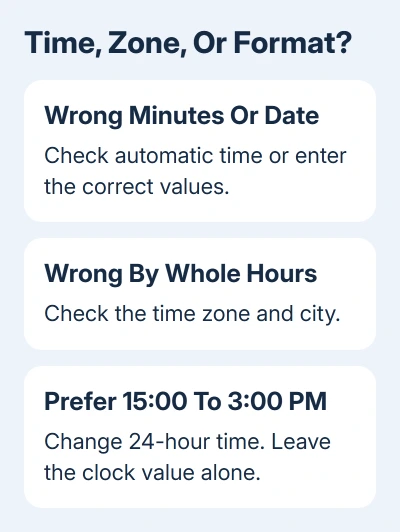
For ordinary use, automatic time is the better choice. A clock that's several hours out may need the correct time zone instead of a manual clock change; if you just prefer 24-hour time, change the display format.
In this guide
Set the clock manually when that's what you need
Open the Apple menu > System Settings > General > Date & Time. This is the route on macOS Ventura and later, including macOS 27. It applies to both MacBook Air and MacBook Pro.
Turn the Set time and date automatically switch off. Click Set beside the date and time, enter the new values, then click Set to apply them. Check that the menu bar clock shows the time you entered.
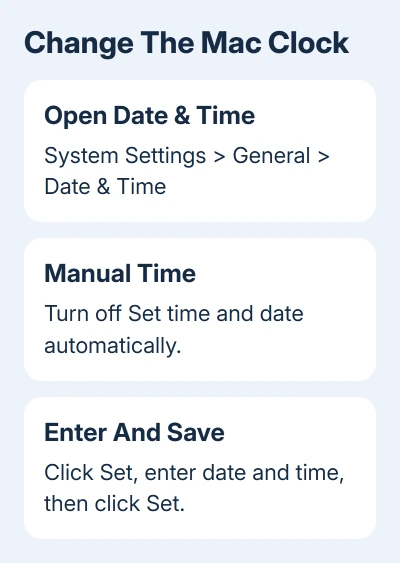
Apple's manual time guide says to save the date and time with Set. Clicking the menu bar clock opens Notification Center; it isn't where you type a replacement time.
Review the date as well as the clock before closing settings. A clock showing the correct hour on the wrong day still puts the wrong date on messages and files. Include the year if it has been changed accidentally.
The Mac may ask you to authenticate before changing protected settings. Use an administrator account you control. For a managed Mac from work or school, ask its administrator about restrictions.
With manual time, you'll need to keep the clock correct. It doesn't set the Mac's location or replace choosing the right zone when traveling. For a connected MacBook, return to automatic time once you no longer need a manual setting.
Let the MacBook keep the correct time automatically
Connect the MacBook to the internet, then return to System Settings > General > Date & Time. Turn on Set time and date automatically. The Mac gets its clock time from a network time server.
The Set control for automatic time lets you specify the server address. Keep the existing server unless your organization supplies a different one. You don't need to invent a server name just to make the clock update.
Compare the displayed time after enabling the switch. If the minutes now match but the clock is still a whole number of hours out, check the time zone next. Automatic clock time and automatic time-zone selection are separate controls.
I'd keep automatic time on for a MacBook that goes online regularly. It avoids having to correct small clock errors by hand, and it keeps the time used by your files and messages consistent.
If the automatic setting can't be changed, note whether it's dimmed or whether authentication fails. Those are different problems from a setting that saves but leaves the clock wrong.
Correct the time zone without moving the clock by hand
In Date & Time, turn on Set time zone automatically using your current location if you want the Mac to choose the zone. The Mac needs access to its location for that choice.
For a manual zone, turn that switch off. Enter a city in your time zone in the city field and press Return. Check that the resulting zone and local time match your location, rather than selecting a city just because it is nearby.
Don't subtract an hour from the clock just to work around the wrong zone. That can leave the system's date and time inconsistent with the place selected in settings. Correct the zone while keeping automatic clock time enabled.
For an automatic zone that remains wrong or a city field that seems locked, use the Mac time-zone setting checks. That page handles the city-list problem and Location Services in detail.
If you're setting up meetings in another country, decide whether the Mac itself should change zones or whether only a calendar event needs its own zone. Changing the Mac's zone affects the system clock, not just that one appointment.
Switch between 12-hour and 24-hour time
On current macOS, open System Settings > General > Date & Time and change 24-hour time. A time such as 3:00 PM becomes 15:00 without changing the actual moment the clock represents.
Check the menu bar after switching. This is the right change when the hour is correct but you prefer a different way of reading it. Leave automatic time enabled when changing the display format.
On Tahoe (macOS 26) and macOS 27, open System Settings > Menu Bar, then Clock Options under Menu Bar Controls. This panel controls the date, day of the week and seconds shown in the menu bar.
The current clock options include digital and analog styles. Select a digital clock to use the extra text-based time options. With an analog clock selected, the remaining time display options aren't available.
On Ventura, Sonoma and Sequoia, look in System Settings > Control Center > Clock Options for menu bar clock appearance. The newer Menu Bar panel is a different location, so follow the labels your macOS version actually shows.
Showing seconds or hiding the weekday changes what the menu bar displays. It doesn't make the clock more accurate. Use Date & Time to correct the time itself, and these options to change how it looks.
Use System Preferences on an older MacBook
On macOS Monterey or earlier, open Apple menu > System Preferences > Date & Time. If the panel is locked, click the lock and authenticate before making changes.
On the Date & Time tab, clear Set date and time automatically, choose the date, and adjust the clock hands or type the time. Click Save. Turn the same option back on to let the Mac get its time over the network again.
Use the Time Zone tab for the zone rather than changing the hour to match another city. The older panel looks different from current System Settings, but clock time and time zone are still separate choices.
Choose these instructions by macOS version. Intel and Apple silicon MacBooks use the same Date & Time controls when they run the same release.
Deal with a clock that changes back
A clock that stays correct until the MacBook sleeps needs more than a one-time clock adjustment. Follow the clock wrong after sleep checks if waking restores the old time.
If the time still won't save, contact Apple Support through its Mac support options. Give the macOS version, whether automatic time is on, the selected zone, and whether the value changes immediately, after a restart, or after waking.
The Short Version
Open General > Date & Time to enter a manual time or enable automatic time. Check the zone if the clock is several hours off. Use 24-hour time or Clock Options when the time is right and only its appearance needs changing.
Checked November 11, 2026.
 If you have any business, I can build it online