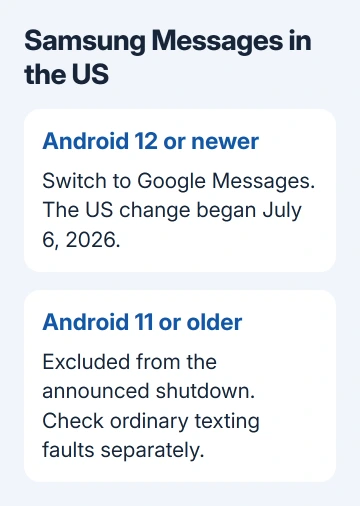
Samsung is replacing its own Messages app with Google Messages on US Galaxy phones running Android 12 or newer. The change began July 6, 2026. Set Google Messages as your default texting app to continue sending texts.
Switching apps doesn't change your phone number or carrier plan. Android 11 and older are excluded from the announced shutdown. Check your Android version before assuming this change is why texts won't send.
In this guide
Why Samsung is moving to Google Messages
The switch brings RCS messaging, spam protection and messaging across supported devices. RCS adds features such as higher-quality media and typing indicators to compatible conversations. It isn't required for every ordinary text.
Samsung's US announcement describes the move and identifies it as a US market change. Don't assume the same date applies to every country just because the apps have the same names.
The replacement brings scam detection, spam filters and supported Google messaging features into the recommended app. Those are the reasons given for the switch. They don't tell us whether a private business agreement played a part.
The Galaxy S26 and newer models can't download Samsung Messages from the Galaxy Store under this policy. Finding the old app won't restore supported texting on those phones. Set up Google Messages on your phone instead.
1. Check whether your Galaxy is affected
Open Settings > About phone > Software information. On a tablet, start with About tablet instead. Read Android version, rather than using the One UI number to guess which Android release is installed.
For a US Galaxy on Android 12 or newer, follow the switch procedure. The discontinuation instructions say the older app is no longer supported for those devices.
For Android 11 or older, Samsung Messages remains available and functional under the announced policy. If texts fail on that phone, check the default SMS app, your mobile service and whether the problem affects just one recipient.
Outside the US, read the notice displayed in Samsung Messages and the support information for your region. The US announcement alone doesn't confirm that your local version has reached the same end date.
If you're helping someone remotely, ask them to read the Android version and the app's notice aloud. That gives you a much clearer answer than whether the Messages icon looks old or new.
2. Make Google Messages the default texting app
Open Samsung Messages and look for Open Google Messages in its notice. That opens Google Messages. If Google Messages isn't installed, get the app published by Google from the phone's Play Store app.
Open Google Messages and accept its prompt to switch the default SMS app. Select Google Messages in the system's default-app choice, then confirm. Installing the app without choosing it as the default doesn't finish the change.
The manual route on a Galaxy is Settings > Apps > Choose default apps > SMS app. Select Google Messages there. Two apps can both be called Messages, so check which app is selected rather than trusting its displayed name.
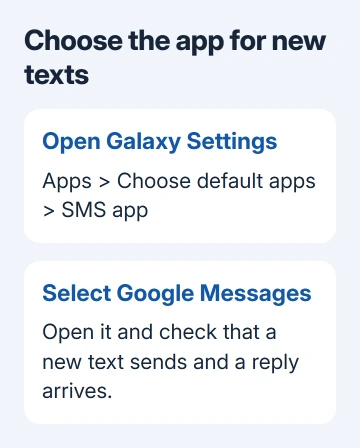
Google's getting-started instructions explain that the default app handles sending and receiving new text messages. This is the setting to check when the replacement opens but still asks to become your SMS app.
Return to Google Messages after changing the setting. Open a familiar conversation and send a short text to someone who can reply. If your message sends and their reply arrives, the new app can handle ordinary texts.
3. Give your existing conversations time to appear
Existing messages and conversations transfer automatically during the switch. This can take up to approximately 24 hours, depending on how many messages you have. A long history won't necessarily appear all at once.
Check several familiar conversations, including one with photos, rather than assuming the transfer is finished when the first recent chat appears. Keep the old app and its data in place while you're checking the replacement.
I'd confirm that the conversations you need are visible before tidying up either app. Leave app storage alone while the transfer is underway; erasing it for a cleaner Home screen can introduce a separate data problem.
For a separate copy of important phone data, review what an Android backup includes. A messaging-app transfer and a phone backup serve different purposes, so check the backup's contents rather than assuming it covers everything.
If history is still incomplete after that period, give support your Galaxy model, Android version and examples of missing chats. Say whether new texts arrive, so they know whether it's old chats or new delivery that's failing.
4. Check RCS separately from ordinary texts
RCS can pause temporarily during the switch on devices released before 2022. Ordinary SMS and MMS remain available. A conversation losing typing indicators isn't the same symptom as every message failing to send.
In Google Messages, tap your profile picture or icon, then Messages settings > RCS chats. Check the connection status there. Some versions use Chat features for this setting, as explained in the RCS setup steps.
RCS needs compatible apps, with RCS enabled for each person in the conversation. On iPhone, support starts with iOS 18, but the other person's service availability still matters. Changing your app can't enable their service for them.
If ordinary texts also fail, use the Android text delivery checks after confirming the default app. Tell your carrier whether the failure affects one contact or every contact and whether mobile service is available.
5. Update your shortcuts and connected devices
The new app's icon doesn't automatically replace the old Home screen shortcut on every affected phone. Find Google Messages in the app list, touch and hold it, then choose Add to Home. Use that shortcut for future texts.
On Galaxy Watch4 and newer Wear OS watches, open Google Messages when the old watch app reports that Samsung Messages has been discontinued on the phone. Both messaging apps are already installed on those supported watches.
Texting from a linked tablet changes too. The shutdown disrupts Allow texting on this tablet under Call & text on other devices. Google Messages doesn't require that old option; follow its supported device-pairing setup instead.
Once the switch works, you can remove Samsung Messages if you want to. On One UI 8.5 and older, a preinstalled copy may offer only disabling. Android 17 with One UI 9 or newer can offer an uninstall choice in the old app's notice.
If Google Messages is the default and new texts work, you can leave the old icon installed without adjusting carrier settings. For migration trouble, ask Samsung Support about the Messages shutdown on your exact Galaxy model.
The Short Version
The US shutdown covers Android 12 and newer Galaxy devices. Make Google Messages the default SMS app, check sending and receiving, and allow time for history to transfer. Check RCS separately when only its extra features fail.
Checked November 11, 2026.