No, I'm Not a Human doesn't have a native Mac version on Steam. A Mac can still be the screen you play on through Steam Remote Play, with a Windows PC running the game.
Installing Steam for macOS doesn't make a Windows-only game compatible. Before buying extra software, check whether you have a suitable Windows PC to stream from or an Intel Mac that can run Windows separately.
In this guide
1. Check the game's platform before buying
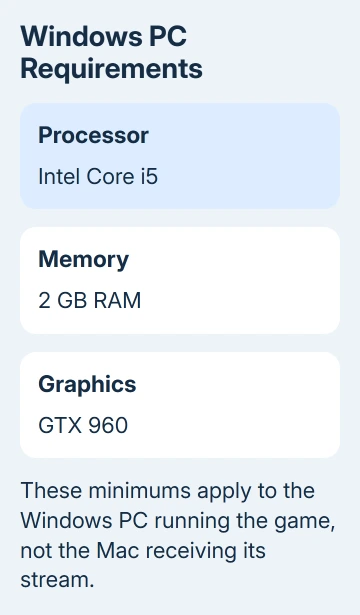
Open the official Steam listing and find System Requirements. The listing we checked gives Windows requirements, with no separate requirements for macOS.
Its listed minimum includes an Intel Core i5 processor, 2 GB of memory and GTX 960 graphics. Those requirements apply to the Windows PC running the game.
Comparing your Mac's M-series chip with the listed Windows graphics card won't tell you whether it can play the game.
If Steam reports that the game isn't available for your platform, that's because the store lists Windows support. Reinstalling Steam or verifying the game files won't add a missing Mac build.
Check the exact game title, too. Instructions for a demo, a similarly named game, or a different release don't confirm compatibility for the copy in your library.
For another Windows-only game, Detroit: Become Human on Mac needs its own compatibility checks. A method that launches one title can fail with another.
2. Use a Windows PC as the host
The clearest supported route is to install and run the game on a Windows PC, then stream its picture to your Mac. The PC handles the graphics, while the Mac displays the stream and returns your keyboard and mouse input.
Valve explains computer-to-computer streaming through Remote Play. That lets you use a Mac without installing the Windows game into macOS.
Start on the Windows machine. Install Steam, sign in to the account that owns the game, and install the game from your Library. Launch it there first. Make sure the menu opens and its controls respond.
That first launch on Windows matters. If the game crashes or won't run on the host, changing the Mac's streaming settings won't repair it. Fix the Windows installation or address the hardware requirement first.
On the Mac, open Steam using the account that owns your game. Keep the Windows PC awake with Steam running. On the Mac, open the game's Library page and choose the streaming option for that PC.
You'll know it's working when the game runs on the Windows PC and its live picture appears on your Mac. The Mac isn't downloading or converting a native version of the game.
3. Fix the streaming connection if the host is missing
For the first connection, put the PC and Mac on your home network together. That keeps an extra internet connection out of the first setup and helps you check whether Steam on each computer can see the other.
Confirm that Steam is signed in on both computers and the Windows PC hasn't gone to sleep. A powered-off host can't run the game, even if the Mac still shows it in your Library.
Open Steam > Settings > Remote Play on the host and check that Remote Play is enabled. If the Mac only offers an unsupported local installation, look for the host choice beside the game's launch control.
If the stream's picture breaks up, reduce other network traffic and connect the host by Ethernet if possible. Move the Mac closer to the router to compare a weak wireless connection with poor game performance.
I'd get the game running on the PC before changing anything else. If the host plays smoothly but the streamed picture stutters, focus on the connection. If the PC itself struggles, streaming can't remove that limit.
For dropouts affecting other apps too, check the Wi-Fi connection before repeatedly changing the game's settings.
4. Check whether Boot Camp is an option on an Intel Mac
Choose Apple menu > About This Mac. An entry labeled Processor with an Intel model identifies an Intel Mac. An entry labeled Chip identifies Apple silicon.
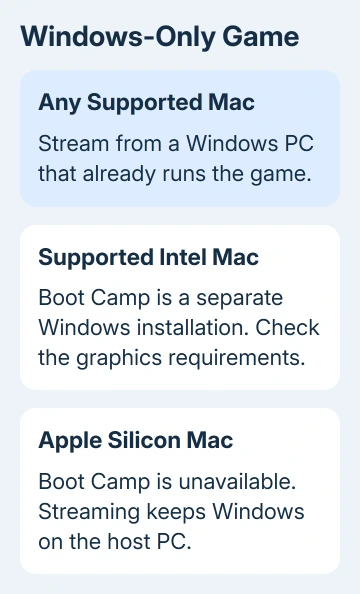
Apple's Boot Camp requirements cover supported Intel Macs installing Windows 10. Boot Camp isn't an Apple silicon feature, so searching for its installer won't add it to an M-series Mac.
On a supported Intel model, Boot Camp Assistant is in Applications > Utilities. It creates a Windows partition, then guides you through Windows installation and the Apple support drivers. Back up the Mac before changing its partitions.
This route still needs enough free storage, a Windows license, and graphics hardware suitable for the game. Having an Intel processor alone doesn't mean an older Mac's integrated graphics meets the listed GTX 960 requirement.
There is also a support issue: Windows 10's standard support ended October 14, 2025. Check your supported security-update options before choosing a new Windows 10 installation for a computer you'll keep online.
5. Treat compatibility tools as a separate purchase decision
A compatibility layer translates Windows software for another operating system. A virtual machine runs another operating system inside an app. Neither is the same thing as an official macOS release of this game.
Before paying for either, look for a current compatibility report covering this exact title, your Mac's chip, the tool version and the game release. A report that a different game works doesn't answer whether this one will reach gameplay.
If a trial is available, use it before committing money. Check that you can load a game, use the controls, hear sound and save your progress. An opening logo alone doesn't mean the game works.
Keep the game's refund conditions in mind while you decide.
Without a Windows host or a verified local route for your setup, the practical choice is to wait for a supported version or refund the purchase. A promised future port isn't a playable Mac version today.
6. Request a refund for an incompatible purchase
Open Steam Support, select Purchases, choose the game, and follow the refund request options. Explain that your computer runs macOS and the purchased version requires Windows.
The standard Steam refund policy covers requests within 14 days of purchase with less than two hours of playtime. Requests outside those limits can still be submitted for review.
For streaming trouble, use Steam Support's Remote Play section. Describe whether the host PC is missing from Steam, the connection fails or the picture stutters. Include both operating systems and whether the game runs on Windows itself.
The Short Version
There isn't a native Mac build in the checked Steam listing. Stream from a suitable Windows PC for the clearest route, consider Boot Camp only on supported Intel hardware, and check compatibility carefully before paying for another tool.
Checked November 11, 2026.