Excel commands often stop working because a cell is still being edited or the workbook isn't open for editing. Press Enter to finish the cell, then check for a Protected View or read-only message before changing add-ins or repairing Office.
Gray ribbon buttons, keyboard shortcuts that do nothing, and a completely frozen Excel window need different checks. Start with the case that matches what you can still click.
In this guide
1. Finish the cell edit before using the ribbon
Read the desktop Excel status bar along the window's bottom edge. Edit means you're changing a cell's contents. Many commands aren't available in that state, including some formatting choices.
Press Enter to keep what you've typed, or Esc to cancel that unfinished edit. Then click another cell and try the command again. Don't cancel if you still need to keep a formula you've been composing.
Microsoft's cell-editing instructions explain this restriction. Try the ribbon again once you've finished editing the cell.
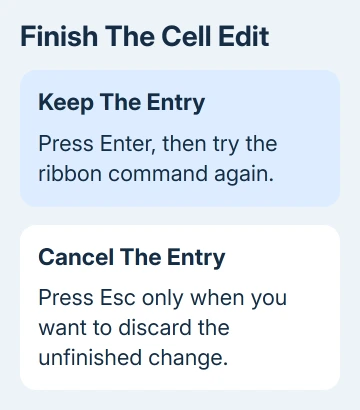
If commands return, the workbook wasn't broken. If the ribbon stays gray, check what's blocking editing next. For a completely unresponsive window, save anything Excel still lets you save, then continue to the add-in checks.
2. Read the message that limits editing
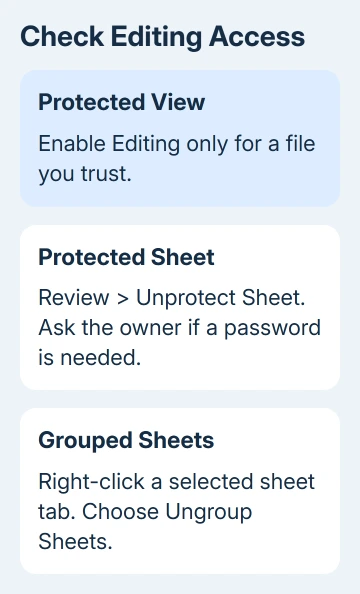
On Windows, a file from email or the internet can open in Protected View. That lets you read it while limiting editing. For a workbook you've checked and trust, use Enable Editing in the message bar.
Leave an unexpected attachment in Protected View. You don't need to disable that protection for all files just to edit one trusted workbook.
An organizational policy can prevent leaving Protected View. If the editing button is missing or blocked on a work PC, have your IT team review the file and its policy. Don't change security settings at random.
In Excel for the web, check whether the workbook is in Viewing mode. Switch to Editing if your permission allows it. If you only have read access, request editing access from the owner.
A file can also be read-only because someone else has it locked or because you don't have write access to its folder. Try saving a separate copy where you're allowed to work, then check whether the needed command becomes available.
3. Check sheet protection and grouped tabs
Open Review and look for Unprotect Sheet. That label means the active sheet is protected. Depending on the permissions chosen by its owner, formatting, sorting, inserting rows and other actions can be restricted.
Select Unprotect Sheet if you're authorized to change it, and enter the sheet password if requested. If you don't have it, ask its owner for permission to perform that particular action.
Don't confuse worksheet protection with the password used to open a file. They're different controls. A workbook can open normally while one worksheet still blocks cell changes or certain commands.
Next, check whether several sheet tabs are selected. Open a selected tab's right-click menu and choose Ungroup Sheets. Clicking a tab outside the group also ends the grouping. Try the command again with only the intended sheet selected.
Grouping can limit commands and apply edits across multiple sheets. Finish this check before making further changes to a shared workbook, so a correction meant for one sheet doesn't alter several.
4. Separate a shortcut problem from a command problem
Click the same command on the ribbon. If the ribbon works but the keyboard shortcut doesn't, Excel is accepting the command. Check the key combination and keyboard before trying to repair the workbook.
Windows shortcuts often use Ctrl, while Mac shortcuts often use Command. Function keys can also control brightness, sound or other laptop features unless you hold Fn, depending on the keyboard's settings.
Browser shortcuts can take priority in Excel for the web. Use the visible menu command to complete the task, then check the shortcut for that version. A Windows desktop key sequence isn't automatically the right one in a Mac browser.
For navigation that scrolls instead of selecting the next cell, Excel's arrow-key checks cover Scroll Lock and selection modes. Those aren't the same fault as a ribbon full of disabled buttons.
If typing a formula leaves text instead of a result, check formula display and cell formatting. A formula displayed as text doesn't mean the ribbon commands have failed.
5. Compare a blank workbook with the affected file
Create a new blank workbook and try an ordinary command, such as changing a cell's font. Then try the same action in the affected workbook, with cell editing finished and the correct sheet selected.
If the new workbook works, check the original file's protection, permissions and content. Reinstalling Office is a poor first choice when only one workbook has the problem.
If both files fail, save and close your work, then reopen Excel. For a large workbook that's still calculating or running another task, wait for that task to finish before issuing more commands.
If Excel remains unresponsive, continue with Safe Mode on Windows. Mac Excel doesn't use the Windows Run command, so skip that command on a Mac and use the update and support route instead.
6. Test Windows Excel without its usual add-ins
Close Excel. Press Windows + R, type excel /safe, and press Enter. The space before /safe matters. Open a blank workbook and test the command that failed.
Safe Mode starts without many of the customizations and add-ins loaded in a normal session. If the command works there, an add-in or a setting loaded when Excel starts is a more likely cause than a damaged worksheet.
In Excel, open File > Options > Add-ins. Select COM Add-ins in Manage, choose Go, clear the checkboxes for the selected add-ins, and restart Excel normally. Test again, then enable them individually until the problem returns.
If needed, repeat that process for Excel Add-ins in the Manage list. Keep track of what you disable. When one add-in brings the problem back, leave it disabled and contact its supplier about that version.
7. Update or repair Excel when the app keeps failing
On Windows, check File > Account > Update Options > Update Now, when your installation offers it. On Mac, use Help > Check for Updates. On a work computer, your organization may handle updates.
Get updates from Apple's store when that's where you installed Excel. Open App Store > Updates and choose Update beside Excel, rather than using Microsoft AutoUpdate.
For Windows 11, open Settings > Apps > Installed apps, find Microsoft 365 or Office, open its three-dot menu and select Modify. On Windows 10, use Settings > Apps > Apps & features, select Office, then Modify.
Try Quick Repair first. If it doesn't resolve the app problem, Online Repair is the more thorough option and needs an internet connection. This repairs Office itself, rather than just the workbook you have open.
For continued failures in blank files, send Microsoft Support the command's name, your Excel and operating-system versions, and the Safe Mode result. On a work computer, IT can review policies and installed add-ins.
The Short Version
Finish the cell edit and check editing access and protection first. Compare the shortcut with its ribbon command and try a blank workbook. Use add-in checks and Office repair for problems affecting the app.
Checked November 11, 2026.