
The fix for a Canon printer error depends on the support code and your printer model. Paper loading, a jam, empty ink and a service fault need different actions, even though each can stop printing. Start with the displayed number.
These examples use the PIXMA TS3500 series. Use another model's matching manual, especially for MegaTank or imageCLASS printers. A Windows error-state message isn't the same as a numbered Canon support code.
In this guide
1. Read the full code and match the model
Write down the support code shown on the computer or printer display, and the complete model printed on the device label. Keep letters in the code: 5B00, for example, isn't the number 5000.
Canon says to follow the entry for the displayed code in its TS3500 support-code index. Confirm the model heading before following any button presses.
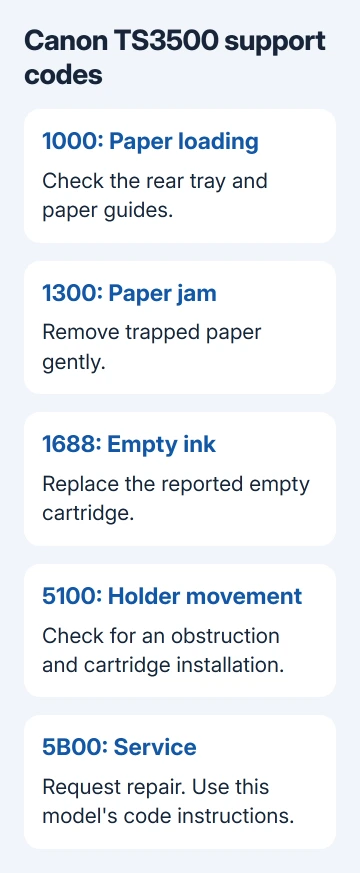
For a blinking warning light, use your model's error-display instructions. Don't borrow another family's flash-count table. A small segmented display can show errors differently from a touchscreen printer.
If the printer itself is ready but Windows alone reports trouble, use the Canon printer not responding checks. Driver and connection repairs won't clear a physical jam the printer is still reporting.
2. Clear code 1000 by loading the correct tray
On a TS3500-series printer, 1000 means the rear tray has no paper or the paper isn't loaded properly. Put suitable paper in the rear tray and align the paper guides with both edges of the stack.
After loading it, press the printer's OK button to clear the error. Watch for the printer to feed the sheet and resume the job. The print job can keep waiting until you press OK, even after you've loaded paper.
During initial setup, load at least one sheet of A4 or Letter plain paper when instructed. If the printer is producing its print-head alignment sheet, don't cancel that job as though it were an unwanted document.
If 1000 returns with paper already present, compare the loading position and guide placement with the model's paper-error instructions. Move to jam checks only if the display reports a jam or paper is visibly trapped.
3. Remove a 1300 paper jam without tearing the sheet
For 1300 on this series, paper has jammed while feeding from the rear tray. Look at the rear tray and output slot. Slowly remove the visible sheet from whichever side allows it to come out more easily.
Hold the paper with both hands and pull gently. If it won't come free, don't force it; the 1300 procedure says turning the printer back on may eject it automatically.
If you need to turn the printer off during a jammed print job, press Stop first. If the paper tears and a piece remains inside, use the linked inside-printer jam procedure for this model instead of repeatedly pulling at the visible edge.
Reload suitable paper, then press OK. The printer should resume. Reprint an affected page if it came out incomplete. If you turned the printer off, the jobs waiting to print are canceled, so you'll need to send them again.
I'd check that you've removed the whole sheet before sending a long document again. A missing corner still inside the paper path is a reason to keep checking the jam, rather than reinstalling a computer driver.
4. Replace empty ink for code 1688
On the TS3500 series, 1688 means the printer has detected at least one empty ink cartridge. Check which cartridge the message names, then replace the empty cartridge with one that matches the printer's model.
The 1688 instructions also describe disabling remaining-ink detection: hold Stop for at least five seconds, then release it. That changes ink monitoring; it doesn't refill the cartridge.
Printing or copying can continue only while some ink remains in the cartridge. Output quality may fall as ink runs low. Replace the empty cartridge when you need readable documents, instead of guessing how much ink is left.
Use the Canon cartridge replacement guide to match the cartridge and installation method to your printer. A refillable ink-tank model needs its own instructions, rather than this cartridge-printer button sequence.
If the code survives replacement, confirm that you changed the reported cartridge and finished installing it. A new recognition code needs its own manual entry; holding Stop isn't a general fix for every ink message.
5. Check cartridge-holder movement for code 5100
For 5100, stop an active job with Stop, then turn off the TS3500 printer. Check whether jammed paper, protective packing material or another obstruction prevents the cartridge holder from moving.
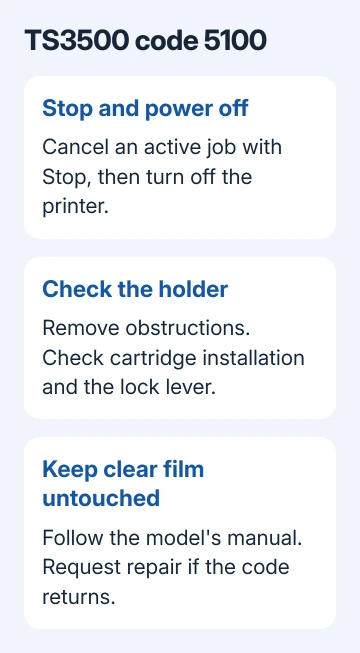
Remove the obstruction and check that the FINE cartridges are installed correctly. Raise the ink-cartridge lock lever until it clicks into place. Turn the printer back on and see whether the support code clears.
Keep your hands and paper away from the clear film identified in the 5100 instructions. Scratching or dirtying that part can damage the printer while you're trying to clear the obstruction.
You're checking whether the holder can move freely. If it's still blocked or 5100 returns after these steps, arrange a repair. A settings reset doesn't remove a piece of packaging from its path.
6. Stop at a code that calls for service
For 5B00 on the TS3500 series, the code's instruction is to request repair from a Canon service center. It doesn't list any buttons you can press to get printing again.
Don't apply an internet reset combination just to clear the display. It can change a counter without fixing the problem that triggered the code. Give the service center your model, exact code and the operation that produced it.
If there is no numbered printer fault and only one Windows PC fails to print, the Windows printing procedure covers that Windows printing problem. Compare the printer's own status before changing its computer connection.
For a recurring jam or holder fault, describe whether a full sheet came out and whether the same code returned immediately. Ask the service center whether inspection or repair is covered by your printer's warranty before approving the work.
The Short Version
Identify the support code and printer model together. For TS3500 printers, 1000 means paper loading, 1300 a jam, 1688 empty ink and 5100 holder movement. Request service for 5B00 rather than applying a general reset.
Checked November 11, 2026.





