A visibly bent iPad Pro needs a hardware inspection. Stop using it if the device or battery could be damaged, and ask Apple Support to arrange an authorized inspection rather than trying to straighten it yourself.
A slight edge variation on certain 2018 models is a different case. Apple's enclosure guidance describes those models specifically; it doesn't make every bend, growing gap or raised screen on a newer iPad normal.
In this guide
1. Treat suspected damage as a service problem
Leave the iPad in its current shape, without trying to bend it back or press the screen into place. Apple's iPad safety instructions say to stop using it when the iPad or its battery appears damaged.
That applies even when the iPad still turns on. A working touchscreen doesn't tell you whether the body or battery was damaged by crushing, a fall or pressure in a bag.
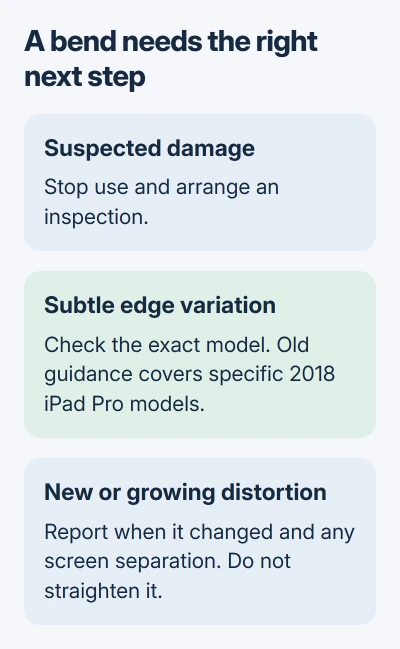
A screen separating from the enclosure also needs inspection. Tell the service team where the screen is separating. Treat that as something to inspect rather than assuming it's loose adhesive that a case can hold in place.
For an iPad that looks straight but has missed touches, halos or a persistent image defect, the iPad Pro screen checks cover those different symptoms. If the body is bent, the next step is to have it inspected.
I'd take the visible damage seriously before spending time on restart routines. Resetting iPadOS can't repair an aluminum enclosure, and erasing it can leave you needing to recover your files as well as repair the device.
2. Match the old flatness guidance to the exact model
The iPad Pro enclosure explanation covers the 11-inch iPad Pro and 12.9-inch iPad Pro, third generation, introduced with the 2018 design. Check that your model matches before applying those measurements to your tablet.
For those models, the stated flatness specification allows a variation of no more than 400 microns, or 0.4 mm, along any side. It describes a manufacturing specification, not an instruction to bend the tablet until it looks level.
Straight edges and cellular antenna divisions can make a small variation more noticeable at an angle. Within the stated specification, those small variations don't affect strength or operation and won't change during normal use.
An edge that has changed since purchase needs a different explanation from a subtle variation that was present from the start. Tell the technician whether the shape is new, whether it is changing and whether the screen is lifting.
Don't extend that 2018 specification to every iPad Pro generation. It doesn't give an allowed bend for an M-series model, and a measurement for a different body design won't tell you whether yours qualifies for service.
The camera bump can also keep the back from sitting flush on a table. Describe where the side itself looks curved. Table rocking by itself doesn't show whether the body is bent, and pressing the corners flat isn't a way to check.
3. Record the model and what changed
If the iPad is safe to handle, photograph the affected edge without applying pressure. Include a view of the screen's fit to the enclosure. Those pictures can explain what you're seeing when booking an appointment.
Write down when you first noticed it: straight from the box, after a fall, after carrying it in a packed bag, or without a known event. Explain what happened as you remember it, rather than guessing which part inside caused the bend.
If the iPad is safe to use, Settings > General > About shows the model and serial number. When damage prevents use, check the packaging or purchase records instead of powering it on just to read those details.
Include any new screen gap, button problem or charging-port distortion in the service request. Those details help the team understand what needs checking. An adviser still can't tell what's damaged inside from your description alone.
Keep the purchase receipt available. The purchase date and seller help the team check your coverage and decide whether to arrange a return, check for a defect or offer a paid repair.
4. Ask for an enclosure inspection and a written estimate
Use the iPad repair and service page to arrange service, or book with an authorized provider. Request inspection of the enclosure's shape and any screen separation, rather than a software reinstall.
The provider can confirm your final fee after inspecting the iPad. A bent frame doesn't have one universal repair price, and a cost for another iPad size or generation may not apply to yours.
The limited warranty covers manufacturing problems under its terms; coverage for accidental damage is handled separately. Have the provider review your warranty or AppleCare coverage before you approve a charge.
For a newly delivered iPad, contact the seller promptly and keep the packaging. Return rules depend on the seller and country, so use your order's return terms rather than assuming every purchase follows the same window.
Don't accept a promise of a free replacement based only on an online description of a bend. Ask what the inspection found and whether the proposed service is covered, then request the estimate before deciding.
5. Prepare your data only when the device is safe to use
If your iPad is safe to use and you've booked an appointment, follow the service preparation instructions. Make a backup, then check that syncing has finished for the iCloud services you use. A serviced device may be erased.
If your cloud backup is slow, try the iCloud backup connection checks. Tell the service team when damage prevents completing a backup rather than continuing to operate a damaged tablet.
On iPadOS 27 or later, the current appointment instructions use Find My: select the device, tap More > Repair or Trade In > Enable. Follow the provider's instructions for whether your repair is eligible.
On iPadOS 26 or earlier, the instructions instead tell you to open Settings > your name > Find My > Find My iPad to turn Find My off. Use the preparation steps for your software version, regardless of the iPad's physical size.
If the damaged iPad can't complete these steps, tell the provider before the appointment. Bring the device, any proof of purchase you have and identification, and ask how to transport it when battery damage is suspected.
The Short Version
Don't straighten a bent iPad Pro. Stop use when damage is suspected, identify the model, document the change and request an enclosure inspection. The old 0.4 mm guidance applies to specific 2018 models, not every iPad Pro.
Checked November 11, 2026.