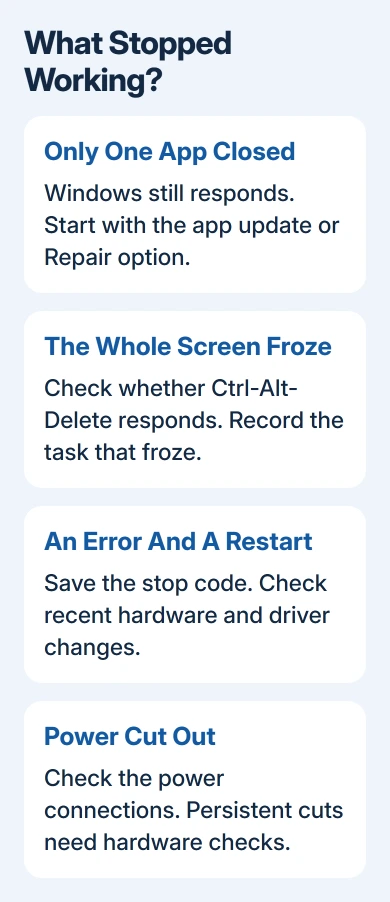
Computer crashes can follow a bad driver, new hardware, or a broken app update. Undo the recent change first. Then match the repair to what stopped: one program, the whole Windows desktop, or the computer's power.
Keep an eye on what survives the crash. If the desktop still works, begin with the app. A restart with a stop code needs Windows checks, while a machine that abruptly loses all power needs its power and cooling checked too.
In this guide
1. Remove the recent change and save your work
Disconnect a newly added peripheral, such as a dock or USB accessory, after shutting down. Restart and repeat the ordinary task that was failing. Ask the installer to check a newly fitted internal component.
If the crashes stop, reconnect that accessory and check with its maker for driver or firmware updates (software for the accessory itself). If the same crash returns, you know which accessory to check before replacing unrelated parts.
Microsoft says to remove newly added hardware in its unexpected-restart instructions. New software and driver changes deserve the same attention to timing.
Back up important files while the computer stays usable. A backup keeps your documents accessible even if the computer stops starting altogether.
Change one thing, then repeat the task that usually fails. A machine that restarts after an hour of gaming hasn't shown that it's fixed just because the desktop opens.
2. Repair the app when Windows keeps running
If one program disappears but the taskbar and other apps still respond, work on that program first. Update it through its own updater or Microsoft Store, then reopen the same kind of file or task.
On Windows 11, open Settings > Apps > Installed apps, find the program, and open its three-dot menu. Choose Advanced options, then Repair if available.
On Windows 10, open Settings > Apps > Apps & features, select the program, then choose Advanced options > Repair. Some programs don't offer these controls.
For a traditional desktop program, open Control Panel > Programs > Programs and Features. Right-click its entry and look for Repair or Change. The choices depend on the program's installer.
The app-repair procedure explains both routes. Reset can remove app data. Check its confirmation before choosing it instead of Repair.
If the repair works, use the app again. If it still closes, give its publisher the app version, affected file type, and exact error. Leave Windows recovery until you've checked the app, since everything else still works.
For a crash tied to a browser add-on, follow the extension crash checks. A broken browser session and a computer losing power aren't the same failure.
3. Update Windows and check the suspect driver
A driver lets Windows work with a component such as the graphics card or network adapter. A driver problem can affect the whole system even if the failure first appears during one game.
In Windows 11, open Settings > Windows Update > Check for updates. In Windows 10, use Settings > Update & Security > Windows Update. Finish the available updates, including their restart prompts.
Free Windows 10 support ended October 14, 2025. Ordinary update advice doesn't mean every Windows 10 PC still receives security fixes; check whether your PC still gets updates or plan to move to a supported Windows version.
Right-click Start, select Device Manager, and check for warning marks. Get the affected component's driver from its maker or the PC manufacturer. Match the exact hardware model before installing the download.
If a driver update was followed by the crashes, open the device's Properties > Driver > Roll Back Driver. When available, this returns to the previous driver. A grayed-out button means that rollback isn't available there.
I'd try that targeted rollback before reinstalling the whole operating system. Reversing that recent change gives you a useful comparison when you repeat the failing task.
4. Start in Safe Mode if Windows remains unstable
Safe Mode starts Windows with fewer drivers and background services. If the crashes stop there, check which extra apps, drivers, and background services start with Windows normally. It doesn't identify the exact program by itself.
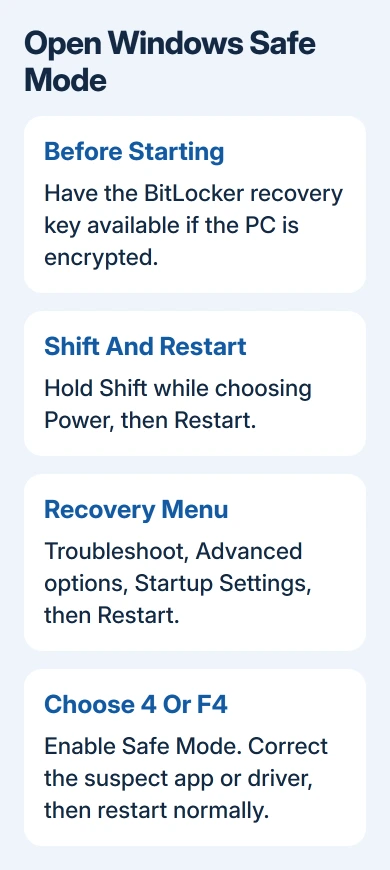
Have your BitLocker recovery key available before entering recovery tools. An encrypted computer may ask for it even if ordinary sign-in usually works.
On a working sign-in screen or desktop, hold Shift while choosing Power > Restart. In the recovery menu, select Troubleshoot > Advanced options > Startup Settings > Restart. Choose 4 or F4 for Safe Mode.
Settings offers another entry. Windows 11 uses System > Recovery > Advanced startup > Restart now. Windows 10 uses Update & Security > Recovery > Advanced startup > Restart now.
Use Safe Mode to remove the recent app or fix the suspect driver, then restart normally. If it also crashes in Safe Mode, tell support and give them the stop code rather than repeatedly uninstalling random apps.
If Windows never reaches sign-in and stays in a restart cycle, the stuck-restarting guide handles that startup problem separately.
5. Read a stop code or check a hard power loss
Photograph any stop code and named file on the error screen. Windows can show a black or blue stop screen depending on its version. The error code tells you more about the crash than the screen's color.
A frozen display is different. Try Ctrl-Alt-Delete once. If the security screen opens, Windows is still responding to some keyboard commands. If nothing responds and you must force power off, note what was running before the freeze.
For an abrupt power cut, check the outlet, power cable, and charger connections. Keep vents clear. If shutdowns continue, have heat, memory settings, and the power supply's ability to handle your hardware checked.
A technician can check temperatures, memory, and power reaching the components if crashes continue. Don't open a desktop power supply. Note whether crashes happen under load or while idle to help the shop choose a useful test.
6. Move to Windows recovery or a repair assessment
For trouble following a software change, use an existing restore point if available. In Recovery, open Troubleshoot > Advanced options > System Restore.
Choose a point from before the crashes and use Scan for affected programs to review what changes. Confirm the point with Next > Finish, then restart when prompted. This is different from resetting the PC.
Give the PC maker your model, Windows version, error code, recent changes, and Safe Mode result. Request hardware diagnostics if power cuts or freezes also happen when Windows isn't running normally.
The Short Version
Reverse the recent change. Repair an app that closes by itself; check drivers and Safe Mode for wider crashes. Save the stop code or details of a power cut before choosing Windows recovery or hardware service.
Checked November 11, 2026.