

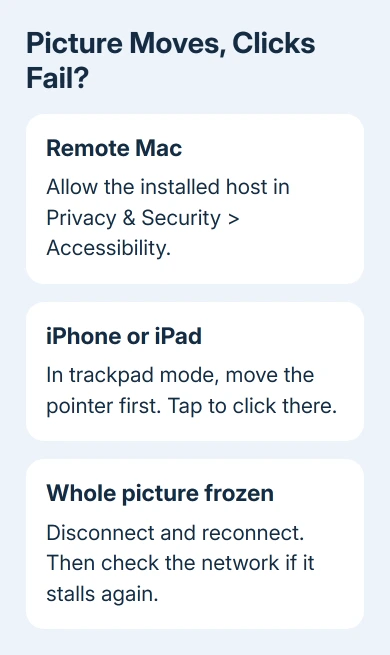
A live picture without clicks can mean the remote Mac hasn't granted control permission. Check its Accessibility settings first. On an iPhone or iPad, check the input mode too: move the pointer first, then tap to click.
When the whole picture has stopped updating, treat that as a stalled session instead. These cases need different checks, so start with what still responds.
In this guide
1. Separate a frozen session from blocked input
Watch something that should change on the remote computer, such as a clock or an app's progress display. Try moving the remote pointer, typing in an already open text field and clicking a harmless control.
If the picture updates but neither typing nor clicking reaches the computer, check the host's control permissions next. The host is the computer you're controlling, not the laptop or phone in your hand.
If the picture is frozen too, close the remote session tab and reconnect. On a phone, use the session menu to disconnect, then open the computer again. Starting a fresh session can get a connection responding again.
Before disconnecting, consider whether someone is available at the host. Permission prompts and an installer may need a person there. Don't remove the only working remote-access setup while you're away from that computer.
If another remote product is failing instead, the Windows Remote Desktop freezing guide covers Microsoft's RDP connection. Its settings don't apply to Chrome Remote Desktop.
2. Allow control on the remote Mac
On the Mac being controlled, open Apple menu > System Settings > Privacy & Security > Accessibility. Turn on the Chrome Remote Desktop host entry. Its name can include ChromeRemoteDesktopHost.
Accessibility permission lets an approved app control the Mac. Screen recording permission lets you see the desktop, but it doesn't let you control it. This explains why the picture can work while clicks do nothing.
On older Macs with System Preferences, open Security & Privacy > Privacy > Accessibility instead. Unlock settings if asked, then allow the host. Intel models need both permissions; Apple silicon models do too.
Apple's Accessibility permission instructions explain how to add an app if it isn't listed. Allow the installed host that Chrome Remote Desktop asks for, rather than unrelated apps.
Follow any request to quit and reopen the host, then reconnect. Try one click on a desktop icon. If it selects normally and a text field accepts typing, control permission is working.
Screen recording is a separate check when the image is blank or unavailable. Follow the host setup prompts for that permission rather than assuming every remote display problem comes from Accessibility.
3. Use the phone's current input mode
The default iPhone and iPad control is a virtual trackpad. Swiping moves the pointer, and a tap clicks at the pointer's position. Tapping a button's picture doesn't necessarily move the pointer onto that button first.
Move the pointer onto a large target, then tap once. For a right-click, tap with two fingers. To drag, touch and hold until a gray circle appears, then move your finger.
A scaled-down desktop makes that mistake easy. A tap can be reaching the remote computer perfectly while landing somewhere other than the button you intended to press.
For a Windows host, open the session controls and find Input controls > Configure touch input. The available touch modes include direct touch and a mode with two-finger pan and zoom. Choose the behavior you want.
Touch input modes are supported for Windows remote devices. Don't expect that same choice to turn a remote Mac into a touchscreen. Use trackpad gestures when the remote computer doesn't offer the Windows touch modes.
Google's Chrome Remote Desktop instructions list the gestures. Once a single click works, test scrolling and dragging separately so one unfamiliar gesture doesn't look like a complete input failure.
4. Reconnect with the current browser and host
Update Chrome on the computer you connect from, then close and reopen the session. If the host needs an update or requests setup permissions, finish those at the computer being controlled.
For unattended access, sign in with the intended Google account and choose the computer in the access list. A support session instead needs approval from the person sharing. Check whether you started unattended access or a support session.
A support code works once, and the person sharing must approve continued sharing at 30-minute intervals. If sharing has expired or hasn't been approved, start a fresh connection. Repeated clicks inside the old session won't help.
I'd try a fresh session before reinstalling anything. It preserves the existing host registration and tells you whether the input problem was limited to that connection.
If Chrome itself is unstable before the remote connection opens, the Chrome crash recovery guide explains how to protect your tabs. A browser that closes can't keep a usable remote session alive.
5. Check the network when the session also stalls
Both devices need an internet connection. If the remote computer disappears or the picture repeatedly freezes, check its connection and whether a work or school network restricts remote access.
For a managed computer, ask the administrator whether Chrome Remote Desktop is allowed. Give them the product's name; your organization may allow one remote tool and block another.
Chrome Remote Desktop needs TCP 443, TCP and UDP 3478, outbound UDP and its inbound responses. Let the network administrator check those rules rather than switching off security software to see what happens.
A network check is useful for a stalled or failed connection. When a remote Mac's image stays live but control never works, return to its permissions instead of changing router settings at random.
If it still fails, post in the Chrome Help Community with both operating systems, whether the picture updates, whether typing works and the input mode. Include any setup warning, but leave out access codes and PINs.
The Short Version
Check host Accessibility permission when a Mac's picture moves but clicks fail. Phone trackpad mode clicks at the pointer. Reconnect a frozen session, then check updates and network restrictions if it keeps stalling.
Checked November 12, 2026.
 If you have any business, I can build it online






