

Insert a check mark in Windows PowerPoint through Insert > Symbols > Symbol while editing a text box. Choose Wingdings, enter code 252, and select Insert. Use an icon for a large mark beside the text.
A check-mark character, a list bullet, and an icon behave differently. Pick the type your slide needs before adjusting its size or position.
In this guide
Choose a text character, bullet, or separate icon
Use a text character when the check mark belongs inside a sentence or a text box. It moves with the surrounding text, and its appearance depends on its font.
Use a check-mark bullet for a list of completed items. The list controls the spacing and indentation, so you don't have to position a separate mark beside each line.
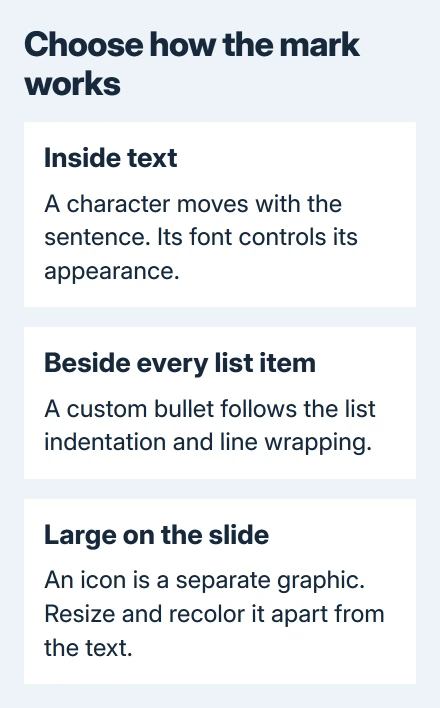
Use an icon for a large visual mark beside a heading, photo, or result. It is a separate graphic that you can resize and recolor without changing the sentence's font.
All three choices add a visible mark to the slide. A static check mark isn't an interactive checkbox that records a response when the audience clicks it. I'd use a bullet for an ordinary checklist and an icon for one large completion mark.
Insert the character in desktop PowerPoint for Windows
This method works in Microsoft 365, PowerPoint 2024, and PowerPoint 2021 for Windows. Open the slide and click where the character belongs inside an existing text box, or create one with Insert > Text Box.
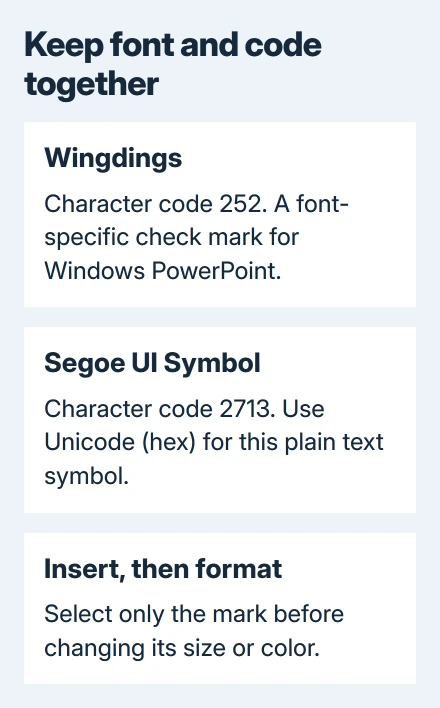
Open Insert > Symbols > Symbol. In the dialog, set Font to Wingdings. Enter 252 in Character code, select the check mark, then choose Insert > Close.
Microsoft says 254 adds a boxed version in its check-mark instructions. The font matters: the same code in an ordinary text font can produce a different character.
Select just the inserted mark before changing its size or color. Use Home > Font Size and Font Color, or the formatting toolbar. Selecting the entire paragraph changes the surrounding words too.
When the command itself is disabled, restore a gray Symbol button by checking the text caret before choosing a character.
Keep Wingdings applied to that character when you use the 252 method. If the mark turns into an unexpected letter or symbol after formatting, check its font before inserting it repeatedly.
For the worksheet equivalent, the Excel check-mark guide explains symbols and actual checkboxes. PowerPoint's slide symbols don't become Excel checkbox cells when copied into a presentation.
Use a Unicode check mark when you want a text symbol
Windows PowerPoint also supports a check mark from Segoe UI Symbol. Return to Insert > Symbols > Symbol, choose that font, and use the character code 2713 with Unicode (hex) selected.
The code 2714 selects a heavier check mark in the same font. These are different characters from Wingdings code 252, so use the font and code together as shown.
Choose Insert, close the dialog, and look at the mark on the actual slide background. A thin character that looks clear in the symbol grid can be difficult to see when the slide is projected.
Size the symbol for the text it accompanies. If making it large disrupts the line spacing, use a separate icon instead of trying to make a text box sized for a sentence work like a graphic.
This route avoids relying on a number-pad shortcut. For a compact keyboard without a numeric keypad, the Symbol dialog is more direct than trying different Alt-code combinations.
Make the mark the bullet for a whole list
Type each checklist item as its own paragraph inside a text box. Select the paragraphs that need check-mark bullets; a manually inserted line break isn't a separate list item.
On Windows, open Home, then the menu beside Bullets, and select Bullets and Numbering. On the Bulleted tab, choose Customize, select a suitable check-mark symbol, and confirm with OK.
On newer Mac versions, open the bullet-formatting choices and use the gear control under Customize to choose a symbol. The desktop interfaces differ, so don't look for the Windows Symbol dialog in the Mac bullet menu.
Adjust bullet size and color in the list-formatting settings. Those controls change the bullet relative to the text. If the words are correct but the mark looks too small, changing the whole paragraph's font size isn't the best adjustment.
For a list that wraps onto a second line, use the hanging-indent controls to line up the wrapped line with the words on the first line. Don't add repeated spaces to make the wrapped lines appear aligned.
Add an icon on Windows, Mac, or PowerPoint for the web
If your edition has the command, select Insert > Icons. Search for a check mark or tick, select the design you want, and choose Insert. The icon appears as a separate graphic on the slide.
Resize it from a corner and use the graphic's fill controls to change its color. In Windows, right-click the icon and choose Fill; on a Mac, use Format Graphic > Fill > Solid fill when that menu is shown.
The same Insert > Icons route is available in PowerPoint for the web. Choose this route for a graphic rather than a Windows character code. The icon library's search results can differ, so choose by its visible shape.
Use the PowerPoint basics walkthrough if you need to create the text box and slide layout first. Give the mark space beside the words rather than letting it crowd a heading.
If Icons isn't available in your edition, use a text symbol in a desktop copy instead. Changing the slide layout won't add a command that the installed edition doesn't provide.
On a Mac, insert a text symbol with Character Viewer
Click inside the PowerPoint text box, then choose Edit > Emoji & Symbols in the Mac menu bar. Search for check mark, then choose a matching symbol. Double-click the result when using the expanded Character Viewer.
Choose a plain symbol when you want a mark that matches ordinary text. A colorful emoji can look different from the single-color check mark you intended, especially beside a formal checklist.
If the character becomes a square or changes appearance on another computer, check whether that computer has a font that can display it. For a separate graphic, the icon method avoids relying on a text character's font.
Before presenting, open Slide Show and check the mark at reading size. If a symbol still displays incorrectly, give support the operating system, PowerPoint release, symbol font, and code you used.
The Short Version
Use Wingdings 252 for a Windows text mark, Unicode 2713 for a plain symbol, bullet customization for a checklist, or Insert > Icons for a separate graphic. On a Mac, Character Viewer inserts text symbols without Windows codes.
Checked November 12, 2026.
 If you have any business, I can build it online






