

A trained technician needs to inspect a bent iPad. Trying to straighten it at home can make the damage worse. Stop using and charging it when damage is suspected, then book an Apple service appointment or use an authorized provider.
A curved case, a frame bent after an impact, and glass separating from the body aren't the same condition. Describe what changed and where the gap or bend appears so the service team can assess the device and its battery safely.
In this guide
1. Leave the frame alone and stop using the iPad
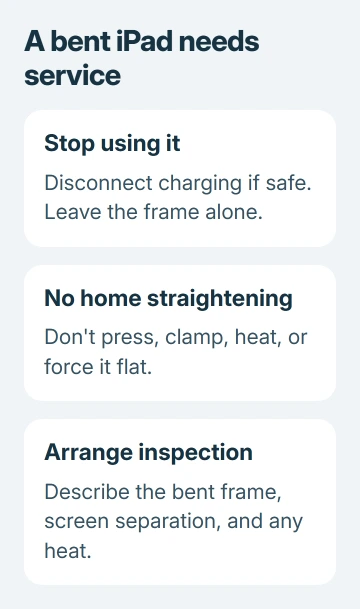
Don't put the iPad under books, bend it across your knee, clamp it flat, or heat the enclosure. A frame that looks straighter afterward can still have damaged parts inside, and force can worsen the glass or battery damage.
Disconnect the charging cable if you can do so safely. Apple's iPad safety guidance says to discontinue use when damage to the iPad or battery is suspected and have a trained technician handle service.
If it's safe to operate the controls briefly, turn it off. For a model without the Home button, hold top together with either volume until the shutdown slider shows. Drag that slider to turn it off.
For a Home-button model, keep the top button held until the shutdown slider shows, then drag it. Settings > General > Shut Down also works if safely accessible. Don't force a stuck button or charge the iPad just for this step.
For unusual heat, smoke, hissing, or an unfamiliar smell, move away and get urgent help where you are. A damaged battery needs urgent attention, not software checks or pressure on separated glass.
2. Describe the damage without forcing the case off
Look at the iPad without flexing it. Note whether the metal body curves, one corner is crushed, glass is cracked, or the screen has separated from the frame. Photograph what you can see without pressing on the device.
A case that no longer fits can be a symptom, but it doesn't tell you why the iPad changed shape. Don't force a tight shell off a distorted device or push the iPad into a replacement case to hold it flat.
A screen lifting away can involve the battery or another internal problem. You can't tell the cause just by looking at it. Tell the service provider about the separation instead of requesting only a cosmetic frame adjustment.
Write down any recent event: a drop, sitting on a bag, heavy items packed against it, or damage noticed when it arrived. Give an honest description even when the screen still turns on and touch appears normal.
An iPad that was curved from delivery needs a different discussion from one bent by a recent accident. Keep the purchase information and photographs so the seller or service team can review the condition and timing.
I'd avoid any repair that begins with someone casually pushing the corners until the tablet lies flat. Ask what they will inspect internally and how they'll assess the battery and enclosure before agreeing to the repair.
3. Check existing backups without powering damaged hardware
A repair or replacement can leave you needing to restore your data. Use another device or computer to check the backups and synced information you already have, rather than continuing to use a damaged iPad to create a fresh backup.
Look for existing computer backups in the app that normally manages your iPad. On newer Macs that's Finder; on Windows it may be Apple Devices or iTunes. For an older Mac running Mojave or an earlier release, iTunes manages those copies.
The full iPad backup instructions explain those destinations and completed-date checks. Use them to check a backup you already have. If you suspect physical damage, it may not be safe to connect or use the iPad to make another one.
Also check separately synced photos and documents from another device signed into the same account. Cloud syncing and a device backup are different things, so finding your photos doesn't confirm every app's local data is protected.
If no backup exists, tell the service team before authorizing work. Ask whether the proposed service will erase or replace the iPad and what data options remain. Booking a repair won't recover data from the damaged device.
4. Get the model, coverage, and an inspection estimate
Gather the model information, serial number if available, proof of purchase, and any AppleCare details. Use records or another device where possible, without turning the damaged iPad on just to copy a number from Settings.
Start from Apple's iPad service page. It offers in-person service, mail-in options where available, and information about repair or replacement. Availability depends on your location and the device.
Ask for the bent frame, screen, and battery to be inspected. Describe every affected part when requesting a price, because a screen-only estimate may not reflect the service needed for a distorted frame.
Accidental damage isn't covered by the ordinary limited warranty. An active AppleCare plan may provide accidental-damage coverage subject to its terms and service fee. The inspection and your actual coverage determine the offer.
On the public service page, choose Device Type and Model to see the available estimate. The provider still needs to inspect the damage before confirming your repair or replacement price.
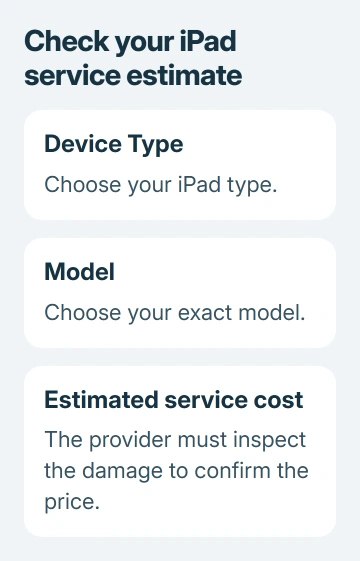
Don't rely on one universal bent-iPad price. Model, damage, coverage, location, tax, and the service offered all matter. Get an estimate for your iPad before approving a repair or replacement.
If damage was present on delivery, contact the seller promptly as well. Ask about the applicable return or exchange process and supply the purchase date and photographs. Don't alter the shape before the condition is assessed.
5. Follow the service instructions before handing it over
The service provider will explain how to prepare the iPad, including Find My and personal information. Say immediately if physical damage makes the requested on-device steps unsafe or impossible.
On iPadOS 27 or later, prepare the device using Find My > [your device] > More > Repair or Trade In > Enable. This enables Ready for Repair or Trade-In instead of using the older steps to turn off Find My.
On iPadOS 26 or earlier, use Settings > [your name] > Find My > Find My iPad to turn it off as directed for service. Ask support about the other-device route if operating the damaged iPad isn't safe.
Never share your Apple Account password or device passcode with a technician. For a software check that needs you to enter a password during an appointment, enter it yourself and remain present.
For mail-in service, disclose suspected battery damage before packing anything. Follow the supplied handling and shipping instructions. Don't improvise a parcel for a hot, swollen, or visibly damaged battery device.
After service, check the supplied paperwork and whether you received the repaired device or a replacement. Restore from your backup if needed, then try opening your photos, documents, and the apps you depend on.
If the replacement only has surface marks, the iPad screen-cleaning procedure covers ordinary cleaning. Cleaning, a screen protector, or a tighter case can't correct structural damage to the original tablet.
If the service offer doesn't deal with a separated screen or possible battery fault, ask for those parts to be assessed before accepting the iPad back. Get a clear repair decision instead of trying to flatten it yourself.
The Short Version
Leave a bent iPad switched off and don't force it straight. Record the damage, check existing data copies, and arrange inspection. Confirm service pricing, coverage, and what happens to your data before authorizing work.
Checked November 12, 2026.
 If you have any business, I can build it online






