Taking notes on an iPad doesn't require an Apple Pencil or a paid app. Open Notes, choose a folder, tap the compose button, and start typing; use the handwriting tools when you want to write or sketch instead.
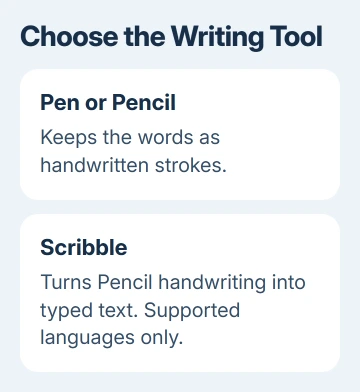
Choose between keeping handwritten strokes and turning them into typed text. Notes can do either, but you'll need a different tool for each.
In this guide
Start in the account where the note should live
Open Notes and return to its folder list. Choose a folder under iCloud for notes you want on your other Apple devices, or On My iPad for local notes. That choice decides where your notes are saved.
Apple's Notes setup instructions explain that all the features are available when you keep notes in iCloud or on the iPad itself. Notes in a Gmail or other mail-service folder can have fewer controls.
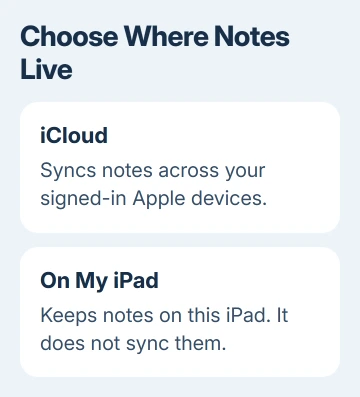
If iCloud Notes isn't enabled, open Settings > your name > iCloud > Notes, then turn on Sync this iPad. Depending on the software, you may first need See All or Show All to find Notes.
I'd choose the account before writing anything important. A note saved locally won't appear on another device simply because that device uses the same Apple Account.
Make a note and give it a useful first line
Inside your chosen folder, tap Compose, the square-and-pencil button. Tap the blank page to bring up the keyboard and enter a short title, such as Meeting November 12 or Kitchen Measurements.
The first line becomes the title in your notes list. Press Return and start your notes on the next line. A specific title helps you recognize the page without opening several similar entries.
Tap Done if it appears when you've finished editing. Return to the notes list, open the entry again, and check your last sentence. Notes saves while you work, so you don't need to use Save As.
A hardware keyboard works too. Pair or attach a compatible keyboard, tap inside the note, and type. The iPad keyboard connection guide separates Bluetooth pairing from Smart Connector and wired setups.
The screen keyboard is enough for a shopping list. For pages of meeting notes, typing on a keyboard can be easier than keeping up by hand. Choose what suits the work before buying an accessory.
Use headings, lists and tables while typing
Highlight the words that need a different style, then tap the text-formatting button, usually labeled Aa. Choose Heading or Subheading to mark a change of topic, or use bold for a short label.
Formatting changes the text you've selected inside this note; it doesn't sort your notes into folders. For example, add separate headings for Decisions and Questions instead of creating one long paragraph.
Use the Checklist button for items you intend to check off. Tap an item's circle when it's finished. For a list of explanations, choose bullets from the formatting controls. That way, your list won't look like a set of tasks to finish.
The Table button adds cells for information that belongs in rows and columns, such as an item, a measurement and a quantity. Tap a cell to type. For a simple reminder, a plain list is usually quicker to edit.
The toolbar varies with iPadOS and window width. Dismiss the keyboard or widen Notes if a control seems hidden. Check that your note is in iCloud or On My iPad before trying another app for a missing feature.
Write by hand without turning it into typed text
Open the note and start writing with a compatible Apple Pencil. To use your finger, tap the Handwriting Tools or Markup button, depending on the version. Choose a pen, pencil or marker from the tool palette.
Write a few words and lift the Pencil or your finger. The strokes should remain as handwriting. Choose another tool or color in the palette when you want part of a diagram to stand out.
Finger drawing works without a Pencil. Pencil compatibility depends on the iPad and the particular Pencil. A Pencil that works on another iPad won't necessarily work with yours.
To move handwriting, use the Lasso tool. Draw around the strokes, tap the selection, then choose an available editing action. This edits what you've already written; choosing a new pen only changes what you write next.
Keep the handwriting area separate from the typed paragraph when that makes the page easier to read. A diagram beside your written explanation can be more useful than trying to type every shape or equation.
Choose Scribble when the result should be typed
For words that should become ordinary typed text, select the Scribble tool in the Notes handwriting palette. In the current iPad guide, it sits to the left of the pen. Write with Apple Pencil and check the converted words.
Scribble and the option to turn handwriting into text work only in supported languages. If that option is missing, don't erase your note. Check the language support for your device before expecting every handwritten word to convert.
Existing handwriting can also be selected and copied as text when that option is available. Read the result before replacing the handwritten version, especially for names, measurements and abbreviations.
Reopen the note and check where it appears
Leave the note, return to its folder, and open it again. Check the title, newest paragraph and any handwriting. That quick check catches editing the wrong note before you need the information later.
For an iCloud note, check the same account and folder on your other device. A local On My iPad note won't sync. Sharing a note with another person is a separate task covered by the Notes sharing controls.
If a basic control is still missing in a local or iCloud note, ask Apple Support about Notes on iPad. Give your iPad model, iPadOS version, account type and missing button to help them check Notes and Pencil compatibility.
The Short Version
Choose the Notes account first, create a note with Compose, and type a useful title. Use a pen for handwriting that stays handwritten or Scribble for typed output. Reopen the note and check the saved work before relying on it.
Checked November 12, 2026.