A Chromebook's Copy operation failed message can mean the place you're copying to can't accept the file, the drive is read-only, or a cloud file hasn't downloaded.
Check where the copy is going before changing anything: a USB drive, Downloads and Google Drive need different fixes.
For a USB transfer, start with a small file and look at the space available on the drive. If only a large video fails, its size and the drive's format matter more than restarting Chrome.
In this guide
1. Try a small copy into Downloads
Open Files from the Launcher. Select one ordinary image or document in the source folder, press Ctrl + C, open My files > Downloads, and press Ctrl + V.
Use a file you've already saved locally if you have one. This checks whether copying works without relying on a cloud download, a phone connection or an external drive.
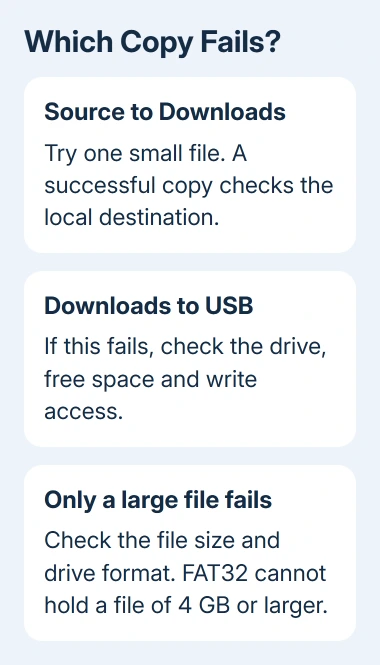
If that succeeds, copy the same file from Downloads to your intended destination. If only that second copy fails, check the destination, its connection and its free space.
If Downloads is the failing destination, open Settings > System preferences > Storage management and check available space. On older ChromeOS layouts, Storage management is under Device.
Leave room for the complete file, not just the part already transferred. The progress bar reaching its end doesn't mean the destination has accepted a complete, usable copy. Open the copied file before deleting its original.
2. Leave read-only views and reconnect removable storage
The Recent, Images, Videos and Audio views help you find files, but they aren't ordinary destination folders. Choose a real location such as Downloads or a folder inside the connected drive.
Google's Files app instructions also point out that some folders are read-only. A failed copy into one of those folders doesn't mean your Chromebook can't save files elsewhere.
For a USB drive or SD card, select Eject beside its name when no transfer is running. Reconnect it directly to the Chromebook, bypassing a hub if possible, then try copying the same small file again.
A card with a physical lock switch needs to be unlocked before writing. If another computer can read the files but also can't create a new file on the device, the drive or card is the problem.
Managed Chromebooks can have rules that restrict removable storage. Ask IT whether the device permits writing to external drives if the drive opens but every attempt to save to it is refused.
3. Check large-file limits before formatting a drive
A FAT32 drive can't store a single file of 4 GB or larger, even when it has plenty of free space. A long video can fail while dozens of smaller photos copy successfully.
Check the file's size in its details. Then check the drive's format using another computer if the Files app doesn't show it. The limit applies to each file, so deleting other files won't help.
For a drive used between current computers, exFAT is an option for large files. Check that every device you plan to connect supports it, especially a camera or older media player.
Back up the drive's files somewhere else before formatting it. Formatting erases everything on the drive. Don't try it until your important files are safely stored elsewhere.
In Files, right-click the external device and choose Format device when that option is available. Choose the required format if prompted. If ChromeOS doesn't offer the format you need, prepare the drive on another compatible computer.
Don't assume NTFS always means read-only on a Chromebook. ChromeOS handles it differently from journaled HFS+, a Mac drive format listed as read-only. Check whether you can save a new file on this particular drive.
4. Download cloud documents in a usable file format
Google Docs, Sheets and Slides documents live in the cloud until you export them into a downloadable format. When a cloud document won't copy to USB, open the document and download a suitable format first.
For example, in Google Docs choose File > Download, then Microsoft Word (.docx) or PDF Document (.pdf). Save the exported file in Downloads and copy that file to the external drive.
For an ordinary file in Drive, open drive.google.com, right-click the item and choose Download. This requires your signed-in account.
The owner can restrict downloads for viewers or commenters, so the option may be missing because your account isn't allowed to download it.
If a downloaded folder is a ZIP archive, open it in Files. Use Extract all to put its contents into a normal folder before editing or reorganizing them. An archive isn't a normal writable folder.
Documents coming from an iPhone need their own transfer route.
The iPhone-to-Chromebook file steps explain when to use iCloud Drive or a USB drive rather than treating the phone like a flash drive.
5. Separate a phone connection from a storage failure
For an Android phone, unlock the phone after connecting it. Tap its USB notification and choose File transfer. A charging-only connection won't let the Chromebook see your files.
Try copying a small photo from the phone to Downloads before copying a folder straight to USB. This tells you which connection fails and leaves a local copy you can check.
If the phone disappears during the transfer, try a different data-capable cable and keep the phone handy in case it asks for permission. A cable that charges successfully can still fail to carry data reliably.
6. Update ChromeOS, then ask for the right help
Open Settings > About ChromeOS > Check for updates. Install any offered update, then restart when prompted. Repeat the same small-file copy so you can describe whether the result changed.
I'd keep Powerwash for a wider Chromebook problem. A factory reset requires backing up local files, and it won't change a USB drive's file-size limit or a cloud owner's permissions.
If one external drive fails on multiple computers, ask its maker about checking the drive and recovering the data.
If every local copy fails on the Chromebook, send Help > Report an issue with the source, destination, file size and exact error.
The Short Version
Try one small local file, then copy it to the failing destination. Check free space, read-only locations and FAT32's large-file limit. Download cloud documents into normal files first, and preserve the originals before formatting anything.
Checked November 12, 2026.
 If you have any business, I can build it online