Access is denied when ending a process often means the tool you're using doesn't have permission to stop it. For an ordinary app you recognize, reopen Task Manager as administrator and try again.
A protected Windows or security process can remain off limits even then.
Check the exact process name before using a command. Forcing the wrong process to close can lose unsaved work or interrupt Windows, and a stronger-looking command doesn't remove every permission restriction.
In this guide
1. Confirm which app is refusing to close
Try the app's normal Close or Exit command first. If it responds, give it time to finish saving or syncing. A busy app can take longer to close without needing you to force it shut.
If it doesn't respond, press Ctrl + Shift + Esc and open Processes in Task Manager. Expand the app's group to see which entry is the main program and which entries are helpers.
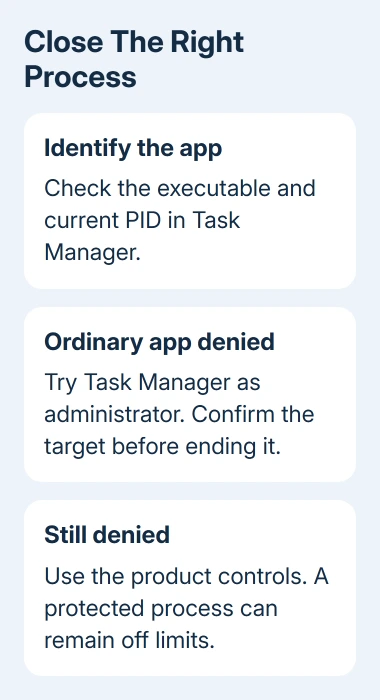
Right-click the app and choose Go to details. Note its executable name and PID, the number Windows uses to identify that running instance. Different processes can have the same name.
For an unfamiliar executable, check its publisher and location before acting. The unknown-process checks explain how to learn what the file belongs to without deciding from its name alone.
Don't end System, Windows logon components or a security product just because they use resources. This procedure is for a stuck app you can identify. For a service or protected component, use the controls in the program it belongs to.
2. Reopen Task Manager with administrator permission
Open Start, search for Task Manager, right-click the result and select Run as administrator. Approve the Windows permission prompt with an administrator account.
If the desktop is unresponsive but Task Manager opens, select Run new task, enter taskmgr.exe, and select Create this task with administrative privileges. Approve the Windows administrator prompt.
A standard account may need an administrator's credentials. For a managed PC, ask IT for administrator access rather than looking for a command to get around your account's permissions.
Find the same app again and try End task. Recheck its PID if you've restarted or reopened it, because the number can change. If the process disappears from Details, that instance has ended.
If it immediately returns with a new PID, Windows or another program started a new instance. That's a different result from the original process refusing to stop.
Look for the launcher or service responsible instead of repeatedly ending copies.
3. Use PowerShell for one identified app
For a known ordinary app that still won't close, right-click Start and choose Terminal (Admin). Open a PowerShell tab. First, list the processes to check the name and PID without changing anything:
Get-Process -Name notepadNotepad is an example. Replace notepad with the actual process name without .exe. Read the Id column and compare it with Task Manager before entering a stop command.
To stop a particular instance, replace 1234 with its current PID:
Stop-Process -Id 1234 -ConfirmThe confirmation lets you check the target once more. Forcing the app to close can lose unsaved work, so continue only if you're prepared to lose those changes.
An administrator session is required to stop another user's process. Microsoft's Stop-Process reference explains that requirement.
Signing in to an administrator account doesn't give every terminal window administrator access.
If PowerShell also reports Access is denied, don't keep adding -Force. That switch suppresses a confirmation prompt. It isn't a way to override all Windows process protections.
4. Check an elevated taskkill result
An administrator terminal can also use taskkill. For the same identified, stuck app, this command targets one PID and asks Windows to force it to close:
taskkill /PID 1234 /FReplace the example number again. /PID selects the running instance and /F requests forced termination. Use a PID instead of a broad executable name when several instances are open and only one is the problem.
Don't add /T casually. That option also ends child processes started by the selected process, which can expand the effect beyond the window you meant to close.
Read the response. A success message means that process was terminated. Process not found can mean it exited before the command ran or the PID changed. Access is denied means the command still couldn't get permission to stop it.
I'd stop switching between kill commands after that result. Task Manager, PowerShell and taskkill all depend on Windows allowing the operation; wording the command differently doesn't remove the process's protection.
5. Use the program's controls for services and security tools
An app with a background service can reopen after its visible window closes. Use the program's own Exit, update, repair or uninstall option according to what you're trying to achieve.
For a service you administer, use its documented stop procedure. Don't disable unfamiliar services just to make their process disappear. A shared service process can support more than the app you were looking at.
Security software can protect its own processes against termination. Use that product's settings or ask the organization's administrator to resolve the fault.
A process killer that installs a driver changes more of Windows just to get around that protection.
If Task Manager itself is blocked by policy, the Task Manager administrator restriction guide covers that separate message.
An app's Access is denied error isn't the same as being unable to open Task Manager.
6. Restart Windows and repair the app that keeps hanging
Save work in other applications, then use Start > Power > Restart. A normal restart is the practical next step when a stuck app won't close and its own controls can't stop it.
After signing back in, open that app once and check for an update. If it hangs again, use Settings > Apps > Installed apps, open its three-dot menu, and look for Advanced options > Repair when the app provides it.
For a program without Repair, use its installer or vendor instructions. Give support the executable name, version, PID changes and exact error. Say whether it still fails with administrator access and after a restart.
The Short Version
Confirm which running instance is stuck, then use Task Manager as administrator. Use PowerShell or taskkill for one known app if needed. Repeated denial can reflect protection; use the product controls or restart and repair it.
Checked November 12, 2026.