Different iPhone alerts have separate sound choices. Default Alerts changes the fallback tone; texts, mail and some apps use their own settings. Start in Settings > Sounds & Haptics and choose the category you want to change.
For just one app, check Settings > Notifications > the app > Sounds. Some apps offer a list of tones there; others only let you switch sound on or off or keep their own sound choice inside the app.
In this guide
Change the default alert tone first
Open Settings, choose Sounds & Haptics and tap Default Alerts. Tap a tone to preview and select it. A checkmark shows which sound you've chosen. Return to the previous screen when you're finished.
This setting is available in iOS 17.2 and later. If it isn't present on an older iPhone, check Settings > General > About for the installed iOS version before searching through app settings for it.
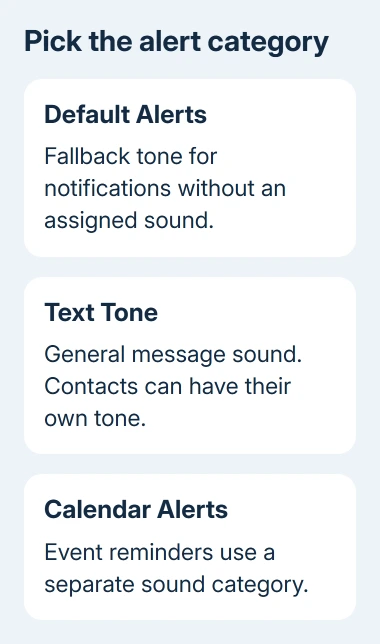
Default Alerts applies to notifications that use the default sound. It doesn't force every app to use the selected tone. An app with an assigned sound can keep playing that instead, so test the app that matters to you.
Have someone trigger a new notification after changing the tone. The preview lets you hear your choice. A new alert tells you whether that app uses it.
I'd change one category and test it before changing the rest. You can recognize the chosen alert more easily later, especially when messages, calendar reminders and other apps arrive close together.
Give text messages their own sound
Go to Settings > Sounds & Haptics > Text Tone. Choose a tone and listen to the preview. This controls the general message-alert sound rather than the ringtone for an incoming phone call.
For one person's messages, open Contacts, choose their contact card and tap Edit > Text Tone. Select the sound, then save with Done. A tone saved for that contact can make their texts sound different from other messages.
Apple describes category and contact tones in its sound and vibration instructions. Check the contact card when one person's texts keep sounding different after a general change.
Ask that person to send another message so you can hear the new tone. If their alert is still silent, open the conversation in Messages and check whether Hide Alerts is enabled for it.
If the issue is calls rather than messages, use Ringtone instead of Text Tone. The iPhone call-sound checks cover a phone that doesn't ring after the tone has been selected.
Set mail, calendar and reminder sounds separately
Return to Settings > Sounds & Haptics. Choose the relevant category, such as New Mail, Calendar Alerts or Reminder Alerts, then select the tone you want.
Sent Mail is the sound for sending mail, not receiving it. Changing that category won't change the sound of new messages arriving in your inbox. Use New Mail for that purpose.
If two kinds of alert are difficult to tell apart, choose noticeably different tones and test one of each. Keep the volume similar while comparing them so a louder preview doesn't make the choice for you.
For a calendar alert, make sure the event actually has an alert scheduled. A different tone won't create a missing reminder. Check the event's alert time before treating a silent event as a sound-selection problem.
If an alert arrives late, check when notifications are set to arrive. A scheduled notification summary or a Focus can change when you hear from an app without changing the tone saved for it.
Check an individual app's Sounds control
Open Settings > Notifications, choose the app and inspect Sounds. If a tone list opens, select the sound there. If it's a switch, turning it on allows sound but doesn't provide a choice of tones.
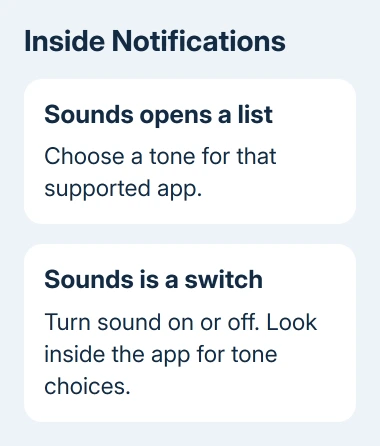
The per-app notification settings only offer sound selection when the app supports it. A switch isn't a hidden tone menu, and Default Alerts can't replace every app's own sound.
Next, look inside that app's settings for a notifications or sound section. Use its own tone choice if one is provided. Menu names differ between apps, so don't assume the controls in one messaging app also exist in another.
When neither place offers a tone list, there isn't a general iPhone setting that adds one for that app. Ask its developer whether custom notification tones are supported on iOS.
For a temporary break from an app, mute its iPhone notifications instead of replacing its tone. That lets you keep a sound you already recognize.
Adjust haptics and volume without changing the tone
Inside a sound category, tap Haptics to select its vibration pattern. The sound and vibration are separate choices, so you can keep a tone you recognize while changing how that alert feels.
If you want a personal vibration pattern, choose Create New Vibration and record one. Test it with the phone held in your usual grip. A pattern that's easy to notice on a desk can feel different in a pocket.
Return to Sounds & Haptics for volume. On older layouts, Ringtone and Alerts sets alert loudness. Enable Change with Buttons if you want the volume keys to adjust that level.
The current iOS 27 guide also describes Match Ringtone Volume under Alerts and System Sounds. Turn that off to use the separate alert slider if your phone offers it. Older iOS layouts won't have that same section.
Media volume is a different control. Raising the volume while a video plays can make the video louder without changing the saved notification loudness. Return to Sounds & Haptics when the alert preview is too quiet.
When the new tone previews but incoming alerts stay silent
Check Silent mode first, using the Ring/Silent switch or the Action button configuration on your model. Then check Control Center > Focus for an active mode that limits the app or person you're testing.
Open Settings > Notifications > the app and confirm Allow Notifications and Sounds are enabled. If the app is included in Scheduled Summary, check whether its notifications are scheduled to arrive later instead of immediately.
For silence across apps, tell Apple Support your model, iOS version and whether previews play. For one failing app, give its developer the installed version and what happened when a new alert arrived.
The Short Version
Choose Default Alerts for the fallback tone, Text Tone for messages or a separate sound category for mail and reminders. Check individual apps for their own choices, then test a new alert and adjust haptics or volume separately.
Checked November 12, 2026.