QuickBooks Online downloads the report as an Excel file, but your browser might save it without opening Excel.
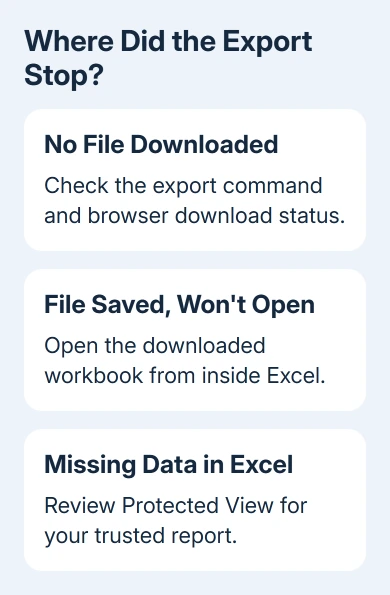
Check the browser's download list first. If no file was saved, retry the report's export command and check browser blocking; if the file opens with missing data, review its Protected View message.
In this guide
1. Check the export command and the downloaded file
Open Reports > Standard reports in QuickBooks Online, then select the report you want. Set its reporting period and check that the information you expect is visible before exporting.
In the enhanced report view, open Export/Print and choose Export to Excel. Classic report layouts can use a separate Export icon. The command belongs to the open report, rather than Excel's own File menu.
Intuit's report-export instructions describe saving the file to a recognizable folder. The browser doesn't have to launch desktop Excel automatically for that download to succeed.
Open your browser's download list. In Chrome or Edge on Windows, Ctrl+J opens it. Find the newest report entry and check whether it finished, failed, or is still transferring.
If it completed, use Show in folder to locate it. Start Excel and choose File > Open to open that downloaded workbook. Once you have the file, you can check why it won't open. Until then, focus on getting the download to finish.
2. Follow a browser warning instead of clicking repeatedly
If a blocked-pop-up symbol appears in the browser's address bar after you choose Export, click it. Review the address and allow the pop-up for your genuine QuickBooks session, then retry the export.
In Chrome, site-specific pop-up controls also live under Settings > Privacy and security > Site settings > Pop-ups and redirects. Allow only the site involved rather than turning off blocking for every website.
If there is no blocked-pop-up indicator, don't assume one must be hidden. Read the download entry instead. Disk full, Insufficient permissions, or a security warning each tells you why the file wasn't saved.
For an interrupted transfer with a network message, use the Chrome download-connection checks. A stalled file transfer isn't an Excel installation problem.
When security software flags the file, ask your IT team to review the warning and its source. Don't disable the protection just to make an export finish. Save the error wording and the time of the failed attempt.
3. Compare a private browser session
Sign in to QuickBooks Online in a private window and open the same report. On Windows, Chrome uses Ctrl+Shift+N for Incognito; Edge uses the same shortcut for InPrivate. Firefox uses Ctrl+Shift+P.
Choose the same reporting dates and try the export again. Compare the result with your normal browser window. Stored site data or an extension there can interfere when you click Export.
If the private session exports correctly, return to the normal window and check extensions that affect downloads or page content. Disable them separately and retry, keeping the report and dates the same.
Then clear the browser cache if the ordinary session still fails. In Chrome, open Settings > Privacy and security > Delete browsing data, select cached images and files, and review the other selected items before confirming.
Close and reopen the browser afterward. If the same report exports in another supported browser but still fails in your usual one, keep that working route for the immediate task and report the comparison to support.
I'd make this comparison before repairing Office. Excel can't open a report until the browser has downloaded it, so get that part working first.
4. Review Protected View when the workbook opens
If a workbook downloads but appears incomplete in Excel, look for a Protected View bar. For a report you just exported from your own trusted account, select Enable Editing, then check its contents again.
The Protected View explanation describes why downloaded files can open with editing restricted. Keep that protection enabled generally; approve the particular report rather than disabling it for every download.
Compare the workbook with the report still open in QuickBooks. Check the period, headings, first and last rows, and the totals you need.
If data is still missing, note a specific row or total that differs. The warning alone doesn't explain every mismatch.
If Enable Editing isn't available on a work computer, ask IT whether an organization setting keeps the file in Protected View. Re-exporting the report won't remove a policy that applies to downloaded workbooks.
When Excel won't open the saved report at all, try another workbook. The Excel file-opening guide separates a damaged file, an incorrect default app, and an application-wide failure.
5. Separate one report's failure from every export
Try a simple standard report with a short reporting period. Keep your original custom report available. This tells you whether other reports can export or the problem affects only that report and its selected data.
If the simple report works, repeat the original report with a shorter period. Compare the selected columns and dates with what you actually need.
If the shorter report exports, tell support which dates worked. This check doesn't change your accounting records.
For several reports or lists together, Settings > Export data is a separate route. Its Reports and Lists selections create Excel files in a ZIP archive, so extract the archive before trying to open an individual workbook.
Don't confuse that archive with a failed report download. Check the saved file's type before deciding it is unreadable. Exporting a single report and exporting the account's selected reports and lists produce different packages.
If one report still fails in more than one browser, open QuickBooks Online's Help area and use its contact option.
Tell support the report name, dates, which report view you're using, browser version, and exact warning. Include whether a simple standard report succeeded.
The Short Version
Missing downloads need browser checks before Excel repairs. Check the export command, any blocking message, and a private session.
For a downloaded report, review Protected View and compare the actual rows with QuickBooks before escalating a remaining mismatch.
Checked November 12, 2026.