

In iOS 18 FaceTime, tap your video tile, open Effects, choose a Memoji or Emoji sticker, and drag it into place. Newer menus can offer moving Memoji and Reactions without the old sticker picker.
Check the iOS version before hunting for a missing button. A sticker placed over video, a Memoji that follows your face, and a reaction that fills the screen are different effects. The one you want determines which controls to use.
In this guide
Match the instructions to the version on your iPhone
Open Settings > General > About and read iOS Version. Apple says supported iOS 18 iPhones can add stickers in its FaceTime appearance instructions. Follow the iOS 18 steps to place a sticker over your video.
The current iOS 27 guide covers Memoji, Reactions, Portrait, and Studio Light without the old sticker procedure. A missing Effects panel doesn't call for a phone reset or Apple Account removal.
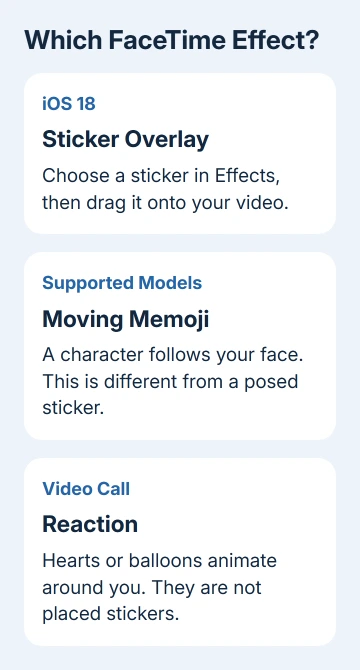
On a newer release, tap your video tile to see which controls you have. If the sticker picker isn't there, use the current effects or send a sticker in Messages during the call. Neither puts a static sticker over the live video.
The FaceTime calling checks are for a call that won't connect. A connected call with a different effects menu is a separate situation, so start with the menu and version rather than connection repairs.
Add a sticker in the iOS 18 Effects panel
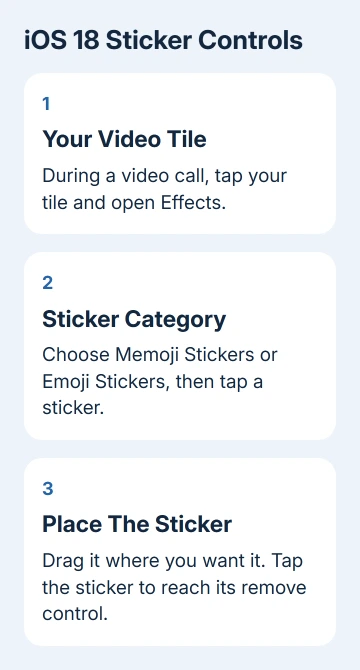
Start or answer a FaceTime video call. Tap your own video tile, then tap Effects, the effects symbol. Work from your own tile rather than the other person's image, because you're changing the picture your camera sends.
Choose Memoji Stickers for a character sticker or Emoji Stickers for an emoji. These buttons are pictures rather than long text labels. Swipe through the choices, then tap the sticker you want to add to the call.
Drag the sticker to its intended position on your picture. Swipe left or up in the selection area to see more options when available. The sticker is an overlay on the video, not a new message sent to the conversation.
If the sticker panel doesn't appear, confirm that you're in a video call and that you're following the iOS 18 interface on a supported model. An audio-only FaceTime call has no live camera picture for that overlay.
Don't assume every sticker saved in Messages is offered here. The FaceTime picker offers Memoji and Emoji stickers. You can't count on finding every downloaded sticker pack or personal Live Sticker there.
Move or remove the sticker before continuing the call
Tap the sticker to select it, then drag it to another part of the picture. Keep it away from details you're trying to show the caller, especially when you're showing them a small object through the camera.
To remove it in the iOS 18 interface, tap the sticker and use its remove control. The guide calls that icon Done Editing. Select the sticker first so you're removing that item, rather than tapping the call's End button.
Add another sticker only after checking the first one's position. This keeps it clear which item you're moving or deleting. Clearing an overlay from the video doesn't delete a saved sticker collection in Messages.
If the person you're calling wants to add a sticker to their own picture, they need to use their own effects controls. Their phone can have a different iOS version and therefore a different selection of controls from yours.
Use Memoji when you want a face that moves with you
A Memoji sticker is a posed image. Live Memoji follows your facial movements and is the right option when you want a character to do the talking instead of placing a static decoration beside your face.
On a supported iPhone with Face ID, create a Memoji in Messages if you want a personal character. During the call, choose Memoji from the FaceTime effects controls and select the character. Your voice continues through the call.
In the current interface, tap your tile. On models that group effects under Camera Effects, open that group and tap Memoji; on other supported models, tap Memoji directly. The menu grouping depends on the model.
Not every Home-button iPhone supports live Memoji. Repeated FaceTime restarts won't make live Memoji work on that hardware. Use the sticker controls your version supports or the Messages alternative.
Choose a reaction for hearts, balloons, or fireworks
Reactions add an animated scene around you rather than leaving a sticker where you drag it. In a supported FaceTime call, hold your video tile, then pick a reaction from the icons that appear.
Hand gestures need the front camera, Reactions enabled, and a compatible model starting with iPhone 12. Hold your hands away from your face and pause long enough for the camera to recognize the gesture. A quick movement can be missed.
The FaceTime reaction settings cover that control and the gesture choices. Use them when the effect you want is hearts or confetti, rather than searching for those effects in a sticker collection.
I'd choose an on-screen reaction first if gestures aren't working. It lets you use the effect without repeatedly changing your hand position. If tapping works, the effect is available and the camera isn't recognizing the gesture.
Send a sticker in Messages while the call continues
Return to the Home Screen without ending the call, then open Messages and the conversation with the person you're calling. Tap Add > Stickers and choose the sticker you want to send.
Send it as a message or place it on a message bubble using the sticker picker. The recipient sees it in Messages. It won't attach itself to their FaceTime picture, so tell them to look at the conversation if necessary.
This route is useful for personal Live Stickers and downloaded packs that the video-call controls don't offer. It also keeps the sticker available in the conversation after the call ends, rather than using it only as a camera effect.
If a control won't respond on a supported model, tell Apple Support which iPhone and iOS release you're using. Describe the missing panel as stickers, live Memoji, or Reactions so they check the correct feature.
The Short Version
With supported iOS 18 hardware, choose Effects in your tile, select a sticker, and position it. Newer menus focus on Memoji and Reactions. Use Messages for stickers when the video picker isn't offered.
Checked November 12, 2026.
 If you have any business, I can build it online






