

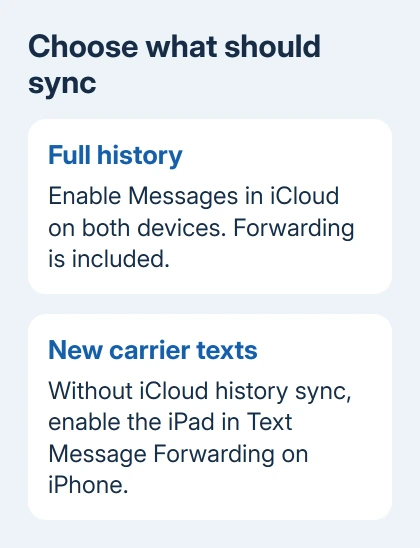
Messages in iCloud keeps your iPhone and iPad message history together. Turn it on for both devices with a matching Apple Account. For new carrier texts without the full history, use Text Message Forwarding instead.
These options solve different problems. A missing old conversation needs history syncing; an iPad that gets blue messages but misses green ones needs the iPhone's carrier-message connection checked too.
In this guide
1. Match the accounts used by iCloud and Messages
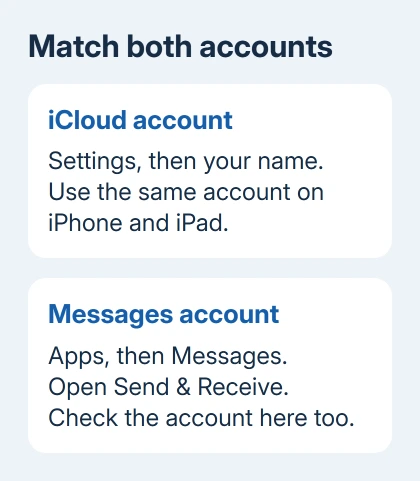
Open Settings on each device and tap your name. Make sure the Apple Account listed under your name is the same on both devices. Sharing a Family Sharing group won't make two separate accounts work for this.
Next, check the account inside Messages. On iOS 18 and later and iPadOS 18 and later, open Settings > Apps > Messages > Send & Receive. On older versions, use Settings > Messages > Send & Receive.
The Apple Account in this screen should match on the iPhone and iPad. An iPad can be signed into your iCloud account while Messages uses another account, which explains why checking only the name in Settings isn't enough.
In the address list for receiving and replying to iMessages, select your preferred phone number and receiving email addresses. Compare those choices on both devices so a message addressed to your number doesn't reach only the phone.
I'd compare both accounts before changing sync switches. That's quicker than waiting for the wrong account's history to download. For other apps too, the general iPhone and iPad sync steps explain their separate switches.
2. Enable iCloud history on the phone and tablet
Messages in iCloud needs two-factor authentication for your Apple Account and iCloud Keychain turned on. Apple's Messages in iCloud setup lists those requirements.
On each device, open Settings > your name > iCloud. Expand the saved-app list with See All or Show All, depending on the version, then open the Messages entry.
On iOS or iPadOS 17.2 and later, the entry is Messages in iCloud. Turn on Use on this iPhone or the iPad's equivalent Use on this iPad. Turn it on on both devices.
On iOS 16-17.1 or iPadOS 16-17.1, tap Show All > Messages, then enable the Sync this iPhone switch (or Sync this iPad on the tablet). Turn it on separately on the tablet too.
Open Messages on the iPad afterward. Messages already stored in iCloud can now appear there, and new messages can join the shared history. The first sync may take time, especially when conversations contain many photos and videos.
Keep both devices online while it catches up. A fresh message can work before the older conversations finish appearing, so a successful new exchange doesn't mean the entire history has finished downloading.
3. Use forwarding when you only need carrier texts
The iPad relies on the iPhone to exchange SMS, MMS, and RCS sent to your cellular number. Leave the iPhone powered on with working Wi-Fi or cellular service. Check that carrier messages work on the phone itself.
With Messages in iCloud working on both devices, Text Message Forwarding is already included. There isn't an extra forwarding switch you must enable to complete that setup.
For forwarding without Messages in iCloud, take these steps on the iPhone:
- Open Settings > Apps > Messages on iOS 18 or later. On older iOS, open Settings > Messages.
- Tap Text Message Forwarding.
- Turn on your iPad in the device list.
- Enter the verification code on the iPhone if the setup asks for one.
A code can appear if the device you selected isn't using two-factor authentication. Enter it if asked; otherwise, you don't need a code.
This lets you continue carrier-text conversations from the tablet while the phone handles the cellular side. It isn't a substitute for syncing the complete stored message history.
4. Check a missing iPad or forwarding option
When the iPad doesn't appear in the forwarding list, open its Messages settings. Turn on iMessage, then check Send & Receive and the Apple Account displayed there. Correct a different Messages account before trying the list again.
If Text Message Forwarding itself is missing from the iPhone, disable iMessage, then enable it again. Then open Send & Receive and sign in again, as the forwarding instructions describe.
If iMessage says it's waiting for activation, wait for that to finish. Repeatedly changing the iCloud switch won't make an unactivated phone number ready to receive messages.
Don't delete conversations as a sync test. With Messages in iCloud, deletions can reach the other devices too. An existing conversation and a harmless new message give you a useful check without removing anything.
5. Compare new delivery with the older history
Have a friend text your selected number or email address. Open the same conversation on the iPhone and iPad. A reply sent from the iPad should join that conversation instead of starting a separate thread from another address.
If blue iMessages arrive but carrier texts don't, confirm that the phone itself receives those texts and stays connected. If neither kind arrives, revisit the account and iMessage settings before blaming the cellular carrier.
For old messages that remain missing, check that Messages in iCloud is enabled on the device holding them. Look for an iCloud storage or sync warning. Forwarding alone won't bring a complete old library across.
When the goal changes to keeping conversations separate, use the iPad disconnection controls. Deleting shared messages is the wrong way to stop them reaching one device.
For a persistent failure, use the help option on Apple's forwarding page. Give support both software versions and your account checks. Tell them which message types arrive, and ask them to check both history syncing and forwarding.
The Short Version
Match the accounts in iCloud and Messages, then enable iCloud message history separately on each device. Use separate Text Message Forwarding only when you want forwarding without that service. Keep the iPhone online for carrier texts.
Checked November 12, 2026.
 If you have any business, I can build it online






