

Not reliably. Winaero's Windows title-bar settings aren't the right control for Chrome's tab strip. Choose a browser color in Customize Chrome > Appearance first. Adjust Windows accent colors separately for other apps.
It depends on which area you're changing. Chrome's top strip contains its tabs; the Windows title bar is the frame used by many other desktop apps. One color setting doesn't necessarily control both.
In this guide
Identify the part of Chrome you want to change
Open a normal Chrome window and look at the strip containing the tabs and window buttons. That's the area people often call Chrome's title bar. The address bar sits alongside other browser controls, while the webpage has its own colors.
Changing a new-tab wallpaper isn't the same task. A photo can change the background of a new tab without making every browser surface the exact shade you want. A website also controls its own page background.
Google says its Chrome customization panel provides separate controls for themes, browser colors, and light or dark appearance. Those are the controls to try before a Windows tweaking utility.
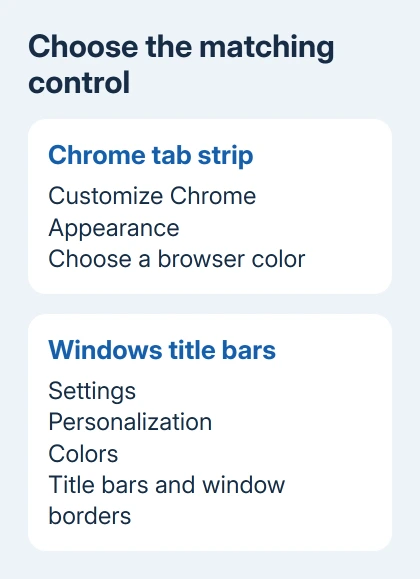
I'd start in Chrome because it lets you see the result immediately. If the tab strip responds there, you've found the relevant control without changing how the rest of Windows looks.
These steps apply to desktop Chrome on Windows. Winaero's Windows settings aren't a customization route for Chrome on an Android phone, iPhone, Mac, or Chromebook.
Set Chrome's browser color from a new tab
- Open a new tab in the intended profile.
- Select Customize Chrome in the page's bottom-right corner.
- Open Appearance in that panel.
- Choose an available color and check the browser frame.
Choose a shade that makes the active tab easy to distinguish from the other tabs. The color you select is used within Chrome's design; it won't necessarily make every part of the browser exactly the same shade.
Chrome can suggest a browser color when you choose a theme or upload a background image. If a new picture seems to change the browser unexpectedly, return to Appearance and choose the browser color you prefer.
For the picture itself, use the Chrome background controls. Keep that choice separate while checking the top strip, so it's clear which adjustment produced the change you wanted.
If you're comparing two Chrome windows, check their profile pictures. Changing one profile while looking at another can leave you checking a window that hasn't received your change. Start with one normal window in the intended profile.
Check light, dark, and device appearance
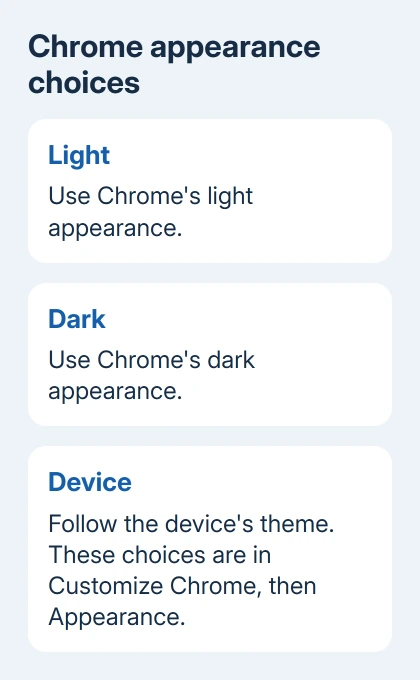
In Customize Chrome > Appearance, select Light, Dark, or Device. Light and Dark choose Chrome's appearance directly. Device makes the browser follow the device's theme.
If Windows is dark but Chrome stays light, check whether Chrome is set to Light rather than Device. If Chrome changes when Windows changes, that's how Device is meant to work.
Test the color in the appearance mode you plan to use. A shade that looks clear against a light toolbar can look quite different alongside a dark one. Choose the mode before deciding whether the browser color needs changing again.
An Incognito window can also look dark. Use a normal browsing window for this check and look for the Incognito indicator before treating the darker frame as a failed color setting.
These Chrome settings don't include a Winaero switch to set separate colors for active and inactive tab strips. Use the browser controls; a Windows inactive-title-bar setting doesn't necessarily apply to that strip.
Remove a theme that keeps giving the wrong result
If the installed theme is getting in the way, open Chrome's three-dot menu > Settings > Appearance. Under the theme setting, select Reset to default when it is available. Then try the built-in color choices again.
The customization panel also offers Reset to Default Chrome for restoring its default look. Use whichever appearance option your version shows. You don't need to reset unrelated browser settings just to remove a color.
A theme reset is a narrower change than the full Chrome settings reset. A full reset changes other browser preferences, so start with theme controls when the only complaint is its color.
If you want a Chrome Web Store theme, the theme controls can open the store. That's optional; the built-in colors are enough to check whether Chrome's own appearance controls work. You don't need an extension just to perform that check.
For a missing Customize Chrome button, check whether a new-tab extension has replaced the standard page. Try the browser's normal new-tab page after reviewing that extension's settings. A replacement page may offer its own controls instead.
Also check that Google is your default search engine and that you're signed into a Google Account in Chrome. Those are the setup conditions for the documented customization panel.
Use Windows accent colors for other app title bars
On Windows 11, open Settings > Personalization > Colors. Under Accent color, choose Manual and pick a color. Turn on Show accent color on title bars and window borders.
On Windows 10, open Settings > Personalization > Colors. Choose the accent color, then select Title bars and window borders under the surfaces that should show it. Windows 10 uses a different page layout.
Compare the result in another desktop app before judging it from Chrome alone. If that app's title bar changes while Chrome retains its own theme, changing the Windows accent again won't help you adjust Chrome's own color.
Winaero offers Windows appearance settings, including title-bar adjustments on supported versions. Its older colored-title-bar instructions describe how Windows works. They don't tell you whether today's Chrome will use that color.
Keep the Windows accent you actually want, then use Chrome's settings for the browser. Changing Windows themes or registry values just to chase one browser shade can alter other apps as well.
When the available colors still aren't what you want
If the built-in options work but don't offer the exact look you want, use Chrome menu > Help > Report an issue to request it. Include a description of the active tab strip and whether Light, Dark, or Device was selected.
For locked work or school controls, ask the administrator whether a theme policy applies. If a Winaero change altered other apps unexpectedly, revert that change rather than adding more tweaks.
The Short Version
Choose Chrome's color through Customize Chrome, then Appearance. Check Light, Dark, or Device and remove an unwanted theme. Windows accent settings and Winaero title-bar tweaks aren't a dependable override for Chrome's frame.
Checked November 12, 2026.
 If you have any business, I can build it online






