Steam's This app can't run on your PC message means Windows rejected the file you opened. Download a fresh Windows installer from Steam; for an existing installation, run it over the original folder to repair client files.
A Store-only installation warning, a SmartScreen reputation warning and an error from one game are different problems. Read the full message and check whether it appears before Steam opens or only after you choose a game.
In this guide
1. Check whether Windows is rejecting Steam or a game
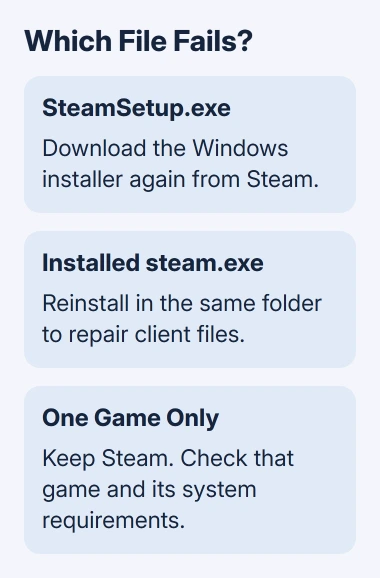
Note the filename you're opening. SteamSetup.exe is the Windows installer. steam.exe is the installed client. A game's executable belongs to that game, even when Steam launched it.
Right-click your Steam shortcut and open Properties. Check its target or choose Open File Location when available. This shows which installation Windows is trying to launch, including an old copy on a disconnected or different drive.
In File Explorer, choose View > Show > File name extensions. Read the actual ending rather than relying on its icon. Renaming a partial download, ZIP archive or non-Windows installer to .exe won't convert it into a Windows program.
If Steam opens normally and only one game fails, keep Steam installed. Use that game's support page and system requirements. The game-folder guide helps locate the executable its publisher may ask about.
For a failure from SteamSetup.exe or steam.exe, follow the repair steps for that file. Keep the exact warning or a photo of it for support; a different Windows warning can require a different action.
A Steam process that runs without displaying a window needs hidden-client startup checks, beginning with its compatibility options.
2. Download a fresh Windows installer from Steam
Open the official Steam download page and choose Install Steam for Windows. Wait for the completed download, then launch that new copy through Downloads or File Explorer.
Save this new installer separately from the file that failed. That keeps an old download or shortcut from sending you back to the same broken file. Check that the download came from Steam's own site.
Valve's client troubleshooting guidance recommends the current installer for client repairs. A damaged download is one possibility, but the message alone doesn't identify the cause.
Restart Windows through Start > Power > Restart, then open the completed installer. If it opens successfully, you'll see the Steam setup program instead of the Windows error. Follow its installation prompts.
If the new installer runs, discard the failed download after setup finishes. If Windows rejects the fresh official file too, move to the Windows version and restriction checks instead of downloading copies from other sites.
3. Repair an existing client in its original folder
Find the existing Steam installation folder before repairing it. C:\Program Files (x86)\Steam is a common location, but yours may be on a custom drive. Use the actual installed copy's location.
Run the fresh official installer and select that same installation location. Reinstalling there can replace damaged Steam client and service files. The vendor's procedure says this preserves installed games.
Don't uninstall Steam first for this repair. Uninstalling can remove game and user data. Keep separate backups of any local saves you need, because a game's save location and cloud support vary by game.
After setup, open Steam from the repaired installation. Check that Steam starts and your Library shows the existing games. If setup finishes but Windows still rejects steam.exe, tell support that the installer worked and the client didn't.
I'd repair the client files before changing Windows compatibility settings. The current installer is designed for supported Windows versions, and the repair replaces files it needs to start.
Once Steam runs, the Steam download power guide explains how to keep a subsequent game download active while the screen turns off.
4. Check Windows edition and the actual installation warning
Open Settings > System > About and read Windows specifications and System type. Check that your PC runs Windows 11 and whether its processor is Intel/AMD or ARM-based.
Windows 11 is a 64-bit operating system. Advice about upgrading a 32-bit Windows 11 installation doesn't apply. Steam ended Windows 32-bit support on January 1, 2026, but that is a separate limit affecting older Windows installations.
An ARM-based processor differs from an x64 Intel or AMD processor. Windows can translate many apps so they run on ARM, but some app components won't work that way. Give Steam Support your system type if the official installer won't run.
If the warning says Windows only runs Microsoft-verified or Store apps, check whether your PC is in S mode. Microsoft's S mode explanation says installing outside the Store requires leaving S mode.
Switching out is permanent. Review that choice before using Settings > System > Activation and the Go to the Store option in the switch-out section. Follow the free Switch out of S mode process, rather than buying a Windows edition upgrade.
Windows protected your PC is a SmartScreen reputation warning, rather than this launch error. Save that warning and the fresh installer's details and ask Steam Support to review it before running the flagged file.
A setting that recommends where to get apps is separate from S mode. On a managed PC, ask IT whether desktop app installation is restricted. A work or school policy shouldn't be treated as a corrupted Steam file.
5. Escalate a fresh-file failure with useful details
Check Settings > Windows Update > Check for updates, complete pending updates and restart if requested. Then retry the new official Steam installer once. Note whether Windows still rejects it before setup appears.
If Windows Security flags the download, open Protection history and keep the detection name for support. Don't disable protection or restore a flagged file to force installation. Ask support to review the detection.
For an installed client, include its folder path and whether reinstalling in place completed. For an installer failure, include the completed file's name, where it was downloaded and whether other ordinary Windows apps install successfully.
Open Steam Support > Steam Client at help.steampowered.com. Include the error, Windows version, processor type and fresh-installer result. Ask about compatibility with your configuration and client-file repair.
If unrelated apps receive the same rejection, take that wider symptom to Microsoft Support or your PC administrator. That calls for a Windows installation or policy check rather than repeated changes to Steam's game files.
The Short Version
Identify the rejected file, download a new Windows installer and repair Steam in its original folder. Check S mode for its own warning. If Windows still rejects the fresh file, send support your Windows version and processor type.
Checked November 12, 2026.